
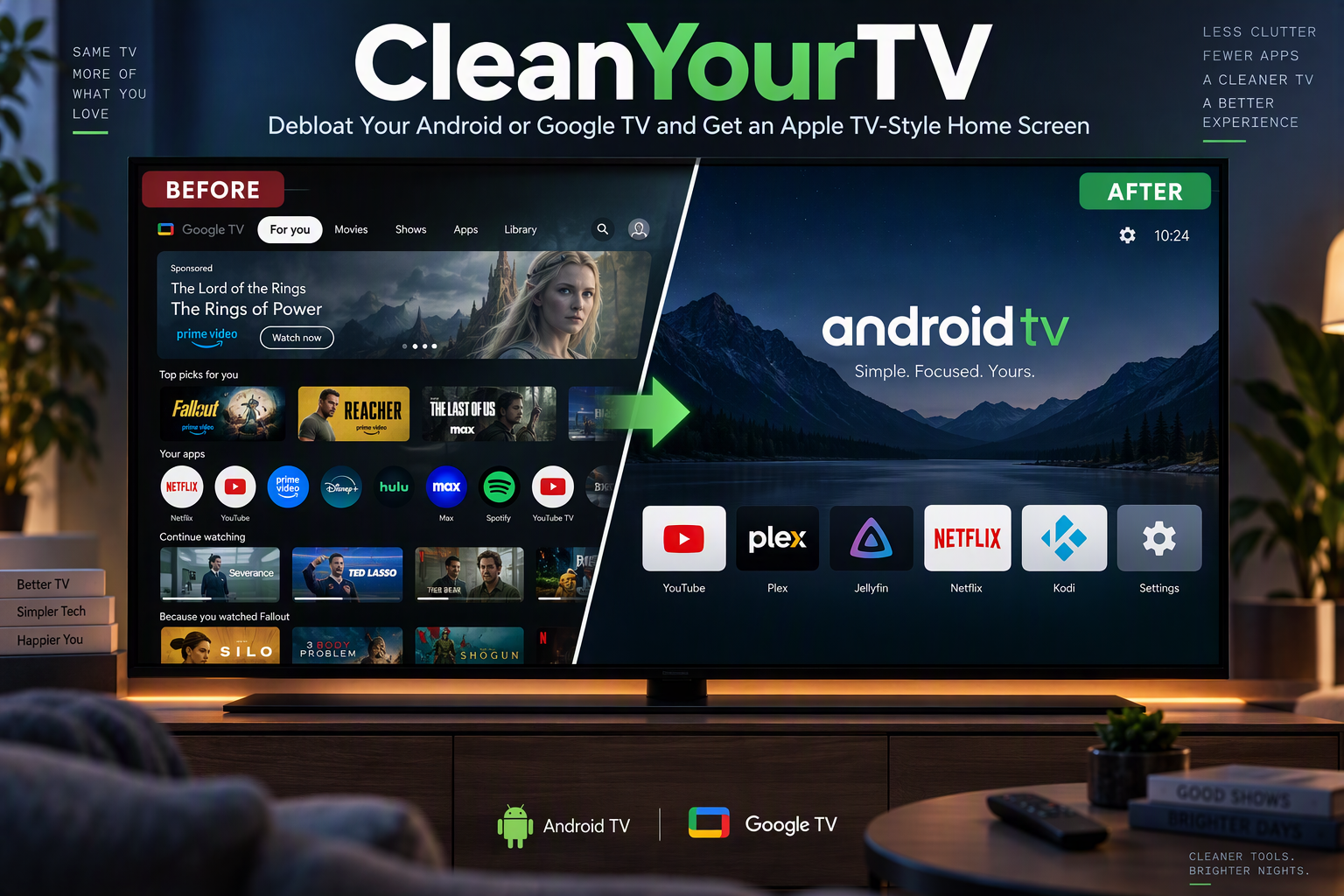
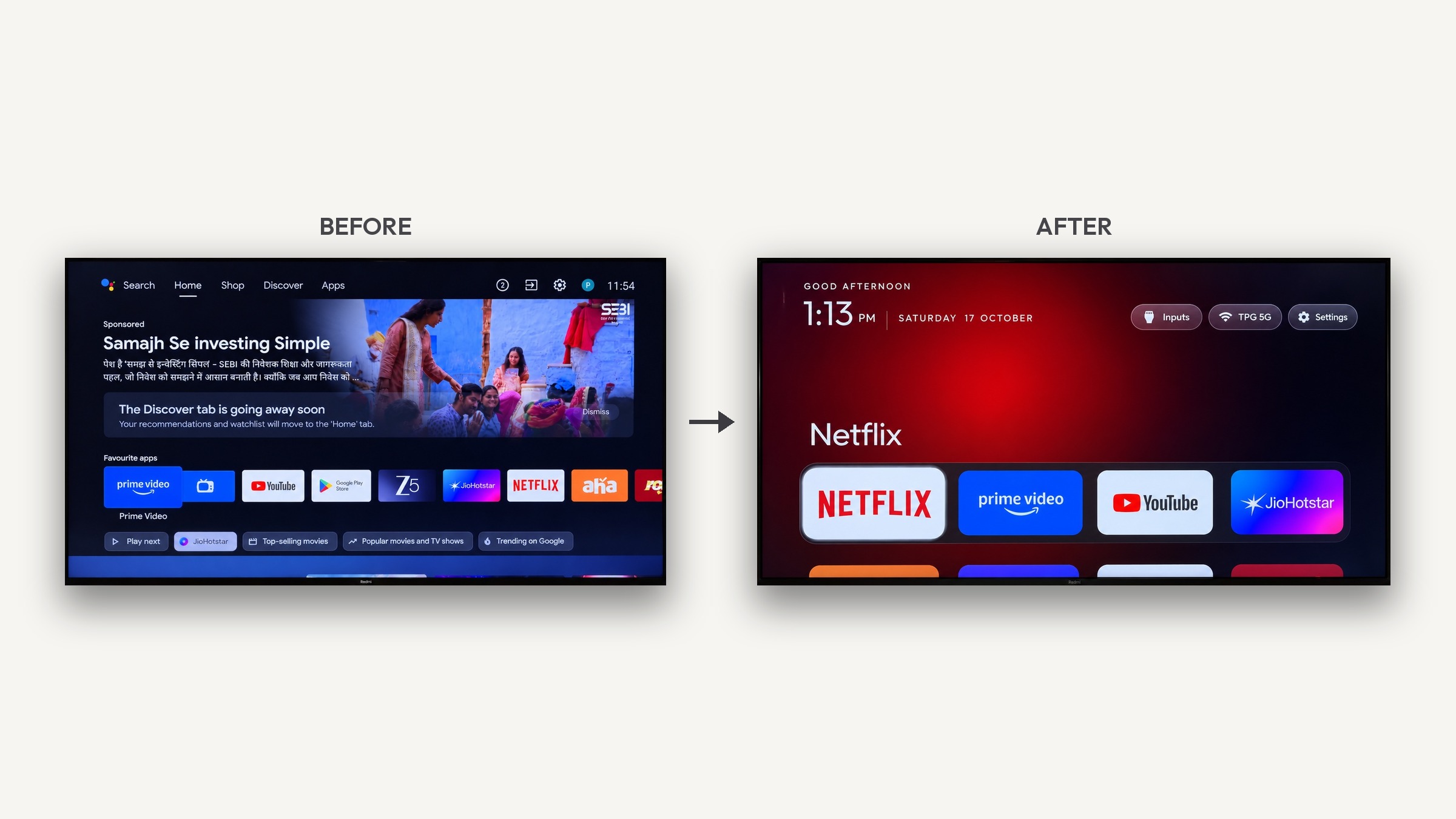
If you own a smart TV running Android TV or Google TV, you’ve probably noticed that the home screen isn’t really yours. Sponsored banners, “Discover” rows, and preinstalled apps you never asked for push your actual apps further down the screen, and many of the manufacturer’s services quietly send analytics in the background.
CleanYourTV is an open-source project that fixes this. It removes the bloatware from any Android or Google TV over your Wi-Fi network and replaces the ad-filled home screen with a minimal launcher inspired by Apple TV. It doesn’t need root, a cable, or a factory reset, and a single command restores everything.
The project started on 17 October 2026, when its author used Claude Code to clean up their parents’ TV, which was showing a sponsored ad before you could even get to Netflix. They shared the result online, and within a few days the repository had more than 17,000 GitHub stars, tested debloat lists for over 150 TV models from more than 50 brands, and coverage in TechCrunch, TechRadar, Tom’s Guide, Mashable, Android Authority, and XDA.
How CleanYourTV Works
Android TVs ship with the same Android Debug Bridge (ADB) that Android phones use. Once you turn on debugging in the TV’s developer options and approve your computer once, standard Android tooling can manage the TV over your local network. CleanYourTV uses that access in three steps:
- Back up the list of installed packages and settings.
- Disable the manufacturer’s telemetry, ad services, content rows, and preloaded apps with
pm disable-user. Nothing is uninstalled, so every step can be undone. - Install a small native launcher and make it the default home screen.
Because packages are only disabled in the user profile, never deleted or flashed, the TV’s firmware stays untouched. If anything goes wrong, the TV’s own Settings → Apps page can re-enable a package even without the project’s tools.
What the New Home Screen Looks Like
The launcher is a lightweight native Android app of about 429 KB, written in plain Java. It’s built to run smoothly on budget TVs with 1 GB of RAM, so it skips blur effects, video backgrounds, network access, and background services.
Here’s what you get:
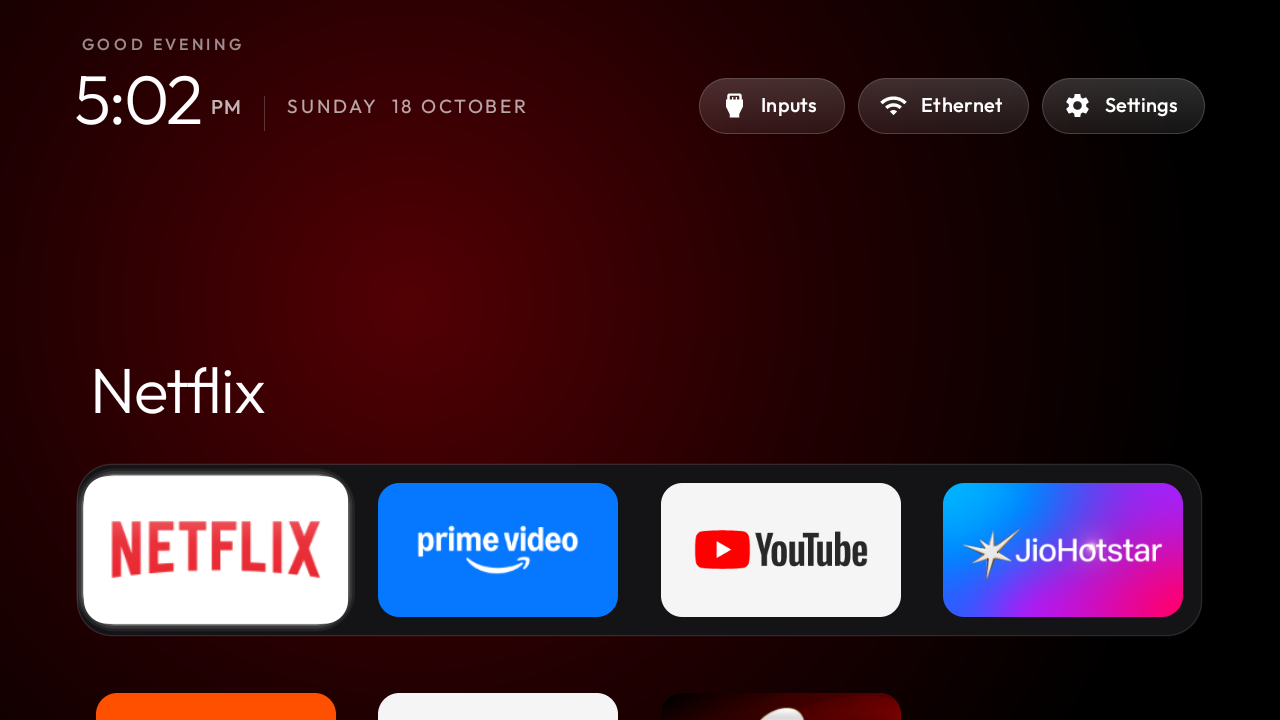
- A dark home screen with a dock of your four favorite apps, placed where Apple TV puts it.
- A “top shelf” that names the focused app in large type, with an ambient glow in a color taken from the app’s artwork.
- The rest of your apps in a grid that slides up when you press Down on the remote.
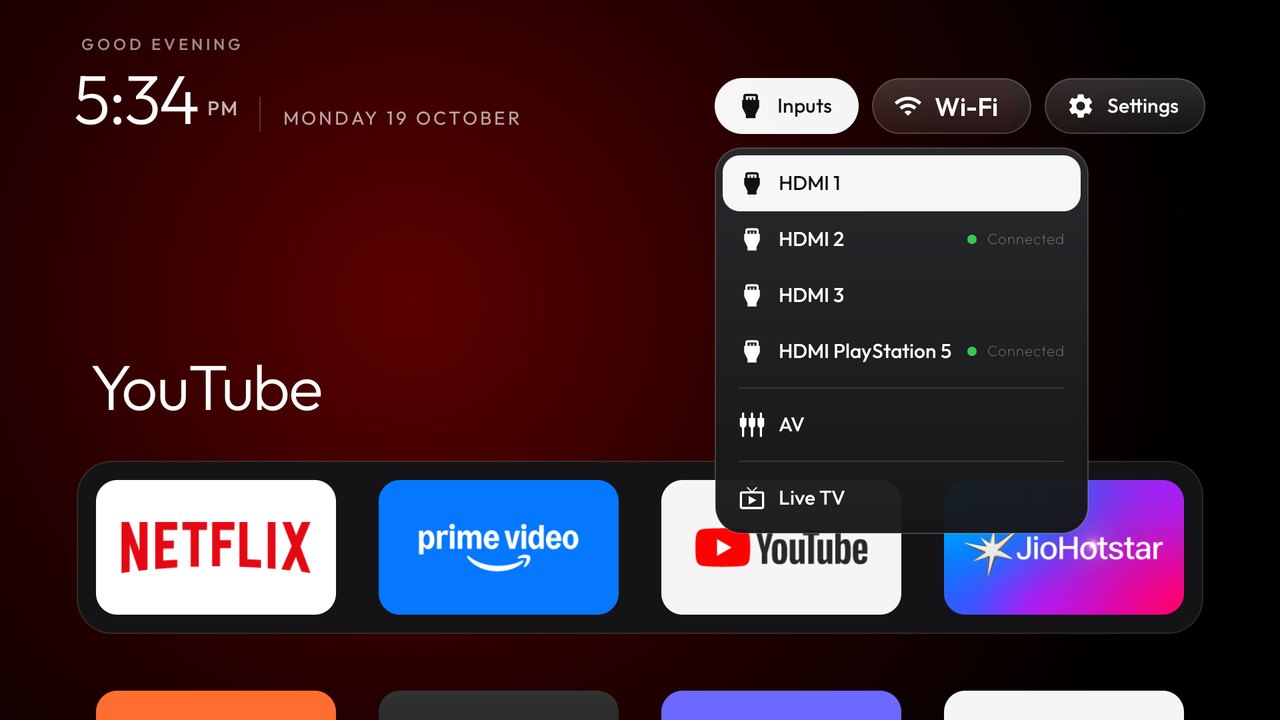
- Quick buttons for Inputs (HDMI ports with the names you gave them), your Wi-Fi network, and Settings.
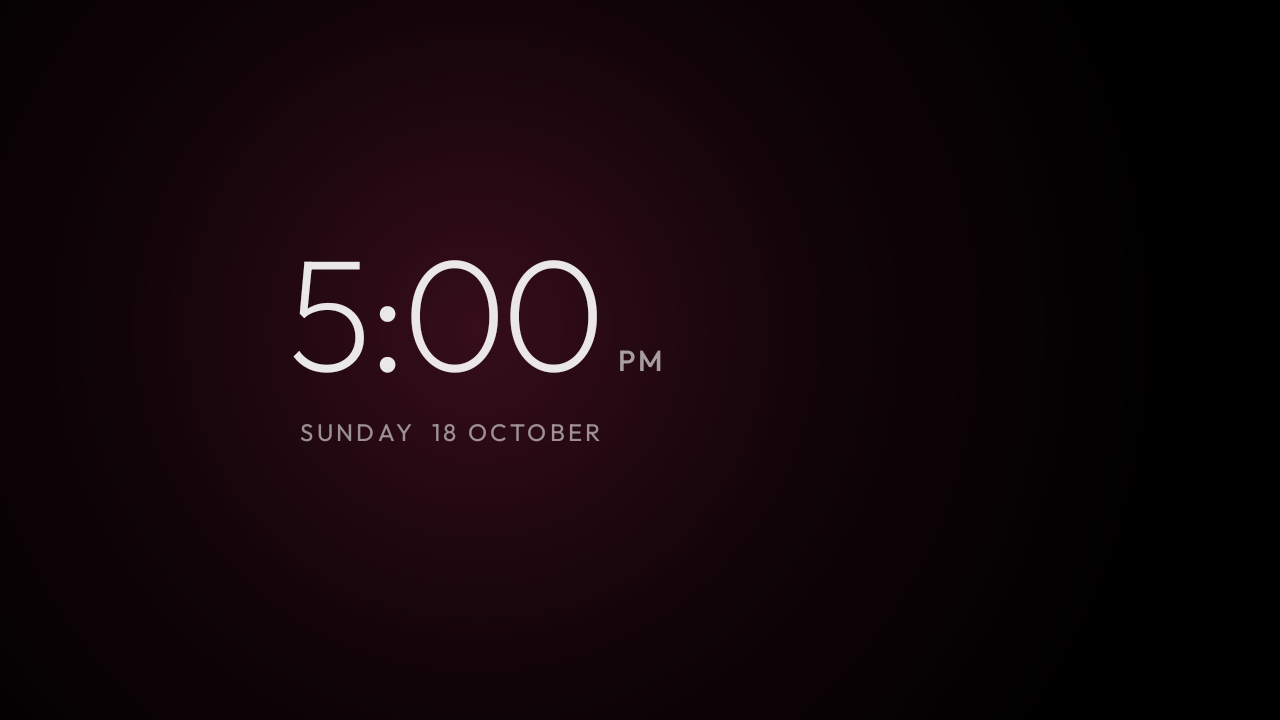
- A greeting, clock, and date, plus a matching clock screensaver that drifts so nothing burns into the panel.
- Themes that change colors, wallpaper, dock size, and column count without rebuilding the app.
- 24 languages, including English and Spanish, following the TV’s system language.
Which TVs Are Supported?
Anything that runs Android TV or Google TV, including sets from TCL, Sony, Xiaomi, Philips, Hisense, Panasonic, and NVIDIA Shield, plus Chromecast with Google TV and a number of projectors. Contributors have already shared tested debloat lists for over 150 models.
There are a few limits:
- Samsung (Tizen) and LG (webOS) run different operating systems and aren’t supported directly.
- Amazon Fire TV supports the debloat step only, because Fire OS won’t let a third-party launcher take over the home screen.
- Some China-market TCL models refuse to install any launcher at all.
- Chromecast with Google TV can run the new launcher, but only if Google’s setup wizard is disabled, and that breaks casting from your phone after every restart until the wizard is briefly switched back on. If you cast a lot, do the debloat only and keep the stock home screen (see the tip below).
If your model isn’t listed, the process discovers the bloat on your TV for you, and you can contribute your list back so the next person with your model can skip that step.
Tip: Keeping the stock Google TV home screen? Turn on Apps only mode under Settings → Accounts & sign-in → your main Google account. It removes the sponsored banner and recommendation rows and leaves just your apps, with no computer needed. It also turns off personalized recommendations and the watchlist.
Step-by-Step: How to Clean Up Your Android TV
The easiest way to use CleanYourTV is to let an AI coding assistant do the technical work while you make the decisions. You don’t need to know how to code. You only need to follow the steps below, press a few buttons on your TV remote, and answer some simple questions.
What You’ll Need
- A TV or streaming box running Android TV or Google TV
- A computer (Mac, Windows, or Linux) connected to the same Wi-Fi network as the TV
- An AI coding assistant that can run commands on your computer, such as Claude Code, Codex, or Gemini CLI
- About 30 minutes, and your TV remote
Tip: If you have a USB drive or speaker plugged into the TV, some models cut power to the USB port while debugging is on. It comes back once you turn debugging off at the end.
Step 1: Find Your TV’s Model Name
On the TV, open Settings → Device Preferences → About (on Google TV: Settings → System → About). Write down the Model name (for example, Xiaomi Mi TV 4A or TCL 55S470G) and check that the Android TV OS version is listed. If you don’t see an Android version, your TV probably runs a different system and isn’t supported.
Step 2: Find Your TV’s IP Address
Open Settings → Network & Internet and select the Wi-Fi network the TV is connected to. Write down the IP address. It usually looks like 192.168.1.50. The exact menu names vary a little between brands.
Step 3: Turn On Developer Options
Go back to the About page from Step 1, scroll down to Build (called Android TV OS build on Google TV), and press OK on your remote seven times in a row. You’ll see a message saying “You are now a developer.” This unlocks a hidden menu and doesn’t change anything else on the TV.
Step 4: Turn On USB Debugging
Press Back once, then open Developer options (under Device Preferences, or under System on Google TV). Turn on USB debugging. If you also see Network debugging or ADB debugging, turn that on too. Despite the name, this lets your computer talk to the TV over Wi-Fi, so no cable is needed. Leave the TV on for the rest of the process.
Newer Google TV models don’t have a Network debugging switch. Instead, you’ll find Wireless debugging in the same menu. Turn it on and approve the prompt that asks to allow wireless debugging on this network. The pairing code you’ll need in Step 8 also lives in this menu.
Step 5: Download CleanYourTV to Your Computer
Open a terminal on your computer and download the project with Git:
git clone https://github.com/Gathin23/cleanyourtv.git
cd cleanyourtv
If you don’t have Git installed, open the CleanYourTV GitHub page, click the green Code button, choose Download ZIP, and unzip it. Then open a terminal inside the cleanyourtv folder.
Step 6: Start Your AI Assistant
Inside the cleanyourtv folder, start your AI assistant. For Claude Code, type:
claude
Starting it inside the project folder matters, because the assistant can then reuse the project’s ready-made tools instead of writing everything from scratch.
Step 7: Give the Assistant the Prompt
Open the PROMPT.md file in the project folder and copy the text between the two --- lines. Paste it into your assistant, and before pressing Enter:
- Replace
<MODEL NAME HERE>with the model name from Step 1. - Add a line with your TV’s IP address from Step 2, for example:
My TV's IP address is 192.168.1.50. - Add:
I cloned the cleanyourtv repo, so reuse tools/ and launcher/.
Then press Enter and let the assistant start.
Step 8: Allow Your Computer on the TV
After a moment, a box will pop up on the TV asking “Allow USB debugging?” Check Always allow from this computer and select OK. The assistant will tell you when to expect this. If you miss it, just ask the assistant to connect again.
If the Assistant Asks for a 6-Digit Pairing Code
If your TV uses Wireless debugging (common on Google TV), no “Allow USB debugging?” box appears. Instead, the assistant will ask you for a 6-digit pairing code, and you need to pair your computer with the TV once:
- On the TV, open Developer options → Wireless debugging.
- Select Pair device with pairing code.
- The TV shows a 6-digit code and an IP address and port (for example,
192.168.1.50:37215). - Type the code and that IP address and port to the assistant. Keep the pairing screen open while you do, because the code stops working when you close it.
- The assistant runs Android’s standard
adb pairwith your code, thenadb connectandadb tcpip 5555. That last command switches the TV to the same network ADB on port 5555 that the project’s tools use, so they work from then on.
A few details trip people up:
- The pairing port on that screen is different from the connection port shown on the main Wireless debugging screen. Use the pairing port with the code. The assistant can usually find the connection port by itself, or it will ask you for it after pairing succeeds.
- The code and the pairing port change every time you open the pairing screen. If pairing fails, close the screen, open it again, and give the assistant the new code and port.
- Android switches Wireless debugging off whenever the TV’s Wi-Fi drops, and also when the TV restarts. Port 5555 from
adb tcpipdoesn’t survive a restart either. If the assistant loses the TV, turn Wireless debugging back on. You won’t need a new code, because your computer stays paired.
Step 9: Answer the Assistant’s Questions
The assistant backs up your TV first and then asks you a few questions before changing anything. Expect questions like:
- Which apps do you use? For example, Netflix, YouTube, Prime Video, or Disney+.
- Which four apps go in the dock, and in what order?
- Do you want to keep the voice assistant, Chromecast (casting from your phone), and system updates?
If you’re not sure about something, it’s safer to keep it. You can always disable it later.
Step 10: Let It Work and Check the Result
The assistant removes the bloat in small batches, takes screenshots from the TV to check each step, and then builds and installs the new launcher. When it’s done, press Home on your remote and you should see the new Apple TV-style home screen.
Test the basics:
- Open a few of your apps.
- Switch to an HDMI input using the Inputs button at the top of the screen.
- Press any shortcut buttons on your remote, such as Netflix, YouTube, or Input. If one doesn’t work, tell the assistant and it can remap it.
Step 11: Turn Debugging Back Off
This step is important for security. On the TV, open Developer options and:
- Turn off USB debugging, plus Network/ADB debugging or Wireless debugging, whichever your TV has.
- Select Revoke USB debugging authorizations.
- Restart the TV.
The new home screen keeps working with debugging turned off. See Security: Close the Door When You’re Done below for why this matters.
Changed Your Mind? How to Undo Everything
Everything CleanYourTV does can be undone:
Easiest: turn debugging back on (Step 4), start the assistant in the
cleanyourtvfolder again, and ask it to restore the TV to how it was before. This works no matter how the changes were made.By hand: if you used the project’s
tools/disable.sh(see Doing It by Hand below), run the restore script with the same list file. The undo command at the top of your model’s list inexamples/shows the exact command for your TV, including the stock home screen to bring back:TV_HOST=192.168.1.50 tools/restore.sh examples/<your tv>/debloat.txt <stock launcher package>Without a computer: open Settings → Apps on the TV, show system apps, select any disabled app, and choose Enable.
Common Problems and Quick Fixes
| Problem | What to do |
|---|---|
| The assistant can’t find the TV | Make sure the TV and computer are on the same Wi-Fi network, the TV is on, and you gave the correct IP address. |
| “No route to host” on a Mac | macOS is blocking the standard adb tool. The project’s tools/tv.py works around this, and the assistant knows to use it. |
| The “Allow USB debugging?” box never appeared | Check that USB debugging is still on, then ask the assistant to try connecting again. |
| The TV only offers Wireless debugging (common on Google TV) | Pair with the 6-digit code. See the pairing steps in Step 8. |
| The assistant lost the TV after a restart | Turn Wireless debugging back on. No new code is needed. |
| The TV lost its Wi-Fi connection | On some Google TV sets, the Wi-Fi network belongs to the setup wizard. Forget the network and join it again in Settings, then continue. |
| Casting from your phone stopped working (Chromecast) | Disabling the setup wizard breaks casting after a restart. Ask the assistant to re-enable setupwraith, or keep the stock home screen and use Apps only mode instead. |
| A remote button stopped working | Tell the assistant which button. It can remap it with the launcher’s remote key settings. |
| The TV refuses to install the launcher | Some China-market models block it. You still get the debloat, but the original home screen stays. |
The project’s full troubleshooting guide covers rarer issues.
Advanced: Doing It by Hand
If you’d rather skip the AI assistant and run the commands yourself, you can. The project’s tools do all the hard work. You just run them one at a time in a terminal. The commands below are for Mac and Linux; Windows users can find the matching PowerShell commands at the end of this section.
What You’ll Need
- Everything from the step-by-step guide above, except the AI assistant
- Python 3 installed on your computer
- JDK 17 and the Android SDK (platform 34) to build the launcher. Step 8 shows how to install them.
Step 1: Prepare the TV and Download the Project
Follow Steps 1–5 of the guide above: write down your TV’s model name and IP address, turn on Developer options and USB debugging, and download CleanYourTV. Then open a terminal inside the cleanyourtv folder. Every command below runs from that folder.
Step 2: Set Up the Python Tools
The project’s tools run inside a Python virtual environment, so they don’t interfere with anything else on your computer. If this is new to you, my guide to Python virtual environments explains how they work.
python3 -m venv tools/venv
tools/venv/bin/pip install -r tools/requirements.txt
You only need to do this once.
Step 3: Tell the Tools Where Your TV Is
Save your TV’s IP address (from Step 2 of the guide above) so every tool can find it:
export TV_HOST=192.168.1.50
Replace 192.168.1.50 with your TV’s actual IP address. This setting only lasts until you close the terminal, so run it again if you open a new one.
Step 4: Test the Connection
tools/venv/bin/python -I tools/tv.py --probe
The “Allow USB debugging?” box appears on the TV. Check Always allow from this computer and select OK. If everything works, the terminal prints your TV’s model, Android version, and firmware.
tools/tv.py is a small ADB client written in Python, so you don’t need to install Android’s own adb tool. It also works on Macs where macOS blocks adb with a “No route to host” error.
If your TV only has Wireless debugging, there’s no “Allow USB debugging?” box. You need to pair first, using the 6-digit code from Developer options → Wireless debugging → Pair device with pairing code. See If the Assistant Asks for a 6-Digit Pairing Code above for the screens and the two port numbers. tools/tv.py can’t pair by itself, so use Android’s own adb tool once. Install it with brew install --cask android-platform-tools, or, if Homebrew gives you trouble, download Google’s SDK Platform-Tools zip and unzip it. Then run these commands:
adb pair <tv ip>:<pairing port> <6-digit code>
adb connect <tv ip>:<connection port>
adb tcpip 5555
After adb tcpip 5555, tools/tv.py works with your normal TV_HOST (just the IP address) until the TV restarts. On a Mac you can find the pairing port while the code is on screen with dns-sd -B _adb-tls-pairing._tcp, or on any system with adb mdns services. The project’s troubleshooting guide has more detail.
Step 5: Find a Debloat List for Your TV
A debloat list is a plain text file that names the apps to disable, one per line. Contributors have shared lists for more than 150 TVs in the examples folder. To see them all:
ls examples
Look for a folder that matches your model. Each list starts with a few comment lines (starting with #) that say exactly which model and firmware it was tested on, plus any known quirks.
If you can’t find your exact model, choose the closest one from the same brand. To see every app installed on your TV, run:
tools/venv/bin/python -I tools/tv.py 'pm list packages'
Step 6: Copy and Review the List
Make your own copy of the list so you can edit it safely. This example uses the Xiaomi Mi TV 4A list. Replace it with the folder you picked:
cp examples/xiaomi-mi-tv-4a/debloat.txt my-tv-debloat.txt
Open my-tv-debloat.txt in any text editor and read through it. Most lines have a short comment explaining what the app does. To keep an app, put a # at the start of its line. Pay extra attention to anything related to your voice assistant, Chromecast, or system updates.
Keep this file. You’ll need the exact same file later if you ever want to undo the changes.
Step 7: Disable the Bloatware
tools/disable.sh my-tv-debloat.txt
Before changing anything, the script saves a record of how your TV looked (which apps were on, which were already off, and which app owned the home screen) in a hidden ~/.cleanyourtv/ folder on your computer. Then it disables every app on your list. Nothing is uninstalled.
The script is careful by design. If your list includes the app that currently runs the home screen, it skips that app so your TV is never left without one. On Google TV, it may also skip the setup wizard if your Wi-Fi network depends on it. The script prints a message explaining any app it skips. That’s expected, and you’ll come back to it in Step 11.
Step 8: Install the Tools to Build the Launcher
The new home screen is an Android app that you build on your own computer. The project intentionally doesn’t offer a ready-made download, so you always know exactly what goes on your TV. To build it, you need JDK 17 and the Android SDK.
On a Mac with Homebrew:
brew install openjdk@17 android-commandlinetools
sdkmanager "platforms;android-34" "build-tools;34.0.0"
On Linux, the easiest option is to install Android Studio, which puts the SDK in ~/Android/Sdk, and to install JDK 17 from your distribution’s package manager. The build script finds both automatically.
Step 9: Choose Your Dock Apps (Optional)
To pick which apps appear in the dock, and in what order, open this file in a text editor before you build:
launcher/app/src/main/res/values/config.xml
It also lets you hide apps, change the number of columns, and turn off animations for slower TVs. If you skip this step, the launcher uses its default settings, and you can change some of them later from the TV.
Step 10: Build and Install the New Home Screen
launcher/build-and-install.sh
The first build takes a minute or two. The script then:
- Builds the launcher (about 429 KB) and installs it on your TV.
- Asks the TV which app currently runs the home screen.
- Makes the new launcher your home screen and only then disables the old one.
- If the new home screen doesn’t start, it automatically switches the old one back on.
When it finishes, press Home on your remote. You should see the new Apple TV-style home screen.
Step 11: Run the List Again (If Anything Was Skipped)
If Step 7 skipped any apps, run the same command again now that the new launcher is in place:
tools/disable.sh my-tv-debloat.txt
This time the script disables the remaining apps. It keeps the original record from Step 7, so you can still restore the TV to how it was at the start.
If the script skipped the Google TV setup wizard because of your Wi-Fi, first open Settings on the TV, forget your Wi-Fi network, and join it again. Then run the command. On a Chromecast with Google TV, remember that disabling the setup wizard breaks casting from your phone after each restart (see Which TVs Are Supported?).
Step 12: Test Everything and Turn Debugging Off
Open a few apps, switch to an HDMI input, and try the shortcut buttons on your remote. When everything works, follow Step 11 of the guide above to turn debugging off and restart the TV.
How to Undo It by Hand
Turn debugging back on, open a terminal in the cleanyourtv folder, set TV_HOST again (Step 3), and run the restore script with the same list file you used in Step 7:
tools/restore.sh my-tv-debloat.txt
The script reads the record saved in Step 7. It turns your apps back on and gives the home screen back to the launcher that had it before. The new launcher stays installed, but it’s no longer your home screen. To remove it completely, go to Settings → Apps on the TV and uninstall it.
On Windows
Every script has a PowerShell version. Install Android Studio for the build tools, then run these commands in PowerShell from the cleanyourtv folder:
python -m venv tools\venv; tools\venv\Scripts\python.exe -m pip install -r tools\requirements.txt
powershell -ExecutionPolicy Bypass -File tools\disable.ps1 -TvHost 192.168.1.50 my-tv-debloat.txt
powershell -ExecutionPolicy Bypass -File launcher\build-and-install.ps1 -TvHost 192.168.1.50
powershell -ExecutionPolicy Bypass -File tools\restore.ps1 -TvHost 192.168.1.50 my-tv-debloat.txt
The steps are the same as above. Only the commands are different.
Security: Close the Door When You’re Done
ADB access is powerful, and the project is upfront about it. Network ADB runs unencrypted on port 5555, and on some firmware any device on your network could get a shell on the TV. Once you’re finished:
- On the TV, open Developer options, turn off USB debugging and Network/ADB debugging (or Wireless debugging on Google TV), and revoke the USB debugging authorizations.
- Reboot the TV and confirm the port is closed from your computer with the project’s checker,
python3 tools/adb-closed.py <tv ip>. Don’t rely onncon a Mac: macOS Local Network privacy can block it, and its “No route to host” proves nothing. Only “Connection refused” means the port is closed.
The new launcher keeps working with debugging turned off. If you want to help a family member in another home, the project recommends a private Tailscale connection. Never open the ADB port on their router.
For a bit more ad blocking inside apps, CleanYourTV also shows how to point Android’s Private DNS at an ad-blocking resolver such as AdGuard DNS. Keep in mind that this won’t remove YouTube ads, and the resolver will see every DNS query your TV makes.
Why This Project Is Worth a Look
Beyond giving you a cleaner TV, CleanYourTV is a good example of a few ideas worth learning from:
- Reversible by design. Every change is recorded and can be undone, which is a habit worth copying in any script that touches someone else’s system.
- Built for low-end hardware. A 429 KB launcher with no background services shows how much you can do with very little.
- Community-driven. Most of the supported TV list came from people replying to the original post and opening pull requests, using the same Git workflow as any other open-source project.
- AI-assisted from the start. The repository is structured so an AI coding assistant can follow it, which makes a fairly technical job manageable for non-developers while still keeping a human in the loop for every decision.
If you have an Android TV that feels more like a billboard than a TV, check out CleanYourTV on GitHub or the project site at cleanyour.tv. It’s released under the MIT license.