
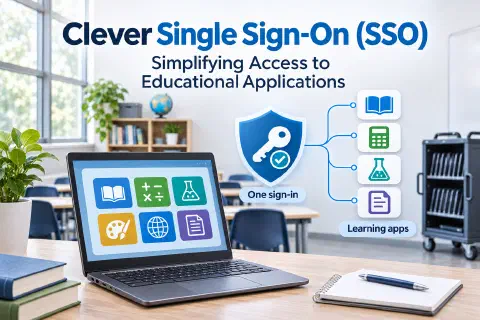
Clever is a K-12 platform that gives students and teachers one login, usually their school Google or Microsoft account, for all of their learning apps. It also syncs class rosters from the school’s student information system (SIS) to each app automatically, so accounts and classes are ready without anyone typing them in.
A typical classroom uses a dozen or more digital tools: a reading program, a math platform, a typing app, video lessons, assessments. Without single sign-on, every one of them needs its own username and password. Young students forget them, teachers lose the first ten minutes of class to login problems, and the IT help desk spends its days resetting passwords.
This guide explains what single sign-on is, how Clever works in schools, how Clever Badges let even kindergartners log in without typing, what’s free and what isn’t, the security and privacy questions IT teams should ask, and a practical plan for rolling it out.
What Is Single Sign-On (SSO)?
Single sign-on lets a person sign in once, with one trusted account, and then open many applications without signing in again. The account lives with an identity provider (IdP), such as Google Workspace, Microsoft Entra ID, or Active Directory. When you open an app, it asks the identity provider, “Is this person signed in, and who are they?” instead of asking you for a separate password.
Behind the scenes, SSO uses standard protocols such as SAML, OAuth 2.0, and OpenID Connect. You don’t need to know them to use Clever, but they’re why one login can work across hundreds of different apps from different companies.
The benefits are the same everywhere:
- Fewer passwords, so fewer forgotten passwords and resets.
- Faster access, often one click per app.
- Central control: when a person leaves, disabling one account cuts off access to everything.
- Better security, because protection like multi-factor authentication only needs to be strong in one place.
Why SSO Matters Even More in K-12 Schools
Schools have problems most businesses don’t:
- Young users. A first grader can’t reliably type a long password, let alone a dozen of them.
- Many apps, chosen by many people. Districts, schools, and individual teachers all adopt tools.
- Constant change. Students enroll, change classes, and move between schools all year, and every app’s class lists need to follow.
- Limited IT staff supporting thousands of students and devices.
- Sensitive data about minors, protected by laws such as FERPA and COPPA in the United States. See K-12 Data Privacy.
Every minute spent logging in is a minute not spent learning, which is why SSO is now standard infrastructure in many districts.
What Is Clever?
Clever describes itself as a platform that “securely connects the data and applications that schools rely on.” In practice, it does two big jobs:
- Rostering: it reads student, teacher, and class information from the district’s SIS and shares it with each learning app the district approves.
- Access: it gives everyone one login and one portal for all of those apps.
According to Clever’s website, it’s used by 77% of US K-12 schools, has about 27.5 million monthly active students, and works with more than 1,250 applications. (These are Clever’s own figures as of late 2026.)
The Main Pieces
| Component | What it does | Cost for schools |
|---|---|---|
| Secure Sync Rostering | Syncs students, teachers, and classes from the SIS to approved apps, with daily updates | Free |
| Single Sign-On | One username and password opens every supported app, on any device or browser | Free (Secure Access tier) |
| Clever Portal | A personalized launch page with an icon for each app | Free |
| Clever Badges | QR-code logins for students who can’t type passwords yet | Included in the Secure Access tier |
| Substitute Access | Temporary, secure credentials for substitute teachers | Included in the Secure Access tier |
| Clever Analytics | Shows which apps are being used, and how much | Basic version included |
| Clever IDM | Automatically creates and manages student accounts in Google, Active Directory, and Entra ID, plus password management | Paid (Protect Plus tier) |
| Classroom MFA | Multi-factor authentication designed for students, without a phone | Paid (Protect Plus tier) |
Product names and tiers come from Clever’s pricing page; check it for the current details, since Clever doesn’t publish tier prices.
How Clever Works, Step by Step
- The district connects its SIS (such as PowerSchool, Infinite Campus, or Aeries) to Clever. Clever reads students, teachers, sections, and enrollments, and keeps them in sync as the SIS changes each day. It also supports the 1EdTech OneRoster standard.
- The district approves apps and decides what data each one receives. Clever’s field-level access controls let administrators share only the specific SIS fields an app actually needs.
- Each app receives its roster. Student accounts and class lists appear in the app automatically, so teachers don’t build classes by hand.
- Students and staff sign in to Clever with the district account they already have, usually Google or Microsoft, or with a Clever Badge.
- They open the Clever Portal and click any app. Clever passes their identity to the app, which logs them straight in.
When a student changes classes in the SIS, the change flows to the apps on the next sync. When a student leaves the district, their access ends without anyone visiting each app.
Clever Badges: Logins for Young Students
Clever Badges are printed cards (or stickers) with a personal QR code. A student holds the badge up to the device’s camera, and they’re signed in, with no typing at all. Clever says logins are “easy for students of all ages” with Badges, and they’re especially useful for pre-K through 2nd grade, students with disabilities, and shared devices.
Treat badges like passwords:
- Keep them in the classroom, not in backpacks or on social media. Anyone with a photo of a badge could sign in as that student.
- Store them securely, such as in a teacher’s binder or a badge holder at each desk.
- Reprint and replace a lost badge right away; replacing it invalidates the old code.
- Phase them out as students learn to sign in with their regular account, usually in the upper elementary grades.
What Clever Costs
For schools, the core platform is free: Clever states that “Secure Sync Rostering and the Clever Portal are free for schools,” and its free tier also includes single sign-on and Badges. The business model works the other way around: application companies pay Clever to roster their apps through it, and Clever says its terms don’t allow those companies to charge schools for rostering through Clever.
Paid plans add advanced identity and security features, such as Clever IDM (account provisioning and password management) and Classroom MFA, along with services like training and premium support.
Benefits for Each Group
- Students spend less time logging in and more time learning, with one place to find all their apps.
- Teachers get classes that are already set up and stay accurate, and fewer “I can’t log in” interruptions.
- IT teams manage access centrally, onboard and offboard users automatically, approve apps in one place, and see usage data to decide which tools are worth renewing.
- District leaders get consistent data sharing and a clearer picture of which edtech is actually used.
Security and Privacy Considerations
SSO improves security overall, but it also concentrates risk: one account now opens everything. Plan for that.
- Protect the identity provider. Require strong passwords and multi-factor authentication for staff accounts in Google or Microsoft, especially administrators. A compromised admin account is far more dangerous with SSO in place.
- Consider MFA for students too. Phones aren’t an option for most students, which is why Clever’s Classroom MFA uses device-free factors; Clever says it offers eight student-friendly options, including Badges, login pictures, and PINs.
- Share the minimum data. Use field-level controls so each app gets only what it needs. A typing app doesn’t need home addresses.
- Vet every app. Before approving a tool, review its privacy policy and sign a data privacy agreement where your state requires one. Clever states that it “never sells or rents student data or permits advertising on its platform,” but each connected app has its own practices.
- Offboard reliably. Make sure students and staff who leave are removed in the SIS and the identity provider, so access ends everywhere.
- Watch for phishing. Students and staff should only enter their district password on the real sign-in page. Teach them to check the address bar.
- Plan for outages. If the identity provider or Clever is down, sign-in stops everywhere. Know the status pages to check, and keep a backup lesson plan that doesn’t depend on logins.
These measures fit into the wider district security picture covered in Ransomware Attacks on K-12 Schools and K-12 DNS Filtering.
Rolling Out Clever: A Practical Plan
- Inventory your apps. List every tool in use, who uses it, and whether it supports Clever SSO and rostering.
- Clean your SIS data. Rostering is only as good as its source: fix duplicate students, missing teacher assignments, and inconsistent section names first.
- Connect the SIS and your identity provider (Google Workspace or Microsoft Entra ID), and test with a small set of accounts.
- Approve apps and set data sharing for each one, sharing only the fields it needs.
- Prepare Badges for the youngest grades, with a plan for storing and replacing them.
- Pilot with a few classrooms for a couple of weeks, and collect feedback from teachers.
- Train teachers and front-office staff, including how to help a student who can’t sign in and when to contact IT.
- Roll out district-wide, then use usage analytics to retire tools nobody uses and to plan renewals.
- Review regularly: app approvals, data sharing settings, admin accounts, and offboarding.
Clever SSO works best alongside good device management. See Managing Chromebooks in K-12 Schools and Mosyle MDM for K-12 Schools for that side.
Troubleshooting Common Problems
| Problem | Likely cause | What to try |
|---|---|---|
| A student doesn’t see an app in the portal | The app isn’t shared with that school, grade, or section | Check the app’s sharing settings and the student’s enrollment in the SIS |
| A class is missing students | The SIS data hasn’t synced yet, or the enrollment is wrong in the SIS | Fix the record in the SIS and wait for the next sync |
| A Badge won’t scan | Poor lighting, a dirty camera, or a damaged or replaced badge | Clean the camera, improve lighting, hold the badge steady; reprint if needed |
| A student is sent back to the login page in a loop | Browser settings, extensions, or blocked pop-ups | Try another browser profile or a managed device policy that allows the sign-in flow |
| A staff member can’t sign in at all | Their Google or Microsoft account is locked or their password expired | Reset it in the identity provider, not in Clever |
When the cause isn’t obvious, check whether the problem affects one user, one class, one app, or everyone; that usually points straight to the SIS, the sharing settings, the app, or the identity provider.
What’s New: Late 2026
At its November 2026 product event, Clever announced several updates. According to Clever’s announcement:
- Classroom MFA is available now, with student-friendly factors that don’t need a phone.
- Secure password management within Clever IDM is available now, including bulk password resets.
- Clever is fully available in Spanish.
- Field-level access controls and role-based access controls for administrators are available now.
- macOS Platform SSO support for Badges and Classroom MFA is listed as coming next.
Clever also noted that Microsoft plans to end voice and text sign-in codes for Entra ID starting February 1, 2027. Districts that rely on text-message codes for Microsoft accounts should review their MFA options before then.
Frequently Asked Questions
What is Clever SSO?
It’s single sign-on for schools: students and teachers sign in once with their district account (or a Clever Badge) and then open all of their approved learning apps from the Clever Portal without separate passwords.
Is Clever free for schools?
The core platform is. Clever says rostering and the Clever Portal are free for schools, and its free tier includes single sign-on and Badges. Application companies pay to connect to Clever. Advanced features like Clever IDM and Classroom MFA are paid.
What is a Clever Badge?
A printed card with a personal QR code that students hold up to their device’s camera to sign in without typing. They’re designed for young students and should be stored and protected like passwords.
Does Clever replace Google or Microsoft accounts?
No. Clever usually works on top of them: students sign in to Clever with their Google or Microsoft account, and Clever handles access to the learning apps. Clever IDM can also help create and manage those accounts.
Is Clever secure?
Clever centralizes access, which reduces password reuse and makes offboarding reliable, and it offers controls like field-level data sharing and student MFA. Overall security still depends on how the district protects its identity provider, which apps it approves, and how it manages badges and admin accounts.
What are the alternatives to Clever?
ClassLink offers a similar portal and rostering service, and some districts use Google Workspace or Microsoft Entra ID single sign-on directly with apps that support it. The best fit depends on your SIS, your identity provider, and which apps your teachers use.
Conclusion
Clever solves two of the most time-consuming problems in school technology: getting accurate rosters into every learning app, and getting students signed in to them quickly. With one login, a single portal, and Badges for the youngest learners, classes start on time and the help desk stops drowning in password resets.
Treat it as part of your security program, not just a convenience: protect the identity provider with MFA, share only the data each app needs, vet every tool, and keep offboarding tight. Done well, single sign-on makes schools both easier to use and safer.
Sources
- Clever. School Solutions.
- Clever. Pricing.
- Clever. (2026, November 13). NEXT@ Clever 2026 Product Announcements.