

Computer Networking for Beginners series — Part 2. This post continues Part 1: A Complete Guide to How Networks Work, which gave you the big picture of how networks work. This part takes a closer look at one of its key ideas: the OSI model.
The Open Systems Interconnection (OSI) or OSI Model was invented as a representation to standardize communication between two computers. This networking model divides the networking process into 7 layers. Above all, these standards serve as a guide that helps vendors and developers create devices that interoperate with each other regardless of the brand.
All these 7 layers work collaboratively to transmit the data from one person to another across the globe. Nowadays, it is primarily used as a teaching tool for network architecture and as a framework IT professionals use to describe how data moves across a network. It is also an important part of the CompTIA Network+ certification.
If you’re new to networking, the OSI model is one of the first concepts you’ll run into — and for good reason. It gives you a shared vocabulary for talking about how data actually moves across a network, from the raw electrical signals on a cable all the way up to the app on your screen. Troubleshooting a connection problem, studying for a certification exam, or simply understanding what a “layer 3 switch” is all become far easier once you know the 7 layers of the OSI model and what each one is responsible for. This guide breaks down every layer of the OSI model in order, with real-world examples and protocols for each, and then shows you how to see all seven layers in a real network packet.
What Are the Seven Layers of the OSI Model?
This OSI model can be seen as a common language for the computer networking framework. Each of the 7 layers of the OSI model contributes to the communication with the adjacent layers: each layer provides a service to the layer above it and relies on the layer below it.
This seven-layer model is typically represented from top to bottom. These are the 7 Layers of the OSI Model:
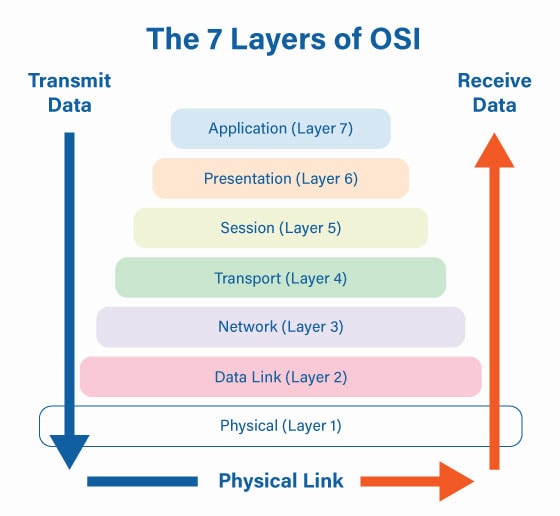
Here’s a quick summary of all seven layers before we look at each one in detail:
| Layer | Name | What it does | Data unit | Examples |
|---|---|---|---|---|
| 7 | Application | Network services that applications use | Data | HTTP, HTTPS, DNS, SMTP, FTP, SSH |
| 6 | Presentation | Formatting, character encoding, encryption, compression | Data | SSL/TLS, ASCII, UTF-8, JPEG |
| 5 | Session | Opening, managing, and closing sessions | Data | NetBIOS, RPC |
| 4 | Transport | End-to-end delivery between programs, using ports | Segment (TCP) / Datagram (UDP) | TCP, UDP |
| 3 | Network | Logical addressing and routing between networks | Packet | IPv4, IPv6, ICMP, routers |
| 2 | Data Link | Physical (MAC) addressing and delivery within a local network | Frame | Ethernet, Wi-Fi, MAC addresses, switches |
| 1 | Physical | Raw bits as electrical, light, or radio signals | Bits | Cables, fiber, radio waves, hubs, repeaters |
How to Remember the Layers
Two popular memory aids, one for each direction:
- From layer 1 up to layer 7: Please Do Not Throw Sausage Pizza Away (Physical, Data Link, Network, Transport, Session, Presentation, Application).
- From layer 7 down to layer 1: All People Seem To Need Data Processing (Application, Presentation, Session, Transport, Network, Data Link, Physical).
Layer 1: Physical Layer
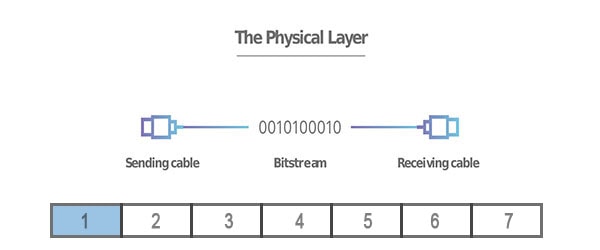
At Layer 1, the Physical layer carries raw bits over a physical medium. Examples include Ethernet cables, connectors, network interface hardware, hubs, repeaters, and wireless radio signals.
At the Physical layer, it’s important to know that data should be supported by the physical connection of your device. This layer deals with the raw transmission of data as electrical signals over copper cables, light pulses over fiber optic cables, or radio waves over wireless connections. It doesn’t understand addresses or messages — only ones and zeros, and how fast they can be sent. Layer 1 includes all the physical structure of the network:
- Physical Structure
- Coax
- Fiber
- Wireless
- Network Hubs
- Repeaters
Layer 2: Datalink Layer
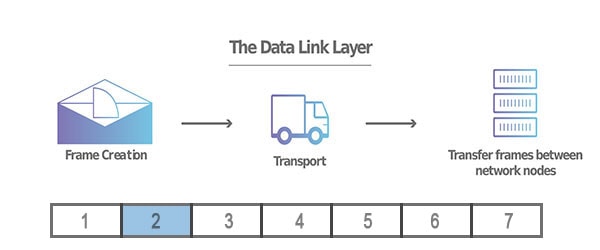
The Data link layer or layer 2 of the OSI model manages the physical addressing system such as MAC addresses. The data link layer handles data transfer between two devices on the SAME network.
The Data Link layer encapsulates network-layer packets into frames for delivery across a local link. It can provide local addressing, framing, and error detection, depending on the link technology. Network switches work at this layer: they read the destination MAC address in each frame and send it only to the port where that device is connected.
The data link layer has two sublayers: the LLC sublayer or logical link control and the MAC sublayer or media access control. In conclusion, layer 2 defines the format of data on the network by managing the physical addressing system of the network:
- Encapsulation
- Frame synchronization
- Logical link control (Error & Flow control)
- Media access control (MAC, Network Switch, Physical addressing, QoS, VLANs)
Layer 3: Network Layer
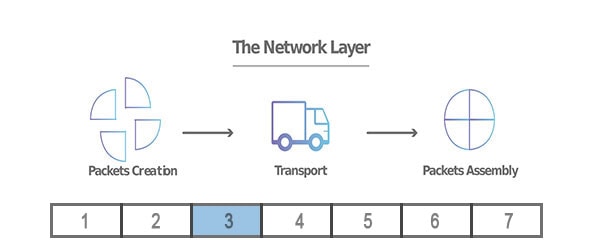
The network layer or layer 3 of the OSI model is responsible for facilitating data transfer between two different networks. A protocol that defines routing and addressing is considered to be a network layer, or Layer 3.
The network layer carries transport-layer segments in packets and provides logical addressing and routing between networks. Routers and Layer 3 switches commonly perform these forwarding functions, using IP addresses to decide where each packet goes next. (To learn more about IP addresses, read What Is an IP Address? and What Is a Subnet?)
In addition, the network layer devices also are in charge of determining the best physical path for the data to reach its destination; this is known as routing. Each router along the way forwards the packet one step — one “hop” — closer to its destination.
The protocols used in Layer 3 include:
- Internet Protocols IPv4/v6
- Internet Control Message Protocol (ICMP), used by tools like
ping - Distance Vector Multicast Routing Protocol (DVMRP)
- Internet Group Management Protocol (IGMP)
- Address Resolution Protocol (ARP), which works between layers 2 and 3 to find the MAC address that belongs to an IP address
- Internet Protocol Security (IPsec)
- Routing Information Protocol (RIP)
Layer 4: Transport Layer
The Transport layer supports end-to-end communication between applications. Examples include TCP and UDP. Depending on the protocol, this layer can provide flow control, reliability, ordering, or error detection.
- TCP (Transmission Control Protocol) is connection-oriented and reliable: it sets up a connection with a three-way handshake, confirms that data arrives, resends anything that’s lost, and puts it back in order. Web pages, email, and file transfers use TCP.
- UDP (User Datagram Protocol) is connectionless and fast: it sends data without confirming delivery. Video calls, online games, and DNS lookups use UDP.
The transport layer also uses port numbers to deliver data to the right program on a device — for example, port 443 for HTTPS or port 53 for DNS. (See What Are the Well-Known Port Numbers?)
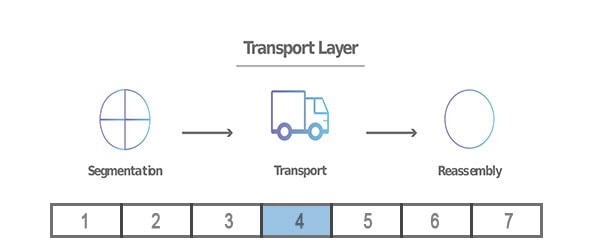
The flow control defines the optimal speed of transmission. In other words, it assures that the receiving end device can handle the transmission. In addition, the transport layer ensures that the data received is complete.
Layer 4 works by taking the data from the session layer and dividing it up into smaller pieces called segments. This dividing process is completed before sending it to the network layer. Consequently, the transport layer on the receiving end of the message reassembles the divided segments.
Data at the Transport layer is commonly called a segment for TCP and a datagram for UDP.
Layer 5: Session Layer
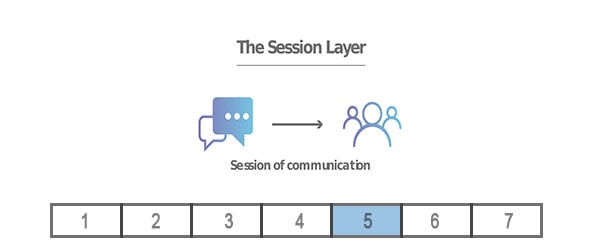
The session layer or Layer 5 of the OSI model is responsible for creating and closing the communication between the two devices. This is known as a Session. Layer 5 maintains the session open until the transfer completes subsequently closing afterward.
Its services include authentication and reconnection after an interruption. In addition, layer 5 synchronizes data transfer with checkpoints. To clarify, here is an example of layer 5.
Firstly, Let’s say that we are transferring a 100-megabyte file. As a result, the session layer sees the file and sets a checkpoint every 5 megabytes. This is very important during transferring failures. Because it allows the transmission to resume from the last checkpoint. Consequently, saving network processing power.
Layer 5 Session examples include NFS, NetBios names, RPC, SQL.
Layer 6: Presentation Layer
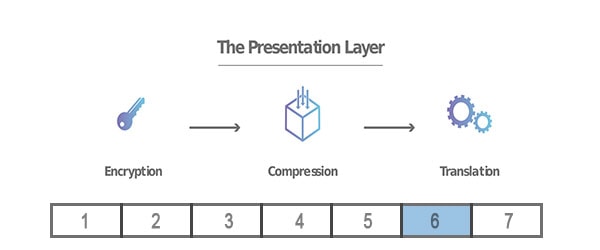
The presentation layer or layer 6 is in charge of translating or formatting the data for the application layer. In other words, the presentation layer makes the data presentable for layer 7. This includes character encoding — making sure text sent as ASCII or UTF-8 on one computer is read correctly on another.
Secondly, the presentation layer is the layer that handles the encryption and decryption of data for the application layer. SSL/TLS, the encryption behind HTTPS, is the most common example: it encrypts data before it’s sent and decrypts it when it arrives, so anyone who intercepts it along the way sees only scrambled data.
Finally, layer 6 is also responsible for the compression of data received from the application layer. This is done before delivering it to layer 5. Therefore, improving the speed and efficiency of communication during the data transferring process.
Layer 6 Presentation examples include encryption (SSL/TLS), ASCII, UTF-8, EBCDIC, TIFF, GIF, JPEG, MPEG, MIDI.
Layer 7: Application Layer
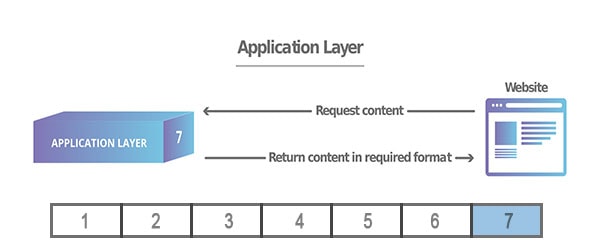
Layer 7 or the application layer is the layer that directly interacts with data from the user. This layer includes software applications like web browsers and email clients. Layer 7 Applications include web browsers and other internet-connected apps, such as Outlook and Skype.
To clarify, it should be made clear that client software applications are not part of the application layer. On the contrary, the application layer is responsible only for data protocols. Consequently, the software relies on this layer to present meaningful data to the user.
Application layer protocols include:
- HTTP and HTTPS — loading web pages (HTTPS is HTTP encrypted with TLS).
- DNS — turning domain names like
example.cominto IP addresses. - SMTP, IMAP, and POP3 — sending and receiving email.
- FTP and SFTP — transferring files.
- SSH — secure remote login (see What Is SSH?).
Encapsulation: How Data Moves Through the Layers
The layers don’t work in isolation. When you send data, it travels down the layers on your device, and each layer wraps the data from the layer above with its own header. This is called encapsulation, and it works a lot like mailing a letter: you write the letter, put it in an envelope with an address, and the post office puts the envelope in a bag with a routing label.
Here’s what happens when your browser requests a web page:
- Layers 7–5: The browser creates an HTTP request. If the site uses HTTPS, TLS encrypts it.
- Layer 4: TCP adds a header with the source and destination port numbers, turning the data into a segment.
- Layer 3: IP adds a header with the source and destination IP addresses, turning the segment into a packet.
- Layer 2: Ethernet or Wi-Fi adds a header with the source and destination MAC addresses (and an error-checking trailer), turning the packet into a frame.
- Layer 1: The frame is sent as bits: electrical signals, light, or radio waves.
On the receiving device, the process runs in reverse — de-encapsulation. Each layer reads and removes its own header and passes the rest up, until the original HTTP request reaches the web server. Because each layer only deals with its own header, the layers can do their jobs without knowing the details of the others. That’s why the same web page can travel over Wi-Fi, a copper cable, and a fiber line without the browser ever needing to know.
Seeing the OSI Model in Action with Wireshark
The OSI model can feel abstract until you see it in real traffic. Wireshark is a free, open-source tool that captures the packets moving across your network connection and decodes them, showing every layer of every packet. It’s one of the most widely used tools by network engineers, and it’s a great way to see encapsulation for yourself.
When you select a captured packet, Wireshark shows its layers in the packet details pane, one line per layer. A simplified example of a computer requesting a web page looks like this:
Frame 42: 571 bytes on wire (4568 bits), 571 bytes captured (4568 bits) on interface en0
Ethernet II, Src: 3c:22:fb:9a:41:7e, Dst: 00:11:22:33:44:55
Internet Protocol Version 4, Src: 192.168.1.25, Dst: 203.0.113.10
Transmission Control Protocol, Src Port: 52814, Dst Port: 80, Seq: 1, Ack: 1, Len: 517
Hypertext Transfer Protocol
    GET / HTTP/1.1\r\n
    Host: example.com\r\n
Read it from top to bottom, and you’re reading the OSI layers from the bottom up:
Frame 42— Layer 1. How many bytes and bits arrived on the wire, and on which network interface.Ethernet II— Layer 2. The source and destination MAC addresses: this computer’s network card and the router on the local network.Internet Protocol Version 4— Layer 3. The source and destination IP addresses: the computer’s private address and the web server’s address.Transmission Control Protocol— Layer 4. The ports: a temporary port chosen by the computer, and port 80, where the web server listens for HTTP.Len: 517is how much data the segment carries.Hypertext Transfer Protocol— Layer 7. The actual request: “get the home page ofexample.com.”
Notice how each header wraps the next one: 571 bytes on the wire = 14 bytes of Ethernet header + 20 bytes of IP header + 20 bytes of TCP header + 517 bytes of HTTP data. That’s encapsulation, made visible.
Layers 5 and 6 don’t get their own line in this example, because plain HTTP doesn’t use a separate session or encryption protocol. On an HTTPS website, you’d see a Transport Layer Security line between TCP and the application data — that’s the encryption described in the presentation layer — and the contents of the request would be unreadable, which is exactly the point.
Use Wireshark responsibly. Only capture traffic on networks you own or have permission to monitor. Capturing other people’s network traffic without permission can be illegal.
The OSI Model vs. the TCP/IP Model
The OSI model is the standard for teaching and troubleshooting, but the internet actually runs on the simpler TCP/IP model, which combines the same ideas into four layers:
| TCP/IP layer | OSI layers |
|---|---|
| Application | 7 Application, 6 Presentation, 5 Session |
| Transport | 4 Transport |
| Internet | 3 Network |
| Network Access (Link) | 2 Data Link, 1 Physical |
You’ll hear people use OSI layer numbers even when talking about TCP/IP networks — “a layer 2 switch,” “a layer 7 firewall” — because the OSI layers describe responsibilities so clearly. For more on the TCP/IP model and how it fits into the bigger picture, see Part 1 of this series.
The Bottom Line
In conclusion, the OSI reference model’s main purpose is to standardize how computers communicate with one another over a network. This seven-layer model is typically represented from top to bottom. In order from seven to one, the layers are as follows: application, presentation, session, transport, network, data link, and physical layer.
Even though modern networking is often explained in terms of the simpler, four-layer TCP/IP model, the OSI model remains the standard teaching and troubleshooting framework because it separates responsibilities so clearly. When a website won’t load, for example, working through the OSI model’s layers — is the cable connected (Layer 1)? Is the device getting an IP address (Layer 3)? Is the browser actually receiving data (Layer 7)? — gives you a systematic way to isolate exactly where the problem is happening, instead of guessing.
For beginner web designers and anyone studying for a networking certification like CompTIA Network+, memorizing the 7 layers of the OSI model is just the starting point. The real value comes from understanding what happens at each layer and how they depend on one another: physical hardware carries the signal, the data link layer gets it to the right device on the local network, the network layer routes it across networks, the transport layer makes sure it arrives intact, and the top three layers turn raw data into something a session, an application, and ultimately a user can actually understand. Keep this seven-layer breakdown as a reference, and network troubleshooting and terminology will make a lot more sense going forward.
Next in the Computer Networking for Beginners series: Networking Devices Explained: Routers, Switches, Firewalls, and More, what each device does and which OSI layer it works at.
Computer Networking for Beginners series: Part 1: A Complete Guide to How Networks Work · Part 2: What Is the OSI Model? · Part 3: Networking Devices Explained · Part 4: CDNs, VPNs, QoS, and TTL · Part 5: Cloud Networking Explained · Part 6: Internet Protocol Explained · Part 7: Well-Known Port Numbers · Part 8: Protocols for Troubleshooting, Tunneling, and Security