
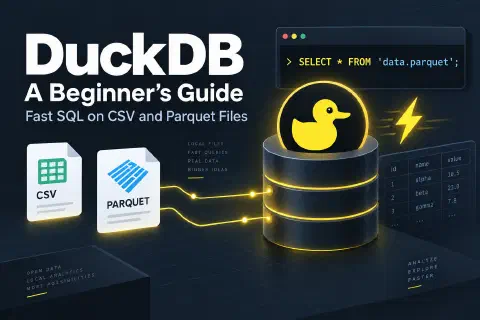
DuckDB is a free, open-source analytical database that runs inside your own program, so you can query CSV, Parquet, and JSON files (or a pandas DataFrame) with plain SQL, without installing a database server or loading the data first.
If you have ever opened a big CSV file in Excel and watched it freeze, or written ten lines of pandas for something SQL does in three, DuckDB is worth knowing. It sits between a spreadsheet and a full database server: it is as easy to start as SQLite, but built for analysis (large scans, aggregations, joins, and window functions) instead of small transactions. This guide explains what DuckDB is, when to use it, and how to use it from Python, using a small example project you can run yourself: victorhugo81/duckdb on GitHub.
What Is DuckDB?
DuckDB is an in-process database. That means there is no server to install, configure, or keep running. The database engine is a library that lives inside your Python script (or R, Java, Node.js, or the command line). You import it, point it at some data, and run SQL.
Three ideas explain why people like it:
- Embedded. Like SQLite, it needs no server and can store a whole database in one file, or just work in memory.
- Analytical (OLAP). It stores and processes data by column, which makes scans and aggregations over many rows fast. Traditional databases are built for many small reads and writes, such as an online store.
- Files are tables. You can query a CSV or Parquet file directly, as if it were already a table.
DuckDB’s SQL will feel familiar if you know PostgreSQL, and it adds friendly shortcuts that make analysis faster to write.
When to Use DuckDB (and When Not To)
| Use DuckDB when you… | Use something else when you… |
|---|---|
| Want to run SQL on CSV, Parquet, or JSON files | Need many users writing to the database at the same time (use PostgreSQL or MySQL) |
| Have data that is too big or slow for a spreadsheet | Need a production database behind a website or app |
| Prefer SQL to long chains of pandas code | Need row-by-row updates all day, like an order system |
| Are exploring data, prototyping, or building a pipeline step | Need a shared, always-on database server for a team |
| Want an analytical database without any setup | Have a tiny dataset where a spreadsheet is faster |
A good rule: DuckDB is for analysis on your own machine or inside a pipeline, not for serving an application to many users.
Install DuckDB
DuckDB for Python installs with pip:
pip install duckdb pandas
The example project uses uv, a fast Python package manager, and declares its dependencies (duckdb and pandas) in pyproject.toml. With uv, you can run:
git clone https://github.com/victorhugo81/duckdb.git
cd duckdb
uv sync
uv run python main.py
The project requires Python 3.13 or newer. A common mistake is running the script with your system Python instead of the project’s environment, which causes ModuleNotFoundError: No module named 'duckdb'. Use uv run python main.py, or activate the project’s virtual environment first.
The Example Project
The repository is a small, focused demo. Its structure is:
.
├── data/
│   └── people.csv
├── main.py
├── pyproject.toml
├── uv.lock
└── README.md
data/people.csv is a sample file of 100 made-up people (the emails all use example domains), and main.py loads it with DuckDB and runs a set of named queries. The CSV has these columns: Index, userid, first_name, last_name, gender, email, phone, dob, and title. Because the data is synthetic, it is safe to experiment with.
Your First Query: Read a CSV with SQL
The shortest possible DuckDB program counts the rows in a CSV file:
import duckdb

print(duckdb.sql("SELECT COUNT(*) AS rows FROM 'data/people.csv'").fetchall())
[(100,)]
There was no table to create, no import step, and no server. DuckDB recognized the .csv extension, read the file, and ran the query. When you need more control, use the read_csv_auto() function, which detects the delimiter, the header row, and the column types for you. Check what it detected with DESCRIBE:
schema = duckdb.sql("DESCRIBE SELECT * FROM read_csv_auto('data/people.csv')").df()
print(schema[["column_name", "column_type"]].to_string(index=False))
column_name column_type
      Index      BIGINT
     userid     VARCHAR
 first_name     VARCHAR
  last_name     VARCHAR
     gender     VARCHAR
      email     VARCHAR
      phone     VARCHAR
        dob        DATE
      title     VARCHAR
DuckDB correctly recognized dob as a DATE and Index as a number. Always check the detected types before you trust a result, since automatic detection can guess wrong on messy files.
Preview the Data as a pandas DataFrame
The .df() method turns a query result into a pandas DataFrame, which is how the example script prints its preview:
preview = duckdb.sql("""
    SELECT first_name, last_name, gender, dob, title
    FROM read_csv_auto('data/people.csv')
    LIMIT 5
""").df()
print(preview.to_string(index=False))
first_name last_name gender        dob             title
    Shelby   Terrell   Male 1945-10-26   Games developer
   Phillip   Summers Female 1910-03-24    Phytotherapist
  Kristine    Travis   Male 1992-07-02   Games developer
   Yesenia  Martinez   Male 2017-08-03 Market researcher
      Lori      Todd   Male 1938-12-01        Programmer
This pattern, SQL to select and shape the data and pandas to inspect or plot it, is a big part of DuckDB’s appeal. See Python for data analysis for more on working with DataFrames.
Organize Queries the Way the Example Does
Instead of one long script, the example keeps a dictionary of named queries and runs them against a view. A view is a saved query that acts like a table:
from pathlib import Path

CSV_FILE = Path("data") / "people.csv"

QUERIES = {
    "gender_counts": """
        SELECT gender, COUNT(*) AS people
        FROM people
        GROUP BY gender
        ORDER BY people DESC
    """,
    "top_titles": """
        SELECT title, COUNT(*) AS people
        FROM people
        GROUP BY title
        ORDER BY people DESC, title
        LIMIT 5
    """,
    "born_by_decade": """
        SELECT (year(dob) // 10) * 10 AS decade, COUNT(*) AS people
        FROM people
        GROUP BY decade
        ORDER BY decade
    """,
}

con = duckdb.connect()
try:
    con.execute(f"CREATE VIEW people AS SELECT * FROM read_csv_auto('{CSV_FILE.as_posix()}')")
    for name, sql in QUERIES.items():
        print(f"\n=== {name} ===")
        print(con.execute(sql).df().to_string(index=False))
finally:
    con.close()
duckdb.connect() with no arguments opens an in-memory database. The view means every query can say FROM people, even though the data is really in the CSV. The try/finally guarantees the connection is closed even if a query fails. Here is the output:
=== gender_counts ===
gender  people
Female      53
  Male      47

=== top_titles ===
           title  people
    Data Analyst       9
  Data Scientist       8
      Programmer       8
  SEO Specialist       7
Graphic Designer       6

=== born_by_decade ===
 decade  people
   1900       4
   1910       6
   1920       6
   1930      11
   1940      12
   1950      10
   1960       7
   1970       4
   1980       8
   1990      10
   2000       9
   2010      11
   2020       2
Each query uses ordinary SQL: aggregate functions with GROUP BY, ORDER BY, and LIMIT. The example repository also includes queries that compute ages from dob. Those results change every day because they use current_date, so for a repeatable report, use a fixed date. See SQL date functions for more.
You can also run one query by name from the command line, which is handy for quick checks:
uv run python main.py --list           # list the available queries
uv run python main.py top_titles       # run one query by name
Friendly SQL: Shortcuts That Save Typing
DuckDB adds extras to standard SQL. Three you will use often:
# GROUP BY ALL groups by every non-aggregated column in the SELECT
print(duckdb.sql("""
    SELECT split_part(email, '@', 2) AS domain, COUNT(*) AS people
    FROM 'data/people.csv'
    GROUP BY ALL
    ORDER BY people DESC
""").df().to_string(index=False))
     domain  people
example.org      39
example.net      35
example.com      26
# SELECT * EXCLUDE drops the columns you do not want
print(duckdb.sql("""
    SELECT * EXCLUDE (userid, phone, email, "Index")
    FROM 'data/people.csv'
    LIMIT 3
""").df().to_string(index=False))
first_name last_name gender        dob           title
    Shelby   Terrell   Male 1945-10-26 Games developer
   Phillip   Summers Female 1910-03-24  Phytotherapist
  Kristine    Travis   Male 1992-07-02 Games developer
# ILIKE is a case-insensitive LIKE
print(duckdb.sql("""
    SELECT title
    FROM 'data/people.csv'
    WHERE title ILIKE '%data%'
    GROUP BY title
    ORDER BY title
""").df().to_string(index=False))
         title
  Data Analyst
 Data Engineer
Data Scientist
GROUP BY ALL is especially handy when the SELECT list is long. SELECT * EXCLUDE is a relief on wide tables where you want almost every column. You can even query many files at once with a wildcard, such as FROM 'data/*.csv'.
Query a pandas DataFrame Directly
If your data is already in pandas, DuckDB can run SQL on the DataFrame by its variable name, without copying it into a database:
import pandas as pd

df = pd.read_csv("data/people.csv")

result = duckdb.sql("""
    SELECT gender, COUNT(*) AS people
    FROM df
    GROUP BY gender
    ORDER BY people DESC
""").df()
print(result.to_string(index=False))
gender  people
Female      53
  Male      47
This is a convenient way to use SQL for the parts of an analysis where it is clearer than pandas. For the pandas side, see cleaning data with pandas.
Window Functions Work Too
DuckDB supports window functions for rankings, running totals, and moving averages:
print(duckdb.sql("""
    SELECT title, people, RANK() OVER (ORDER BY people DESC) AS rank
    FROM (
        SELECT title, COUNT(*) AS people
        FROM 'data/people.csv'
        GROUP BY title
    )
    ORDER BY rank, title
    LIMIT 5
""").df().to_string(index=False))
           title  people  rank
    Data Analyst       9     1
  Data Scientist       8     2
      Programmer       8     2
  SEO Specialist       7     4
Graphic Designer       6     5
Notice the tie: Data Scientist and Programmer share rank 2, and the next rank is 4. That is how RANK() behaves.
Convert CSV to Parquet
CSV is a text format, so every query has to parse it. Parquet is a compressed, columnar file format designed for analysis. Converting is one statement:
import os

duckdb.sql("COPY (SELECT * FROM 'data/people.csv') TO 'people.parquet' (FORMAT parquet)")

print(duckdb.sql("SELECT COUNT(*) AS rows FROM 'people.parquet'").fetchall())
print(os.path.getsize("data/people.csv"), os.path.getsize("people.parquet"))
[(100,)]
10724 9941
For this tiny file, the Parquet version is only slightly smaller (about 9.9 KB versus 10.7 KB), so you will not notice a difference. The benefits appear with large files: Parquet is typically much smaller, it stores column types, and queries that read only a few columns skip the rest of the file.
Save a Persistent Database
An in-memory database disappears when your program ends. To keep tables, give connect() a file name:
con = duckdb.connect("people.duckdb")
con.execute("CREATE TABLE IF NOT EXISTS people AS SELECT * FROM read_csv_auto('data/people.csv')")
print(con.execute("SELECT COUNT(*) FROM people").fetchone())
con.close()

con = duckdb.connect("people.duckdb", read_only=True)
print(con.execute("SELECT title, COUNT(*) AS n FROM people GROUP BY title ORDER BY n DESC, title LIMIT 3").fetchall())
con.close()
(100,)
[('Data Analyst', 9), ('Data Scientist', 8), ('Programmer', 8)]
The first connection imports the CSV into a real table stored in people.duckdb. The second opens it read-only. One thing to remember: DuckDB allows one process to write to a database file at a time, though several processes can read it in read-only mode. That is one reason it is not meant to serve many concurrent users.
Use Parameters Instead of String Formatting
The example builds one SQL string with an f-string for the file path. That is fine for a path you control, but never insert user-supplied values into SQL with string formatting. It opens the door to SQL injection. Use ? placeholders and pass the values separately:
con = duckdb.connect()
rows = con.execute(
    "SELECT COUNT(*) FROM read_csv_auto(?) WHERE gender = ?",
    ["data/people.csv", "Female"],
).fetchone()
print(rows)
con.close()
(53,)
The Relational API (SQL Without SQL)
DuckDB also lets you build queries with Python methods, which some people prefer for step-by-step transformations:
rel = duckdb.read_csv("data/people.csv")
top = (
    rel.filter("gender = 'Female'")
       .aggregate("title, COUNT(*) AS people")
       .order("people DESC, title")
       .limit(3)
)
print(top.df().to_string(index=False))
         title  people
  Data Analyst       5
Data Scientist       5
    Programmer       5
A version note: in the DuckDB release I tested (2.0.1), calling fetchone() directly on a relation raised an error that suggests using fetchall() instead. Running the query through a connection (con.execute(...).fetchone()) works, as shown above. DuckDB’s Python API evolves, so check the documentation for the version you install.
DuckDB vs. SQLite, PostgreSQL, and pandas
| DuckDB | SQLite | PostgreSQL | pandas | |
|---|---|---|---|---|
| Runs as | Library in your program | Library in your program | Separate server | Library in your program |
| Built for | Analysis (OLAP) | Small apps and local storage | General-purpose applications | Analysis in Python |
| Reads CSV/Parquet directly | Yes | No (import first) | No (import first) | CSV yes, SQL no |
| Language | SQL (and Python) | SQL | SQL | Python |
| Many concurrent writers | No | Limited | Yes | Not applicable |
| Best for | Fast analysis of files | Embedded storage | Shared, production databases | Flexible data wrangling |
They work well together. A common workflow is to use DuckDB to filter and aggregate a large file, then hand the small result to pandas for plotting or modeling. For where DuckDB fits in a pipeline, see data engineering tools.
Common Mistakes to Avoid
- Running the script with the wrong Python, so
duckdbis not found. Use the project’s environment. - Trusting automatic type detection without checking
DESCRIBE. Dates and IDs with leading zeros are common problem cases. - Using a relative path from the wrong folder. The example reads
data/people.csv, so run it from the project root. - Building SQL with string formatting for user input.
- Leaving connections open. Close them, or use
try/finally. - Using it as a web application’s main database. It is made for analysis.
- Expecting a persistent database from
connect(). With no file name, everything disappears when the program exits. - Using
current_datein a report that must be repeatable.
Practice Ideas
- Run the example project and add a new query to the
QUERIESdictionary, such as the number of people per email domain. - Download any CSV you have (for example, a bank export or a public dataset) and answer three questions with SQL.
- Convert a large CSV to Parquet and compare the file sizes and the query times.
- Load two CSV files and practice a JOIN.
- Run a query inside a Jupyter Notebook and plot the result.
Frequently Asked Questions
What is DuckDB used for?
It is used to analyze data with SQL: exploring CSV and Parquet files, building data pipelines, running aggregations and joins on large files, and replacing slow spreadsheet or pandas steps.
Is DuckDB free?
Yes. DuckDB is open-source software that you can use for free, including in commercial projects. Check the project’s license on its website for the exact terms.
Is DuckDB better than SQLite?
They solve different problems. SQLite is great for storing data inside an application. DuckDB is better for analytical queries that scan and aggregate many rows. Many people use both.
Do I need to install a server?
No. DuckDB runs inside your program, so there is nothing to install or run besides the library.
Can DuckDB handle files bigger than my memory?
Often yes, because it can process data in chunks and use disk when needed, but results depend on the query and your machine. Using Parquet and selecting only the columns you need helps a lot.
Can I use DuckDB with pandas?
Yes. You can query a DataFrame with SQL by its variable name, and turn any result into a DataFrame with .df().
Conclusion
DuckDB gives you the power of SQL on your own files, with almost no setup. Start small: query one CSV, check the detected types, then add views, Parquet files, and a persistent database as you need them. The example project is a good place to begin because it is short enough to read in one sitting. If you need help with data analysis, pipelines, or reporting, you can book a free consultation.
The Python examples were run with DuckDB 2.0.1, pandas 3.1, and Python 3.14, against the sample CSV from the example repository. Results that depend on the current date, such as ages, are not shown for that reason. I ran the example script with Python directly, not through uv. DuckDB’s features and Python API change between versions, so check the official documentation for the version you install.
Related Reading
- What Is SQL? A Beginner’s Guide to Databases and Queries
- SQL Aggregate Functions: COUNT, SUM, AVG, MIN, MAX Explained
- What Is SQLite? A Beginner’s Guide with Python Examples
- PostgreSQL for Beginners: A Step-by-Step Guide to Database Management
- Data Cleaning with Python Pandas: From Raw Data to Analysis
- Data Engineering Tools: SQL, Python, and Essential Technologies