
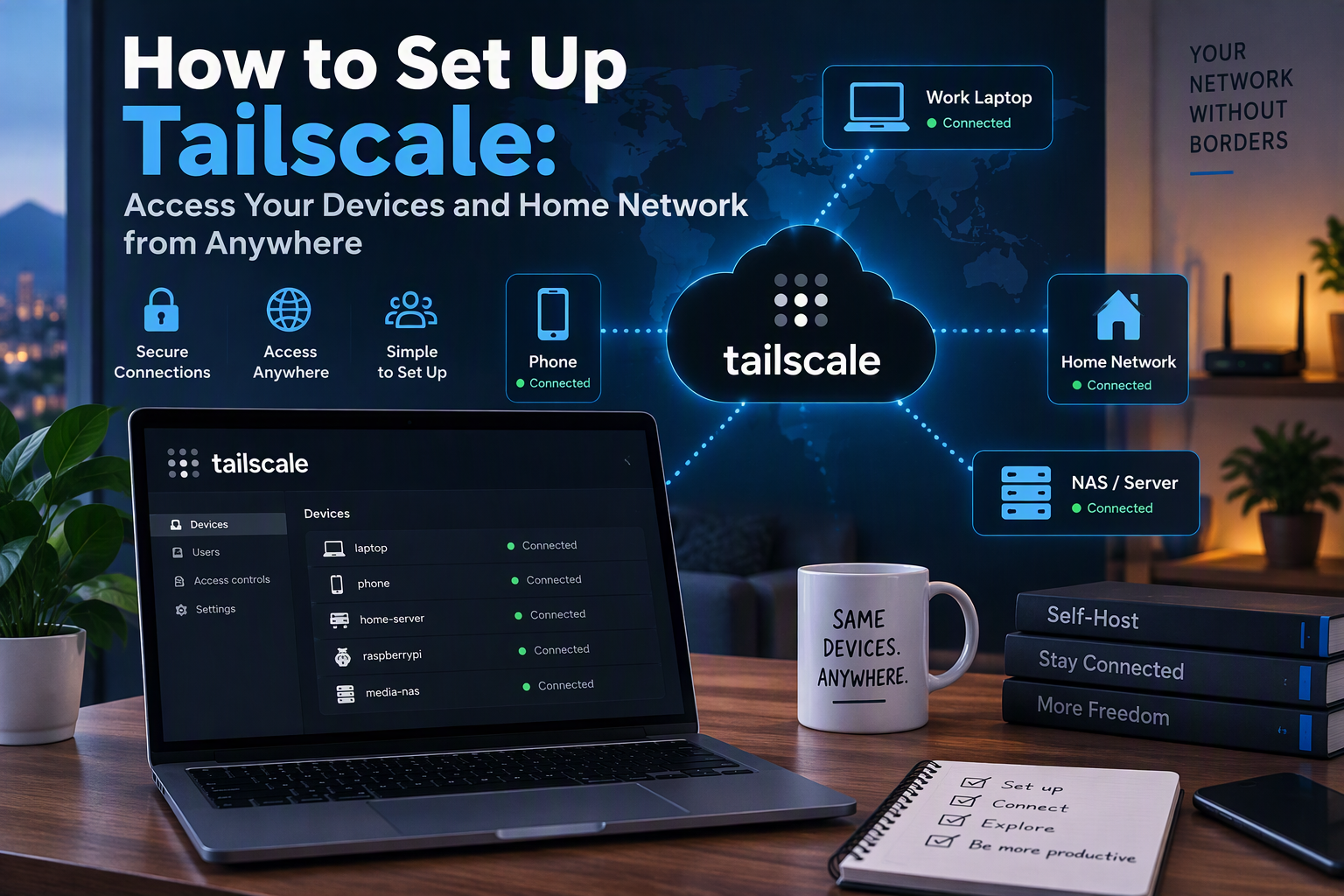
At some point, almost everyone who runs anything at home wants to reach it from somewhere else. Maybe it’s a file server, a Raspberry Pi project, a media library, a security camera, or just the desktop computer sitting in your office. The traditional ways to do that — opening ports on your router or setting up your own VPN server — work, but they’re fiddly to configure and easy to get wrong in ways that expose your home network to the entire internet.
Tailscale takes a different approach. You install an app on each device, sign in, and your devices can talk to each other securely as if they were all on the same local network — no matter where they actually are. There are no ports to open, no firewall rules to write, and no VPN server to maintain.
This guide explains what Tailscale is and how it works, then walks you step by step through installing it, connecting your devices, reaching your entire home network from anywhere, and keeping your setup secure.
What Is Tailscale?
Tailscale is a mesh VPN built on top of WireGuard, a modern, fast, and well-audited VPN protocol. Every device you add to Tailscale joins your private network, which Tailscale calls a tailnet. Each device in your tailnet gets its own private IP address in the 100.x.y.z range, and every device can reach every other device directly over an encrypted connection.
The “mesh” part is what makes Tailscale different from a traditional VPN. With a traditional VPN, all traffic flows through one central server, like spokes on a wheel. With Tailscale, devices connect directly to each other whenever possible. Your laptop at a coffee shop talks straight to your home server, not through a middleman.
How Tailscale Works Behind the Scenes
You don’t need to understand the internals to use Tailscale, but knowing the basics helps when something doesn’t work as expected:
- The coordination server is run by Tailscale. When you sign in, it handles authentication and tells each device how to reach the others by sharing their public keys and network addresses. It never sees your actual traffic.
- Encryption keys stay on your devices. Each device generates its own private key, and the private key never leaves the device. All traffic between devices is encrypted end-to-end with WireGuard.
- NAT traversal is how Tailscale gets through home routers and firewalls without you opening any ports. Devices coordinate to punch through the NAT on each side and establish a direct connection.
- DERP relays are a fallback. On networks too restrictive for a direct connection, traffic is relayed through Tailscale’s relay servers. It’s still end-to-end encrypted — the relay can’t read it — but it may be slower than a direct connection.
Tailscale vs. Port Forwarding vs. a Traditional VPN
| Port Forwarding | Traditional VPN | Tailscale | |
|---|---|---|---|
| Ports open to the internet | Yes | Yes (one) | No |
| Setup difficulty | Moderate | High | Low |
| Traffic path | Direct | Through VPN server | Direct, when possible |
| Works behind CGNAT / restrictive networks | Usually not | Depends | Yes |
| Login and access control | Per service | Per VPN user | Per device and user |
Port forwarding in particular deserves a warning: every port you forward exposes a service directly to bots that scan the entire internet around the clock. Tailscale keeps those services private, visible only to devices in your tailnet.
What You’ll Need
- An identity provider account to sign in with — Google, Microsoft, Apple, GitHub, or another supported login. Tailscale doesn’t manage passwords itself; it relies on your existing account.
- At least two devices to connect, such as a laptop and a phone.
- (Optional) An always-on device at home — a Raspberry Pi, a Linux server, a NAS, or a spare computer — if you want to reach your whole home network, not just devices with Tailscale installed.
Tailscale offers a free Personal plan that covers a typical home setup comfortably. Plan limits change over time, so check the Tailscale pricing page for the current details.
Step 1: Create Your Tailscale Account
Go to tailscale.com and click Get Started. Choose the identity provider you want to sign in with and follow the prompts.
The account you choose matters: anyone who gets into that account can add devices to your tailnet. Make sure it has a strong, unique password and two-factor authentication turned on before you go any further.
Step 2: Install Tailscale on Your Computer
Windows and macOS
Download the installer from the Tailscale download page and run it. Once it’s installed, click the Tailscale icon in the system tray (Windows) or menu bar (macOS), choose Log in, and sign in with the same account you used in Step 1.
Linux
Tailscale provides an install script that detects your distribution and sets up the correct package repository:
curl -fsSL https://tailscale.com/install.sh | sh
As with any script you pipe into your shell, you can download it and read it first if you prefer. Once it’s installed, connect the device to your tailnet:
sudo tailscale up
The command prints a login URL. Open it in a browser, sign in, and the device joins your tailnet. If you’re setting up a server you’re connected to over SSH, you can open that URL on any other computer — it doesn’t have to be the server itself.
Step 3: Install Tailscale on Your Phone
Install the Tailscale app from the App Store (iPhone and iPad) or Google Play (Android), open it, and sign in with the same account. Your phone will ask for permission to add a VPN configuration — that’s expected, since Tailscale uses your phone’s built-in VPN support to route traffic to your tailnet.
Step 4: Connect Your Devices
Open the Tailscale admin console in your browser. You’ll see every device you’ve added, along with its Tailscale IP address and whether it’s currently online.
On any computer, you can also list your devices from the command line:
tailscale status
100.101.24.8    laptop       you@  macOS    -
100.88.143.52   homeserver   you@  linux    -
100.72.9.115    phone        you@  iOS      -
To test the connection, ping one device from another using its Tailscale IP:
tailscale ping 100.88.143.52
Use Device Names with MagicDNS
Remembering 100.x.y.z addresses gets old quickly. MagicDNS, which is turned on by default for new tailnets, lets you reach devices by name instead. If your home server is named homeserver, you can simply use:
ssh pi@homeserver
or open http://homeserver:8080 in your browser to reach a web app running on it. You can rename devices in the admin console to give them friendlier names.
At this point, you can already reach anything running on a device that has Tailscale installed — file shares, web dashboards, remote desktop, SSH — from anywhere in the world.
Step 5: Access Your Entire Home Network with a Subnet Router
Not every device can run Tailscale. Printers, smart TVs, security cameras, older NAS boxes, and your router’s admin page can’t install an app. A subnet router solves this: one device on your home network running Tailscale acts as a gateway, letting your other Tailscale devices reach everything on your home network.
A Raspberry Pi or any always-on Linux machine makes a great subnet router.
Find Your Home Network’s Range
First, find the IP range of your home network. On the Linux machine you’ll use as the subnet router, run:
ip route
Look for a line like 192.168.1.0/24 dev eth0. That 192.168.1.0/24 is your home network’s subnet — it covers every address from 192.168.1.1 to 192.168.1.254.
Enable IP Forwarding
By default, Linux doesn’t pass network traffic from one interface to another. Turn on IP forwarding so the subnet router can relay traffic between your tailnet and your home network:
echo 'net.ipv4.ip_forward = 1' | sudo tee -a /etc/sysctl.d/99-tailscale.conf
echo 'net.ipv6.conf.all.forwarding = 1' | sudo tee -a /etc/sysctl.d/99-tailscale.conf
sudo sysctl -p /etc/sysctl.d/99-tailscale.conf
Advertise the Route
Tell Tailscale which network this device should share, replacing the subnet with your own:
sudo tailscale set --advertise-routes=192.168.1.0/24
Approve the Route in the Admin Console
For security, advertised routes don’t take effect until you approve them. In the admin console, find your subnet router, click the ⋯ menu, choose Edit route settings, and enable the route.
Accept Routes on Your Other Devices
Windows, macOS, iOS, and Android accept approved routes automatically. On other Linux machines, you need to opt in:
sudo tailscale set --accept-routes
Now, from your phone on mobile data or your laptop in a hotel, you can open http://192.168.1.1 to reach your router’s admin page, or connect to any other device on your home network by its normal local IP address.
A note on overlapping networks: 192.168.1.0/24 and 192.168.0.0/24 are extremely common. If you connect from a network that uses the same range as your home network — a friend’s house or a hotel, for example — your device won’t know which 192.168.1.x you mean. If you run into this often, consider changing your home router to a less common range, such as 192.168.47.0/24.
Step 6: Route All Your Traffic Through Home with an Exit Node
Sometimes you want all of your internet traffic to go through your home connection — for example, when you’re on untrusted public Wi-Fi at an airport, or when you want to use services the way you would at home. An exit node does exactly that.
On your home Linux machine (with IP forwarding already enabled from Step 5), advertise it as an exit node:
sudo tailscale set --advertise-exit-node
Then approve it in the admin console the same way: ⋯ → Edit route settings → Use as exit node.
To use it from your phone or computer, open the Tailscale app, choose Exit node, and select your home machine. On Linux:
sudo tailscale set --exit-node=homeserver
To stop using it:
sudo tailscale set --exit-node=
Keep in mind that your traffic is now limited by your home internet’s upload speed, which is often much slower than its download speed.
Bonus: Tailscale SSH
If you SSH into machines on your tailnet, Tailscale SSH can replace SSH keys entirely. Tailscale handles authentication using your tailnet identity, so you don’t need to copy public keys between machines. Enable it on a Linux server with:
sudo tailscale set --ssh
Then connect from any device in your tailnet with a regular ssh user@homeserver command. Who’s allowed to SSH into what is controlled by your tailnet’s access rules (covered below).
Keeping Your Tailnet Secure
Tailscale is secure by default, but a few habits make it even safer:
- Protect your identity provider account. Your Google, Microsoft, Apple, or GitHub account is effectively the key to your tailnet. Use a strong password and two-factor authentication.
- Understand key expiry. By default, each device’s login expires periodically and has to be re-authenticated. That’s a good security feature for laptops and phones. For always-on servers and subnet routers that you can’t easily log into, you can disable key expiry for just those devices in the admin console (⋯ → Disable key expiry).
- Remove devices you no longer use. Lost a phone or retired an old laptop? Remove it from the admin console right away.
- Use access controls. By default, every device in a personal tailnet can reach every other device. Tailscale’s access control policies (in the admin console under Access controls) let you restrict that — for example, allowing your phone to reach your media server but not your SSH ports.
- Consider Tailnet Lock. Tailnet Lock requires new devices to be signed by a device you already trust before they can join. Even if someone compromised your login or Tailscale’s coordination server, they couldn’t add a device without your approval.
- Keep Tailscale updated. Like any software, Tailscale receives security fixes. Enable auto-updates in the app settings, or on Linux with
sudo tailscale set --auto-update.
Troubleshooting Common Problems
A device shows as offline. Make sure Tailscale is running and logged in on that device. On Linux, check the service with sudo systemctl status tailscaled.
Connections are slow. Your devices may be going through a DERP relay instead of connecting directly. Run tailscale ping <device> — the output tells you whether the connection is direct or relayed. tailscale netcheck reports what kind of network you’re on and which relay is closest.
You can reach Tailscale devices but not your home network. Check that IP forwarding is enabled on the subnet router, that the route is approved in the admin console, and — on Linux clients — that you ran tailscale set --accept-routes.
You can’t reach anything after enabling an exit node. Make sure the exit node is online and that IP forwarding is enabled on it. Switch the exit node off in the app to get your connection back while you troubleshoot.
Conclusion
Tailscale turns what used to be a weekend networking project into something you can set up in about fifteen minutes. Install the app, sign in, and your devices can reach each other securely from anywhere. Add a subnet router, and your whole home network comes along with you. Add an exit node, and you have your own private VPN for public Wi-Fi.
Best of all, you get there without opening a single port on your router. If you’ve been putting off remote access to your home lab, a Samba file server, or a Raspberry Pi project because it felt risky or complicated, Tailscale is an easy, secure place to start.