
You’ve built a website, it’s live, and you search for it… and nothing comes up. That’s normal for a new site. Search engines don’t know your site exists until they find it, and for a brand-new domain with no links pointing to it, that can take a while.
The good news: you can tell them about it yourself, for free, in less than an hour. In this guide, you’ll learn how search engines find websites, what to prepare before you submit, and exactly how to submit your site to Google, Bing, Yahoo, and DuckDuckGo, plus how to check that it worked.
Do You Even Need to Submit Your Website?
Strictly speaking, no. Search engines run programs called crawlers (or bots) that follow links from page to page across the web. If another site links to yours, a crawler will eventually find it.
But “eventually” can mean weeks, and a new site usually has no links yet. Submitting your site gives you three advantages:
- Faster discovery. You hand the search engine a list of your pages instead of waiting for it to stumble onto them.
- Visibility into problems. The free tools you sign up for (Google Search Console and Bing Webmaster Tools) tell you which pages are indexed, which aren’t, and why.
- Search data. You’ll see which searches show your site, how often people click, and your average position.
One important point: submitting doesn’t guarantee indexing or rankings. It only makes sure search engines know where to look. Whether your pages show up, and how high, depends on their quality and relevance. (For the bigger picture, see What Is SEO and How Does It Work?.)
How Search Engines Find Your Website
Every search engine works in three stages:
- Crawling: a bot visits your pages and reads their content and links.
- Indexing: the search engine stores and organizes what it found in its index, a huge database of web pages.
- Ranking: when someone searches, the engine picks the most relevant pages from its index and orders them.
Submitting your site helps with the first two steps. And here’s the key fact that makes this guide shorter than you might expect: only Google and Bing run their own large web indexes among these four. Yahoo and DuckDuckGo get most of their regular web results from Bing.
| Search engine | Where its results come from | How to submit |
|---|---|---|
| Its own index | Google Search Console | |
| Bing | Its own index | Bing Webmaster Tools |
| Yahoo | Bing’s index | Nothing extra: covered by Bing |
| DuckDuckGo | Mostly Bing, plus its own crawler and other sources | Nothing extra: covered by Bing |
So in practice, you only need to submit your site twice: once to Google and once to Bing.
Before You Submit: Get Your Site Ready
Take ten minutes to check these first. Submitting a site that blocks search engines just wastes the effort.
1. Make Sure Search Engines Are Allowed In
- The site is live and public: no password protection or “coming soon” page in front of it.
- WordPress users: go to Settings → Reading and make sure “Discourage search engines from indexing this site” is unchecked. It’s often left on by accident after building a site. (New to WordPress? See What Is WordPress?.)
- No
noindextags on pages you want found. A<meta name="robots" content="noindex">tag tells search engines to keep that page out of their index.
2. Check Your robots.txt File
robots.txt is a small text file at the root of your site (for example, https://example.com/robots.txt) that tells crawlers what they may and may not visit. A simple one that allows everything looks like this:
User-agent: *
Disallow:

Sitemap: https://example.com/sitemap.xml
An empty Disallow: means nothing is blocked. Watch out for Disallow: /, which blocks your entire site. The Sitemap: line points crawlers to your sitemap, so they can find it even before you submit it.
3. Find Your Sitemap
An XML sitemap is a file that lists the pages on your site you want search engines to know about. Most website platforms create one automatically. Open your domain followed by one of these paths in a browser:
| Platform | Usual sitemap address |
|---|---|
| WordPress (built in) | /wp-sitemap.xml |
| WordPress with Yoast SEO or Rank Math | /sitemap_index.xml |
| Hugo, Wix, Squarespace, Shopify | /sitemap.xml |
If you see a page full of links in XML format, you’ve found it. Copy the full address (for example, https://example.com/sitemap.xml); you’ll need it in the next steps. If your platform doesn’t make one, a plugin or an online sitemap generator can.
4. Choose One Version of Your Domain
https://example.com and https://www.example.com can be treated as two different sites. Pick one, redirect the other to it, and use that same version everywhere: in your sitemap, in your submissions, and in your links. (For more on domains and DNS, see What Is a Domain Name?.)
Step 1: Submit Your Website to Google
Google’s free tool for website owners is Google Search Console.
Add Your Website
- Go to search.google.com/search-console and sign in with a Google account.
- Click Add property. You’ll see two options:
- Domain: covers your whole domain, including
www, any subdomains, and bothhttpandhttps. It’s the most complete option, but it must be verified through your DNS settings. - URL prefix: covers only the exact address you enter (for example,
https://www.example.com/). It’s easier to verify and offers more verification methods.
- Domain: covers your whole domain, including
If you can edit your domain’s DNS settings, choose Domain. Otherwise, choose URL prefix and enter your site’s address exactly as it appears in the browser.
Verify That You Own It
Google needs proof that the site is yours:
- Domain property: Google gives you a TXT record. Log in to the company where you manage your domain’s DNS (often where you bought the domain or your web host), add the record, then click Verify. DNS changes can take anywhere from a few minutes to a few hours to take effect, so if it fails, wait and try again.
- URL prefix property: you can upload an HTML file to your site, add an HTML meta tag to your homepage, or use your existing Google Analytics or Google Tag Manager setup. On WordPress, SEO plugins like Yoast SEO and Rank Math have a field where you paste the verification code.
Keep the verification file or tag in place afterward. If you remove it, you lose access.
Submit Your Sitemap
- In the left menu, under Indexing, select Sitemaps.
- Enter your sitemap address and click Submit.
Google shows the status. “Success” means Google read it; it doesn’t mean every page is indexed yet. Google will check your sitemap again on its own from now on, so you only need to submit it once.
Request Indexing for Important Pages
For a single new or updated page, like your homepage or a new blog post:
- Paste the page’s full URL into the search bar at the top of Search Console (the URL Inspection tool).
- If it says the URL isn’t on Google, click Request indexing.
This asks Google to crawl the page soon. It isn’t instant and has a daily limit, so save it for pages that matter, not your whole site. That’s what the sitemap is for.
Step 2: Submit Your Website to Bing (and Yahoo and DuckDuckGo)
Bing’s free tool is Bing Webmaster Tools. Because Bing’s index also feeds Yahoo and most of DuckDuckGo’s results, this one step covers three search engines.
Sign In
Go to bing.com/webmasters and sign in with a Microsoft, Google, or Facebook account.
Option A: Import From Google Search Console (Easiest)
If you’ve already finished Step 1, choose Import your sites from GSC, sign in with the Google account you used for Search Console, and allow access. Bing adds your site, verifies it automatically, and imports your sitemaps. It takes a couple of minutes, and there’s nothing else to verify.
Option B: Add Your Site Manually
Choose Add your site manually, enter your full address (including https://), and verify ownership with one of these methods:
- XML file: download
BingSiteAuth.xmland upload it to the root folder of your site, so it opens athttps://example.com/BingSiteAuth.xml. - HTML meta tag: add the
msvalidate.01meta tag Bing gives you to your homepage’s<head>. WordPress SEO plugins have a field for this too. - DNS record: add the CNAME record Bing gives you in your DNS settings.
Then click Verify.
Submit Your Sitemap
- In the left menu, select Sitemaps.
- Click Submit sitemap, paste the full address of your sitemap, and click Submit.
You can use the exact same sitemap you gave Google. If you imported from Search Console, it may already be listed.
Speed Things Up: URL Submission and IndexNow
Bing gives you two extra ways to get pages crawled faster:
- URL Submission: in the left menu, paste the address of a new or updated page and submit it. There’s a daily quota, shown in the tool, so use it for your most important pages.
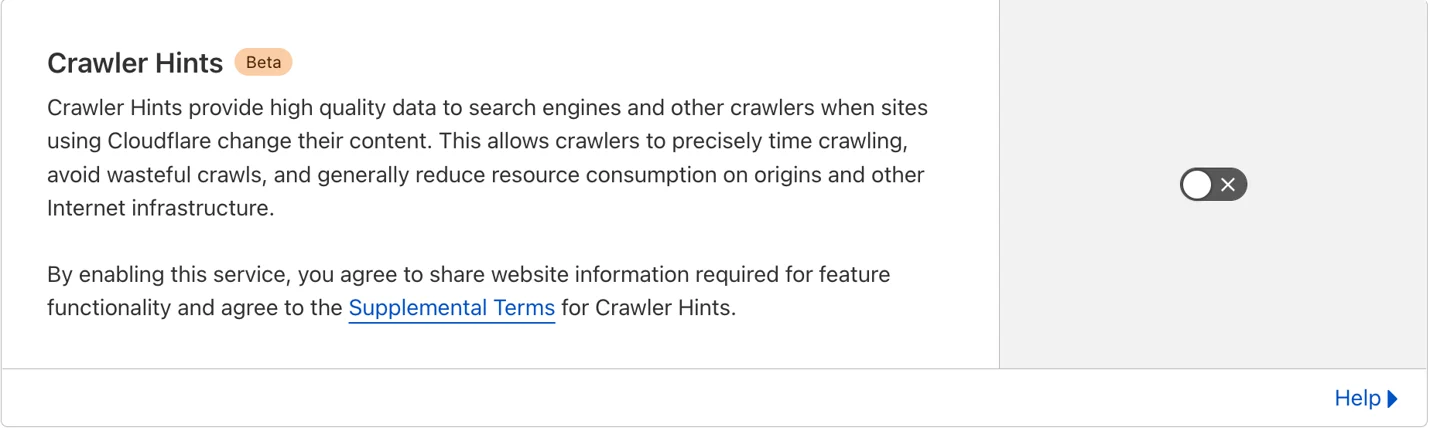
- IndexNow: an open protocol that lets your website automatically notify search engines whenever you publish, update, or delete a page. It’s supported by Bing and several other engines (such as Yandex, Naver, and Seznam), and a notification sent to one is shared with the others. Google doesn’t support IndexNow. You don’t need to code anything to use it: WordPress SEO plugins such as Rank Math and All in One SEO include IndexNow support, and Cloudflare can send the notifications for you with its Crawler Hints feature. (Learn more about plugins in What Is a WordPress Plugin?.)
How to enable Crawler Hints
By enabling Crawler Hints on your website, with the simple click of a button, Cloudflare will take care of signaling to these search engines when your content has changed via the IndexNow API. You don’t need to do anything else!
Crawler Hints is free to use and available to all Cloudflare customers. If you’d like to see how Crawler Hints can benefit how your website is indexed by the world’s biggest search engines, please feel free to opt-into the service by:
- Sign in to your Cloudflare account.
- In the dashboard, go to the Cache tab.
- Open the Configuration section.
- Find Crawler Hints and turn it on.
What About Yahoo?
There’s nothing separate to do. Yahoo’s web results come from Bing’s index, and Yahoo no longer offers its own submission tool or webmaster console. Once your site is in Bing, it can show up in Yahoo too. Be wary of any service that offers to “submit your site to Yahoo” for a fee.
What About DuckDuckGo?
DuckDuckGo also has no submission page. It combines results from hundreds of sources, but most of its regular web links come from Bing. It also runs its own crawler, DuckDuckBot. So:
- Submit your site to Bing (which you just did).
- Make sure your
robots.txtdoesn’t blockbingbotorDuckDuckBot.
That’s all it takes.
Step 3: Check That Your Website Is Indexed
After a few days, check whether your pages are showing up.
The site: search. Type this into Google, Bing, Yahoo, or DuckDuckGo, using your own domain:
site:example.com
It lists the pages that search engine has in its index. No results means it hasn’t indexed your site yet. A handful of results is a good sign; more will follow over time.
The official reports give you more detail than a site: search:
- Google Search Console: Indexing → Pages shows how many pages are indexed and lists the reasons the others aren’t (for example, “Crawled – currently not indexed” or “Excluded by ’noindex’ tag”). The URL Inspection tool checks any single page.
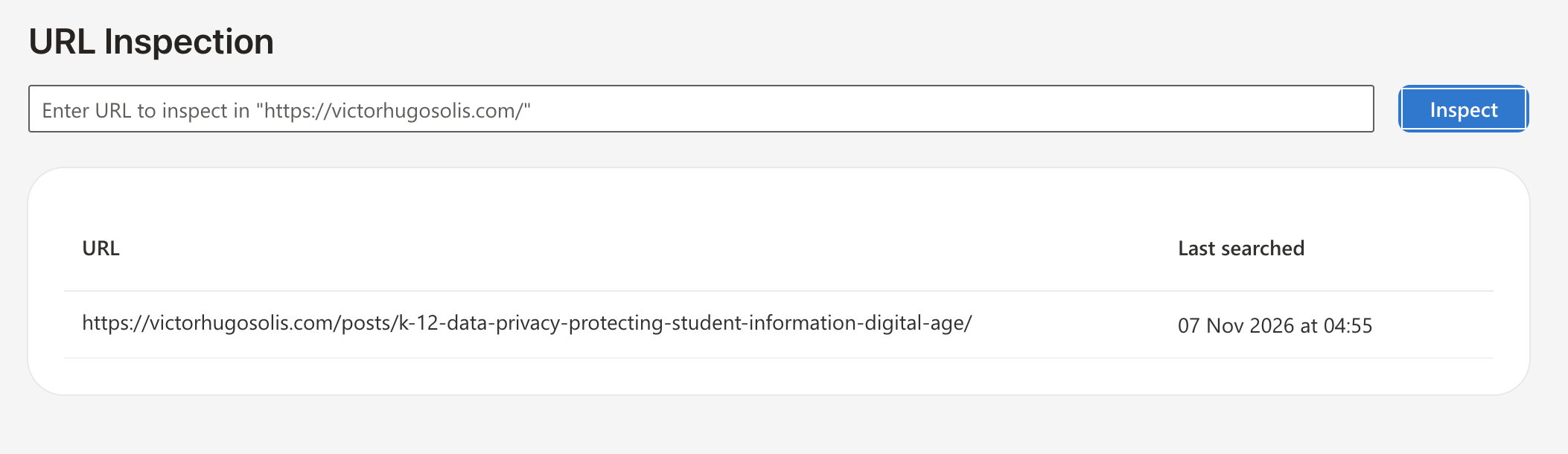
- Bing Webmaster Tools: URL Inspection checks a single page, and Site Explorer shows how Bing sees your whole site.
How Long Does It Take?
For a new site, it usually takes a few days to a few weeks to start appearing. Individual pages you request with URL Inspection or URL Submission are often crawled faster. Be patient: resubmitting the same sitemap every day won’t speed anything up.
Why Your Website Might Not Be Indexed
| Problem | What to check |
|---|---|
| Search engines are blocked | The WordPress “Discourage search engines” setting, Disallow: / in robots.txt, or noindex tags |
| Sitemap errors (“Couldn’t fetch”) | Open the sitemap URL in a browser. Make sure it’s the right domain version, and that a firewall or bot protection (such as Cloudflare’s bot settings) isn’t blocking crawlers |
| Wrong domain version | Your sitemap and property use www, but your site redirects to the non-www version (or the other way around) |
| Thin or duplicate content | Pages with very little useful content, or copied from elsewhere, may be crawled but not indexed |
| Server errors | A slow or frequently offline website makes crawlers give up. Check your hosting (see Get Web Hosting and Register a Domain Name) |
| It’s just new | Search engines take time to trust a brand-new domain. Keep publishing and get a few links from other sites |
Also remember that indexed doesn’t mean ranking. A page can be in the index and still not appear for the searches you want. That’s where SEO comes in: useful content, clear page titles and descriptions, a fast mobile-friendly site, and links from other websites.
Bonus for Local Businesses
If you have a local business, submitting your website is only half the job. Also create free business listings, which show up in map results and local searches:
- Google Business Profile, for Google Search and Google Maps. See How to Get Your Business on Google Search and Maps.
- Bing Places for Business, for Bing and Bing Maps. You can import your Google Business Profile to set it up quickly.
Quick Checklist
- Make sure your site is public and doesn’t block search engines.
- Check your
robots.txtand find your sitemap address. - Add and verify your site in Google Search Console, then submit your sitemap.
- Import your site into Bing Webmaster Tools, which also covers Yahoo and DuckDuckGo.
- Request indexing for your most important pages, and turn on IndexNow if your platform supports it.
- Check your progress with
site:example.comand the indexing reports.
Conclusion
Submitting your website to search engines is free, quick, and only needs to be done once. Set up Google Search Console for Google and Bing Webmaster Tools for Bing, and you’ve covered Yahoo and DuckDuckGo along the way. After that, the tools keep working for you: they show which pages are indexed, alert you to problems, and tell you how people find your site.
Submission is the starting line, not the finish line. Once search engines know where your site is, what keeps it visible is publishing helpful content and keeping your site fast and easy to use. If you’d like help getting a small business website built and found, that’s exactly what I do. (See Benefits of a Small Business Website.)