
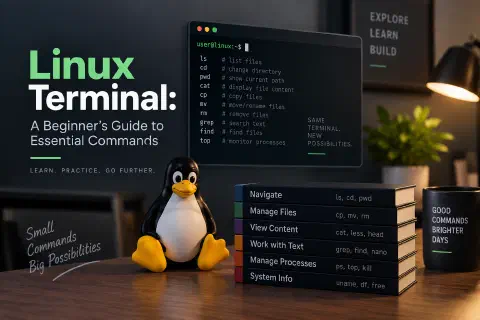
The Linux terminal is a text window where you type commands to control your computer. About 30 commands, such as ls, cd, cp, mv, grep, and sudo, cover most everyday tasks.
Graphical desktops are easy to use, but the terminal is where Linux really shines. It’s faster for many jobs, it works the same on a laptop and on a server with no screen, and it’s the only way to manage most web servers, VPS hosts, and Raspberry Pis. If you’ve installed Ubuntu or are starting to work with servers, learning the terminal is the next step.
This guide covers the essential commands, grouped by what you want to do, with short examples you can try yourself. The examples use Ubuntu, but almost everything works on any Linux distribution, and most of it also works in the macOS Terminal.
Opening the Terminal
- Ubuntu and most desktops: press Ctrl + Alt + T, or search for “Terminal” in the app menu.
- A remote server: connect with SSH (
ssh user@server-ip). See What Is SSH? - Windows: install WSL (Windows Subsystem for Linux) to get a real Linux terminal.
When it opens, you’ll see a prompt like this:
user@ubuntu:~$
It shows your username (user), the computer’s name (ubuntu), and your current folder (~ means your home folder). The $ means you’re a regular user. You type commands after it and press Enter.
How a Command Is Built
Most commands follow the same pattern:
command  -options  arguments
ls       -l        /home
- The command is the program to run (
lslists files). - Options (also called flags) change how it behaves. They usually start with
-or--. You can combine short ones:ls -l -ais the same asls -la. - Arguments are what the command works on, such as a file or folder name.
Linux is case-sensitive: Notes.txt and notes.txt are different files, and LS isn’t a command.
Navigating Folders
| Command | What it does |
|---|---|
pwd | Print the folder you’re in (“print working directory”) |
ls | List files and folders |
ls -l | List with details: permissions, owner, size, date |
ls -a | Include hidden files (names that start with .) |
ls -lh | Detailed list with readable sizes (K, M, G) |
cd folder | Move into a folder |
cd .. | Go up one level |
cd ~ or cd | Go to your home folder |
cd - | Go back to the previous folder |
cd / | Go to the root of the file system |
Paths can be absolute (starting from the root, like /home/user/Documents) or relative (starting from where you are, like Documents/projects).
Working with Files and Folders
| Command | What it does |
|---|---|
mkdir projects | Create a folder |
mkdir -p a/b/c | Create nested folders in one step |
touch notes.txt | Create an empty file (or update its date) |
cp file.txt copy.txt | Copy a file |
cp -r folder backup | Copy a folder and everything in it |
mv old.txt new.txt | Rename a file |
mv file.txt Documents/ | Move a file into another folder |
rm file.txt | Delete a file |
rm -r folder | Delete a folder and everything in it |
rmdir folder | Delete an empty folder |
Be careful with rm. The terminal has no Recycle Bin, so deleted files are gone. Use rm -i to be asked before each deletion, double-check paths before pressing Enter, and never run rm -rf on a path you haven’t read twice.
Viewing and Editing Files
| Command | What it does |
|---|---|
cat file.txt | Print the whole file |
less file.txt | Scroll through a long file (press q to quit) |
head file.txt | Show the first 10 lines (head -n 20 for 20) |
tail file.txt | Show the last 10 lines |
tail -f app.log | Follow a log file as new lines are added (Ctrl + C to stop) |
nano file.txt | Edit a file in a simple text editor |
wc -l file.txt | Count the lines in a file |
In nano, the shortcuts are listed at the bottom of the screen: Ctrl + O saves, Ctrl + X exits. ^ in nano’s menu means the Ctrl key.
Searching
| Command | What it does |
|---|---|
grep "error" app.log | Show lines containing “error” |
grep -i "error" app.log | Same, ignoring upper and lower case |
grep -n "error" app.log | Include line numbers |
grep -r "TODO" project/ | Search every file in a folder |
find . -name "*.txt" | Find files by name, starting from the current folder |
which python3 | Show where a program is installed |
Pipes and Redirection
This is where the terminal becomes powerful. You can connect small commands together:
| Symbol | What it does | Example |
|---|---|---|
| | Send one command’s output into another | ls | wc -l counts files |
> | Save output to a file, replacing it | ls > files.txt |
>> | Add output to the end of a file | echo "done" >> log.txt |
For example, history | grep ssh shows every ssh command you’ve run recently, and ps aux | grep nginx checks whether the nginx web server is running.
Users, Permissions, and sudo
Every file has an owner, a group, and permissions that control who can read (r), write (w), and execute (x) it. ls -l shows them:
-rwxr-xr-x 1 user user 120 Nov 14 09:00 script.sh
The first character is the type (- for a file, d for a folder). The next nine are three sets of rwx: for the owner, the group, and everyone else. Here, the owner can read, write, and run the file, and everyone else can read and run it.
| Command | What it does |
|---|---|
whoami | Show your username |
sudo command | Run a command as the administrator (root) |
chmod +x script.sh | Make a file executable |
chmod 644 file.txt | Owner can read and write; everyone else can only read |
chown user:group file | Change a file’s owner (usually needs sudo) |
sudo asks for your password and runs one command with full administrator rights. Use it only when a command needs it, such as installing software or editing system files. A command run with sudo can change or delete anything on the system.
Installing and Updating Software
Ubuntu and Debian use the APT package manager:
| Command | What it does |
|---|---|
sudo apt update | Refresh the list of available packages |
sudo apt upgrade | Install available updates |
sudo apt install htop | Install a program |
sudo apt remove htop | Remove a program |
apt search keyword | Search for a package |
Run sudo apt update before installing or upgrading so APT knows about the latest versions. Other distributions use different package managers, such as dnf on Fedora and pacman on Arch, but the idea is the same. See What Is Linux? for how distributions differ.
Checking the System
| Command | What it does |
|---|---|
uname -a | Show the kernel version and system details |
df -h | Show free disk space |
du -sh folder | Show how much space a folder uses |
free -h | Show memory (RAM) usage |
top or htop | Live view of running programs (press q to quit) |
ps aux | List every running process |
kill 1234 | Stop the process with ID 1234 |
uptime | Show how long the system has been running |
Networking Basics
| Command | What it does |
|---|---|
ip a | Show your network interfaces and IP addresses |
ping -c 4 example.com | Test whether a host responds (4 attempts) |
curl -I https://example.com | Show a website’s response headers |
wget URL | Download a file |
ssh user@host | Log in to another computer securely |
If you’re new to IP addresses and ports, Computer Networking: The Internet Protocol Explained covers the basics.
Getting Help
You don’t need to memorize every option:
man lsopens the full manual for a command (pressqto quit,/to search).ls --helpprints a shorter summary of options.historylists the commands you’ve run, and the Up arrow brings back the previous one.
Keyboard Shortcuts That Save Time
| Shortcut | What it does |
|---|---|
| Tab | Auto-complete a command, file, or folder name |
| Tab Tab | Show all possible completions |
| Up / Down | Scroll through previous commands |
| Ctrl + C | Stop the command that’s running |
| Ctrl + L | Clear the screen (same as clear) |
| Ctrl + R | Search your command history |
| Ctrl + A / Ctrl + E | Jump to the start or end of the line |
| Ctrl + Shift + C / V | Copy and paste in most terminal apps |
Tab completion is the most useful habit to build. It saves typing and prevents typos in long file names.
Practice: Your First Terminal Session
Try this short exercise. It creates a practice folder, works with a file, and cleans up afterward:
mkdir -p practice/notes
cd practice
echo "Linux is fun" > notes/todo.txt
echo "Learn the terminal" >> notes/todo.txt
echo "Practice every day" >> notes/todo.txt
cat notes/todo.txt
Linux is fun
Learn the terminal
Practice every day
Now search, count, copy, and rename:
grep -n "terminal" notes/todo.txt
wc -l notes/todo.txt
cp notes/todo.txt notes/todo-backup.txt
mv notes/todo-backup.txt notes/old-todo.txt
ls notes
2:Learn the terminal
3 notes/todo.txt
old-todo.txt  todo.txt
Finally, find every text file and remove the practice folder:
find . -name "*.txt"
cd ..
rm -r practice
./notes/todo.txt
./notes/old-todo.txt
The order of find results can vary. If every step worked, you’ve just used a dozen of the commands in this guide.
Common Beginner Mistakes
- Forgetting that names are case-sensitive.
cd documentsfails if the folder isDocuments. - Spaces in file names. Wrap them in quotes (
cd "My Files") or use Tab completion, which adds the escapes for you. - “Permission denied.” The command needs administrator rights (add
sudo) or the file isn’t executable (chmod +x). - “Command not found.” The program isn’t installed, or there’s a typo. On Ubuntu, the message often suggests the
apt installcommand to fix it. - Pasting commands you don’t understand. Read every command before you run it, especially ones with
sudo,rm, orcurl ... | bash.
Conclusion
The Linux terminal looks intimidating at first, but a small set of commands covers most of what you’ll do: pwd, ls, and cd to move around; mkdir, cp, mv, and rm to manage files; cat, less, nano, and grep to read and search; and sudo apt to install software.
Open a terminal and use it for something small every day, like updating your system or finding a file. Once these commands feel familiar, you’re ready for the next step: managing a VPS, running Docker containers, or setting up your own server.
Frequently Asked Questions
What is the difference between the terminal, the shell, and the command line?
The terminal is the window you type in. The shell is the program that reads and runs your commands; on most Linux systems it’s Bash. The command line is the general term for working this way. In everyday use, people use the three words interchangeably.
Do I need the terminal to use Linux?
Not for everyday desktop use. Ubuntu and Linux Mint can be used entirely with the mouse. You’ll need the terminal for servers, troubleshooting, and many developer tools.
Is it safe to practice terminal commands?
Yes, as long as you avoid sudo and rm on files you don’t recognize. Practice in your home folder or in a virtual machine, where mistakes can’t affect anything important.
Do these commands work on macOS?
Most of them do. macOS includes a Unix terminal with ls, cd, grep, find, chmod, and many others. Some options differ slightly, and macOS doesn’t use apt; Homebrew is the common package manager there.
How do I stop a command that won’t finish?
Press Ctrl + C. If a program like less, man, or top takes over the screen, press q to quit.
How long does it take to learn the Linux terminal?
You can learn the commands in this guide in a few days of regular practice. Comfort comes from using them for real tasks over a few weeks.