
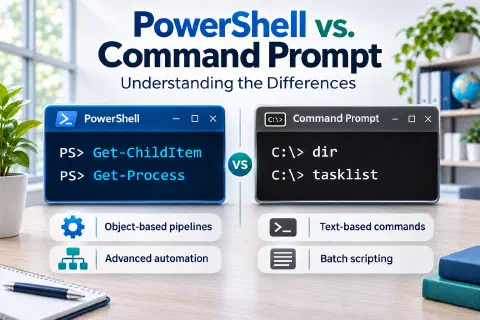
Command Prompt (cmd.exe) is Windows’ original command-line shell: simple, fast, and text-based, built for running programs and batch files. PowerShell is a full scripting language that works with objects instead of text, with thousands of commands for managing Windows, servers, and the cloud. For anything new, use PowerShell; keep Command Prompt for old batch files and quick one-off commands.
Both open a black (or blue) window with a blinking cursor, and many basic commands like cd, dir, and ping work in both, so it’s easy to think they’re the same thing. They aren’t. They were built more than a decade apart for different jobs, and the differences matter as soon as you try to automate something.
This guide explains how the two shells differ, shows the same tasks in both, covers the gotchas when you move from one to the other, and helps you decide which to use. If you’re new to PowerShell, start with PowerShell: A Beginner’s Guide for IT Administrators.
Quick Comparison
| Command Prompt (cmd) | PowerShell | |
|---|---|---|
| First released | 1993, with Windows NT (based on MS-DOS) | 2006 (Windows PowerShell 1.0) |
| Passes between commands | Text | .NET objects |
| Commands | A few dozen built-in commands, plus external programs | Thousands of cmdlets, plus external programs |
| Scripts | Batch files (.bat, .cmd) | Scripts (.ps1) and modules |
| Variables | %NAME%, all text | $name, any type (numbers, lists, objects) |
| Error handling | %ERRORLEVEL% and if | try/catch, $?, $LASTEXITCODE |
| Remote management | Limited (individual tools) | Built in (PowerShell Remoting) |
| Runs on | Windows only | Windows; PowerShell 7 also on macOS and Linux |
| Still developed? | Maintained for compatibility | Yes, with regular releases |
A Short History
Command Prompt came with Windows NT in 1993 and was designed to feel like the MS-DOS prompt people already knew. It runs programs, moves around folders, and executes batch files, which is still exactly what it does today.
PowerShell arrived in 2006 because administrators needed more than cmd could offer: a real programming language for managing Windows at scale. In 2016 Microsoft made it open source and cross-platform; today’s version, PowerShell 7, runs on Windows, macOS, and Linux, while the older Windows PowerShell 5.1 still ships with Windows.
Over time, PowerShell became the default. Windows 10 replaced Command Prompt with PowerShell in the Win+X menu in 2017, and in Windows 11, Windows Terminal opens PowerShell by default. Command Prompt is still included, and Windows Terminal can open it in a tab.
The Biggest Difference: Text vs. Objects
In Command Prompt, every command outputs text. If you want one piece of information, you have to find it in that text yourself, or with a tool like findstr that searches text for a string.
PowerShell commands output objects: structured data with named properties. You filter and sort by property instead of by position in a line of text.
Here’s the same question in both: which processes are using more than 100 MB of memory?
tasklist /fi "memusage gt 102400"
Get-Process | Where-Object WorkingSet64 -gt 100MB | Sort-Object WorkingSet64 -Descending
tasklist can filter because that particular program has a /fi option, with memory in kilobytes. Its output is text formatted for the screen; to do anything else with it, you have to parse it. In PowerShell, WorkingSet64 is a property of each process object, 100MB is understood as a size, and you can keep going: sort it, pick properties, or send it to Export-Csv for a spreadsheet. The same three cmdlets (Where-Object, Sort-Object, Select-Object) work on files, services, users, and everything else.
Searching log files shows the same idea:
findstr /s /i "ERROR" C:\Logs\*.log
Select-String -Path C:\Logs\*.log -Pattern "ERROR"
C:\Logs\app.log:2:ERROR disk full
C:\Logs\web.log:1:ERROR timeout
The output looks similar, but each PowerShell result is an object with Filename, LineNumber, and Line properties. Counting matches is just (Select-String -Path C:\Logs\*.log -Pattern "ERROR").Count. (Select-String is case-insensitive by default, like findstr /i.)
Same Task, Both Shells
| Task | Command Prompt | PowerShell |
|---|---|---|
| List files | dir | Get-ChildItem |
| List files in all subfolders | dir /s *.log | Get-ChildItem -Recurse -Filter *.log |
| Change folder | cd C:\Logs | Set-Location C:\Logs |
| Show a file | type log.txt | Get-Content log.txt |
| Last 20 lines of a file | (no built-in command) | Get-Content log.txt -Tail 20 |
| Copy a file | copy a.txt b.txt | Copy-Item a.txt b.txt |
| Delete files | del *.tmp | Remove-Item *.tmp |
| Search text in files | findstr "ERROR" *.log | Select-String -Pattern "ERROR" -Path *.log |
| Clear the screen | cls | Clear-Host |
| List running processes | tasklist | Get-Process |
| End a process | taskkill /im notepad.exe | Stop-Process -Name notepad |
| List services | sc query | Get-Service |
| Show an environment variable | echo %USERNAME% | $env:USERNAME |
| Find where a program is | where python | Get-Command python |
| System information | systeminfo | Get-ComputerInfo |
| Restart the computer | shutdown /r /t 0 | Restart-Computer |
| Network configuration | ipconfig /all | ipconfig /all or Get-NetIPConfiguration |
Notice the last row: programs like ipconfig, ping, tracert, netstat, and robocopy are separate .exe files, not part of either shell, so they work the same way in both.
PowerShell also includes aliases for many cmd commands: dir, cd, type, copy, del, and cls all run the PowerShell cmdlets above. That’s why the basics feel familiar, and also why some cmd habits break, as you’ll see below.
Variables and the Environment
Command Prompt variables are always text, and you read them by wrapping the name in percent signs:
set BACKUP_DIR=D:\Backup
echo %BACKUP_DIR%
echo %USERNAME% is logged on to %COMPUTERNAME%
PowerShell has two kinds: its own variables, which can hold any type of data, and environment variables, which live under $env::
$backupDir = "D:\Backup"
$backupDir
"$env:USERNAME is logged on to $env:COMPUTERNAME"
$env:PATH -split ';'
The last line splits the PATH into a list, one folder per line, which is much easier to read than cmd’s single long line. To set an environment variable for the current session, assign to it: $env:BACKUP_DIR = "D:\Backup".
Batch Files vs. PowerShell Scripts
Here’s a small backup job written both ways. It copies a folder with robocopy and stops with an error if the copy failed. (Robocopy returns exit codes 0 to 7 for success and 8 or higher for failures.)
As a batch file, backup.bat:
@echo off
set SOURCE=C:\Reports
set DEST=D:\Backup\Reports

robocopy "%SOURCE%" "%DEST%" /E
if %ERRORLEVEL% GEQ 8 (
    echo Backup failed
    exit /b 1
)
echo Backup finished
As a PowerShell script, Backup-Reports.ps1:
$source = "C:\Reports"
$dest   = "D:\Backup\Reports"

robocopy $source $dest /E
if ($LASTEXITCODE -ge 8) {
    Write-Error "Backup failed"
    exit 1
}
"Backup finished"
For a job this small, both work fine. The differences show up as scripts grow:
- Data types: batch variables are text, so math, dates, and lists are awkward. PowerShell has numbers, dates, arrays, hashtables, and objects.
- Error handling: batch checks
%ERRORLEVEL%after each command. PowerShell hastry/catchfor its own commands, plus$LASTEXITCODEfor external programs likerobocopy. - Reuse: PowerShell scripts can take named parameters (
-Source,-Dest), define functions, and be packaged as modules. - Readability: batch syntax is full of special characters (
%%i,^,!var!) that are hard to read and easy to get wrong.
Batch files do have one practical advantage: they run with a double-click on any Windows computer. PowerShell scripts are subject to the execution policy, which blocks scripts by default on Windows clients until you allow them (see the PowerShell beginner’s guide).
Chaining Commands and Checking Errors
| Command Prompt | Windows PowerShell 5.1 | PowerShell 7 | |
|---|---|---|---|
| Run one command after another | cmd1 & cmd2 | cmd1; cmd2 | cmd1; cmd2 |
| Run the second only if the first succeeds | cmd1 && cmd2 | Use if ($?) { cmd2 } | cmd1 && cmd2 |
| Run the second only if the first fails | cmd1 || cmd2 | Use if (-not $?) { cmd2 } | cmd1 || cmd2 |
| Exit code of the last program | %ERRORLEVEL% | $LASTEXITCODE | $LASTEXITCODE |
| Did the last command succeed? | Check %ERRORLEVEL% | $? | $? |
PowerShell 7 added cmd-style && and ||, so one-liners like git pull && npm install work there too. In Windows PowerShell 5.1, they’re a syntax error.
Gotchas When Moving From cmd to PowerShell
Because PowerShell has aliases that look like cmd commands, some old habits fail in confusing ways:
dir /sdoesn’t work. In PowerShell,diris an alias forGet-ChildItem, which doesn’t understand/s. UseGet-ChildItem -Recurse, or run the real cmd command withcmd /c dir /s.scisn’t the service tool in Windows PowerShell 5.1. There,scis an alias forSet-Content, sosc querydoes something completely different. Typesc.exe query, or better, useGet-Service.wheremeans something else. In PowerShell,whereis an alias forWhere-Object, sowhere pythondoesn’t find a program. Usewhere.exe pythonorGet-Command python.curlin Windows PowerShell 5.1 isn’t curl. It’s an alias forInvoke-WebRequest, which takes different options. PowerShell 7 dropped that alias, socurlruns the realcurl.exethat ships with current versions of Windows 10 and 11.- cmd-only commands don’t exist. Built-ins like
mklinkandassocare part of cmd itself. Run them withcmd /c mklink ..., or use the PowerShell equivalent, such asNew-Item -ItemType SymbolicLink. - Variables look different.
%USERNAME%is just text in PowerShell; use$env:USERNAME. - The escape character is different. cmd uses the caret
^; PowerShell uses the backtick`. A path with spaces needs quotes in both. - Running a program from the current folder needs
.\. In cmd,myscript.batruns a file in the current folder. In PowerShell, you must type.\myscript.bat, a safety feature that stops a file in the current folder from pretending to be a system command.
Which One Should You Use?
Use PowerShell when you:
- Write any new script or automation
- Manage Windows settings, services, event logs, users, or Active Directory
- Work with Microsoft 365, Azure, Exchange, or other cloud services (their management tools are PowerShell modules)
- Need to filter, sort, or export data, like reports to CSV
- Manage many computers at once with PowerShell Remoting
Use Command Prompt when you:
- Run or maintain an existing batch file that works
- Follow older documentation or vendor instructions written for cmd
- Need a quick one-off command and cmd is already open
- Work in the Windows Recovery Environment or older systems where PowerShell isn’t available
You don’t have to choose one forever. Both run side by side, Windows Terminal can open each in its own tab, and you can call one from the other: cmd /c from PowerShell, or powershell -Command (or pwsh -Command) from cmd.
Frequently Asked Questions
Is Command Prompt being removed from Windows?
Microsoft hasn’t announced plans to remove it, and too many batch files and tools depend on it. It’s maintained for compatibility, but new features and management tools go to PowerShell.
Can PowerShell run cmd commands?
It can run external programs like ipconfig, ping, and robocopy directly. Commands built into cmd itself, like mklink, need cmd /c in front. Some names, like dir and copy, run PowerShell aliases instead, which accept different options.
Can I run a batch file from PowerShell?
Yes. Type .\backup.bat from its folder, or the full path. It runs in cmd and returns to PowerShell when it finishes, with its exit code in $LASTEXITCODE.
Is PowerShell slower than Command Prompt?
PowerShell takes a moment longer to start, and cmd can be quicker for tiny tasks. For real work, like filtering thousands of log lines or managing many computers, PowerShell is usually faster to write and to run, because it doesn’t need workarounds.
Should I convert my old batch files to PowerShell?
Only when you need to change them. A working batch file can stay as it is. When it needs new features, better error handling, or logging, that’s a good time to rewrite it in PowerShell.
Conclusion
Command Prompt is a simple, text-based shell for running programs and batch files, and it still does that job well. PowerShell is a modern scripting language built around objects, with thousands of commands for managing Windows, servers, and the cloud. Keep Command Prompt for legacy batch files and quick one-offs, and use PowerShell for everything new, especially anything you’ll automate, repeat, or share. To get started, see PowerShell: A Beginner’s Guide for IT Administrators, and if you also work on Linux servers, the Linux terminal guide covers the other side.