
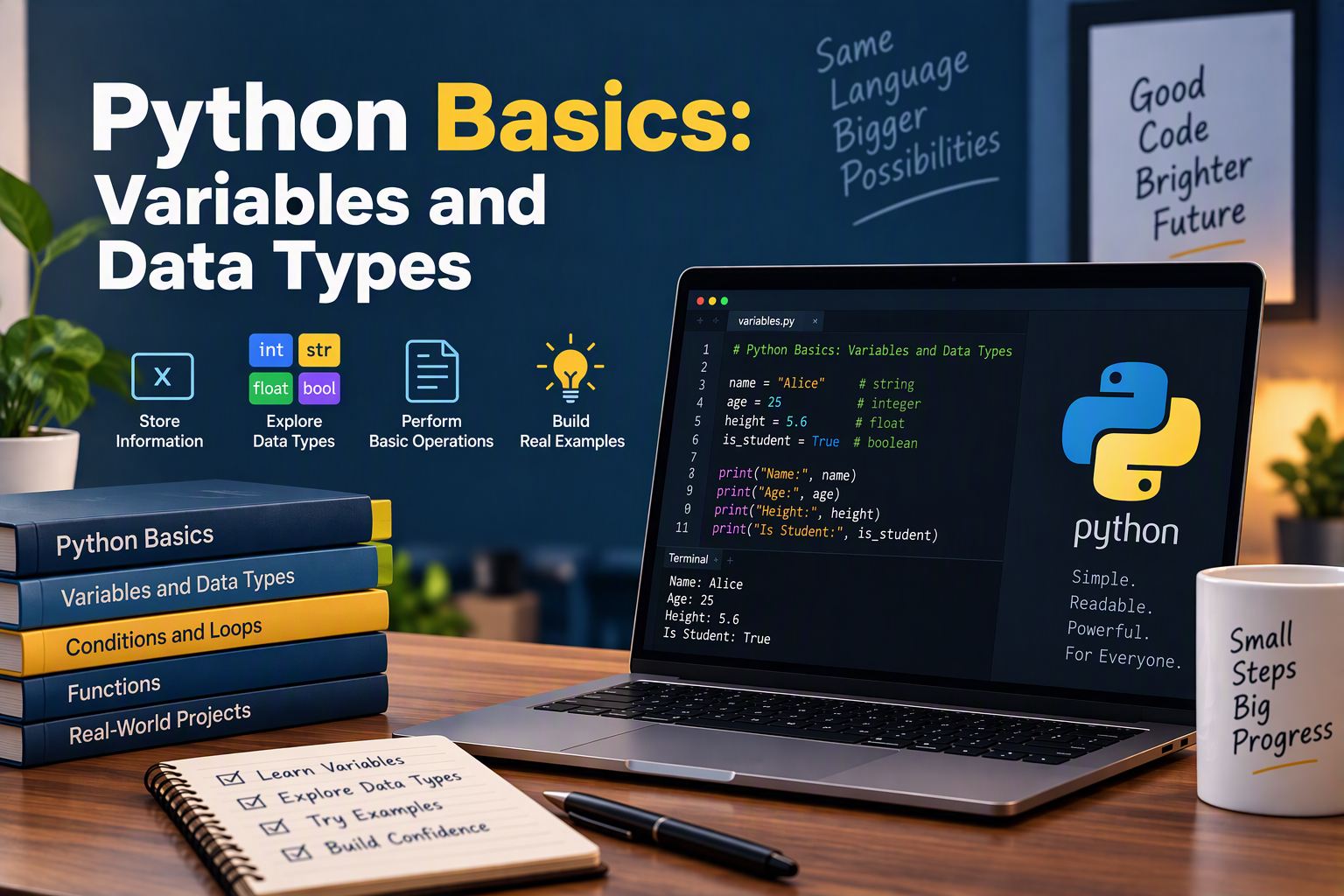
Python Basics series — Part 2. This post continues Python Basics: What Every Beginner Should Know, which gave you a quick tour of the fundamentals. Each post in the series takes one of those topics and goes deeper. This one covers variables and data types.
Every program you’ll ever write does the same basic thing: it takes some information, works with it, and produces a result. A contact form takes a name and an email. A tip calculator takes a bill total and a percentage. A script that cleans up a client’s spreadsheet takes rows of text and numbers. Before you can do anything with that information, you need a place to store it — and you need to know what kind of information it is.
That’s what variables and data types are about. In Part 1, you saw a four-line example and a short list of types. In this post, you’ll learn how variables actually work, how to name them well, and how to use each of Python’s core data types with confidence — plus the mistakes that trip up almost every beginner.
To follow along, open a terminal and type python3 (or python on Windows) to start the interactive Python shell. You can type each example and see the result immediately.
What Is a Variable?
A variable is a name that points to a value. You create one with the equals sign, which in Python means “assign,” not “is equal to”:
client_name = "Maria"
project_budget = 2500
A helpful way to picture this is a name tag. The value "Maria" exists in your computer’s memory, and client_name is a tag attached to it. Whenever you use client_name in your code, Python looks up the tag and uses the value it’s attached to:
print(client_name)        # Maria
print(project_budget)     # 2500
Changing a Variable
Variables can be reassigned at any time. The tag simply moves to a new value:
project_budget = 2500
project_budget = 3000     # the client approved extra pages
print(project_budget)     # 3000
You can also update a variable based on its current value. These two lines do the same thing:
project_budget = project_budget + 500
project_budget += 500
Python Figures Out the Type for You
In some languages, you have to declare what type of data a variable will hold. Python doesn’t need that — it works out the type from the value. This is called dynamic typing:
page_count = 5            # Python knows this is a whole number
page_count = "five"       # now it's text — Python allows this
Python allows a variable to change type, but it’s rarely a good idea. Code is much easier to read when each variable always holds the same kind of data.
Checking a Value’s Type
Use the built-in type() function to see what type a value is:
print(type("Maria"))      # <class 'str'>
print(type(2500))         # <class 'int'>
print(type(19.99))        # <class 'float'>
print(type(True))         # <class 'bool'>
When you need to check a type inside your code, for example before doing math, use isinstance():
price = 19.99
print(isinstance(price, float))   # True
Naming Variables
Good names make your code read almost like plain English. Python has a few rules you must follow, and a few conventions you should follow.
The rules:
- Names can contain letters, numbers, and underscores (
_). - Names can’t start with a number:
2nd_pageis an error, butpage_2is fine. - Names can’t contain spaces or hyphens: use
client_email, notclient emailorclient-email. - Names are case-sensitive:
price,Price, andPRICEare three different variables. - You can’t use Python’s reserved keywords, such as
if,for,class,def,True, orNone.
The conventions (from PEP 8, Python’s official style guide):
- Use
snake_case— lowercase words separated by underscores:hourly_rate,is_published. - Use descriptive names.
total_pricetells you what it holds;tporxdoesn’t. - Use
UPPER_CASEfor values that should never change, called constants:TAX_RATE = 0.0775. Python doesn’t stop you from changing them — the capital letters are a signal to other programmers (and future you). - Start true/false variables with
is_,has_, orcan_:is_paid,has_logo.
# Hard to understand
x = 85
y = 12
z = x * y

# Clear
HOURLY_RATE = 85
hours_worked = 12
invoice_total = HOURLY_RATE * hours_worked
Assigning Several Variables at Once
Python lets you assign multiple variables in a single line:
width, height = 1920, 1080
print(width)    # 1920
print(height)   # 1080
This also makes swapping two values easy — something that takes three lines in many other languages:
width, height = height, width
print(width, height)   # 1080 1920
Python’s Core Data Types
A data type tells Python what kind of value something is, and therefore what you can do with it. You can multiply two numbers, but you can’t multiply two names. You can make text uppercase, but not a number.
Here are the types you’ll use every day.
Strings (str): Text
A string is any text wrapped in quotes. Single and double quotes work the same way — just be consistent:
business_name = "Bright Bakery"
tagline = 'Fresh bread every morning'
If your text contains an apostrophe, wrap it in double quotes (or the other way around):
message = "We're open on Sundays"
For text that spans several lines, use triple quotes:
address = """123 Main Street
El Centro, CA 92243"""
Combining Strings with f-Strings
The cleanest way to build text from variables is an f-string — put an f before the opening quote and wrap variables in curly braces:
client_name = "Maria"
pages = 5
print(f"Hi {client_name}, your website has {pages} pages.")
# Hi Maria, your website has 5 pages.
f-strings can also format numbers. :.2f shows two decimal places, and :, adds thousands separators:
total = 2450.5
print(f"Total due: ${total:,.2f}")   # Total due: $2,450.50
You can also join strings with +, but only string to string — more on that in the mistakes section below.
Useful String Methods
Strings come with built-in methods — actions you call with a dot. These are some of the most useful when you’re cleaning up data:
email = "  [email protected]  "

print(email.strip())            # "[email protected]"   (removes spaces at both ends)
print(email.strip().lower())    # "[email protected]"
print(email.upper())            # "  [email protected]  "

title = "web design services"
print(title.title())            # "Web Design Services"
print(title.replace("web", "logo"))   # "logo design services"
print(title.split())            # ['web', 'design', 'services']
print(len(title))               # 19  (number of characters)
String methods don’t change the original string — they return a new one. To keep the result, assign it to a variable:
email = email.strip().lower()
Indexing and Slicing
Each character in a string has a position, called an index, starting at 0. Negative indexes count from the end:
word = "Python"
print(word[0])      # P   (first character)
print(word[-1])     # n   (last character)
print(word[0:3])    # Pyt (from index 0 up to, but not including, 3)
print(word[2:])     # thon (from index 2 to the end)
Integers (int): Whole Numbers
An integer is a whole number, positive or negative, with no decimal point:
pages = 8
year_founded = 2019
temperature = -4
For large numbers, you can use underscores to make them easier to read. Python ignores them:
monthly_visitors = 1_250_000
print(monthly_visitors)   # 1250000
Floats (float): Decimal Numbers
A float is a number with a decimal point:
price = 19.99
tax_rate = 0.0775
Python does math with integers and floats the way you’d expect. Notice that regular division (/) always returns a float, while floor division (//) drops the decimal part:
print(10 + 3)    # 13
print(10 * 3)    # 30
print(10 / 3)    # 3.3333333333333335
print(10 // 3)   # 3   (whole-number division)
print(10 % 3)    # 1   (remainder)
print(2 ** 3)    # 8   (2 to the power of 3)
Floats aren’t perfectly precise. Computers store decimals in binary, so some values can’t be represented exactly. Try
print(0.1 + 0.2)— you’ll get0.30000000000000004. For display, round the result withround(0.1 + 0.2, 2)or format it with an f-string. For money in serious financial software, Python’sdecimalmodule avoids the problem entirely.
Booleans (bool): True or False
A boolean has only two possible values: True or False (always capitalized). Booleans are what your program uses to make decisions:
is_published = True
has_ssl = False
You’ll most often get booleans from comparisons:
budget = 3000
print(budget > 2000)      # True
print(budget == 2500)     # False
print(budget != 2500)     # True
Combine them with and, or, and not:
is_paid = True
is_approved = False

print(is_paid and is_approved)   # False (both must be True)
print(is_paid or is_approved)    # True  (at least one is True)
print(not is_approved)           # True  (flips the value)
Truthy and Falsy Values
Every value in Python counts as either true or false when used in a condition. These values are falsy: False, 0, 0.0, empty text "", an empty list [], an empty dictionary {}, and None. Almost everything else is truthy. You can check any value with bool():
print(bool(""))          # False
print(bool("Maria"))     # True
print(bool(0))           # False
print(bool([]))          # False
print(bool([1, 2]))      # True
This lets you write short, readable checks, like making sure a form field isn’t empty:
client_name = ""
if not client_name:
    print("Please enter your name.")
None: The Absence of a Value
None is a special value that means “nothing here yet.” It’s useful when a variable needs to exist before you know its value:
launch_date = None    # not scheduled yet

if launch_date is None:
    print("Launch date to be decided.")
When checking for None, use is None rather than == None. It’s the standard Python style, and it’s always reliable.
Converting Between Types
Sometimes you have the right data in the wrong type. The most common example: the input() function, which asks the user to type something, always returns a string — even if the user types a number.
age = input("How old are you? ")   # the user types 28
print(type(age))                   # <class 'str'>
To do math with it, convert it first. Python has a built-in function for each type:
print(int("28"))        # 28      text → integer
print(float("19.99"))   # 19.99   text → float
print(str(2500))        # "2500"  number → text
print(int(9.99))        # 9       float → integer (cuts off the decimal, doesn't round)
print(float(5))         # 5.0     integer → float
If the text can’t be converted, Python raises a ValueError:
int("twenty") # ValueError: invalid literal for int() with base 10: 'twenty'
You’ll learn how to handle errors like this gracefully in Part 8: Files and Exceptions. For now, just know that converting user input is one of the most common sources of beginner bugs.
Collections: Storing Many Values
So far, every variable has held a single value. Real programs usually need to work with groups of values — a list of services, a client’s contact details, a set of tags. Python has four built-in collection types for that.
Lists: Ordered and Changeable
A list holds an ordered sequence of values in square brackets. It’s the collection you’ll use most:
services = ["Web Design", "SEO", "Hosting"]

print(services[0])      # Web Design (indexes start at 0, just like strings)
print(services[-1])     # Hosting
print(len(services))    # 3
Lists are mutable, which means you can change them after creating them:
services.append("Logo Design")     # add to the end
services.remove("Hosting")         # remove by value
services[0] = "Website Design"     # replace an item
print(services)
# ['Website Design', 'SEO', 'Logo Design']
You can check whether something is in a list with in:
print("SEO" in services) # True
Tuples: Ordered and Unchangeable
A tuple looks like a list but uses parentheses, and it can’t be changed after it’s created. Use tuples for values that belong together and shouldn’t change, like coordinates or a screen size:
screen_size = (1920, 1080)
brand_color = (91, 33, 182)    # an RGB color

print(screen_size[0])   # 1920
Trying to change a tuple raises an error:
screen_size[0] = 1280 # TypeError: 'tuple' object does not support item assignment
Dictionaries: Key-Value Pairs
A dictionary (dict) stores values under keys, like labels in a form. Instead of looking items up by position, you look them up by name:
client = {
    "name": "Maria",
    "business": "Bright Bakery",
    "budget": 2500,
}

print(client["name"])       # Maria
Dictionaries are mutable. Assigning to a key adds it, or updates it if it already exists:
client["budget"] = 3000           # update an existing key
client["email"] = "[email protected]"   # add a new key
Looking up a key that doesn’t exist raises a KeyError. Use .get() when a key might be missing — it returns None (or a default you choose) instead of crashing:
print(client.get("phone"))                    # None
print(client.get("phone", "No phone given"))  # No phone given
To go through everything in a dictionary, loop over .items():
for key, value in client.items():
    print(f"{key}: {value}")
Dictionaries are everywhere in Python. When you work with JSON from an API, it turns into dictionaries and lists.
Sets: Unique Values Only
A set stores values with no duplicates and no particular order. Sets are perfect for removing repeats:
tags = ["python", "web", "python", "seo", "web"]
unique_tags = set(tags)
print(unique_tags)   # {'python', 'web', 'seo'}  (order may vary)
Which Collection Should You Use?
| Type | Syntax | Ordered? | Changeable? | Duplicates? | Use it for |
|---|---|---|---|---|---|
| List | ["a", "b"] | Yes | Yes | Yes | A sequence of items you’ll add to or change |
| Tuple | ("a", "b") | Yes | No | Yes | Fixed groups of values, like coordinates |
| Dictionary | {"key": "value"} | Yes | Yes | Keys must be unique | Looking up values by name |
| Set | {"a", "b"} | No | Yes | No | Unique values, removing duplicates |
Lists and dictionaries are the two collections you’ll use most. Part 3 of this series covers them in depth: sorting, searching, comprehensions, nested data, and more.
Mutable vs. Immutable: Why It Matters
Some types can be changed after they’re created (mutable: lists, dictionaries, sets), and some can’t (immutable: strings, numbers, booleans, tuples, None).
This matters because of how variables work. Remember the name-tag picture: assigning one variable to another doesn’t copy the value — it puts a second tag on the same value. With immutable values, that never causes surprises. With mutable ones, it can:
original = ["Home", "About", "Contact"]
menu = original          # both names point to the SAME list
menu.append("Blog")

print(original)   # ['Home', 'About', 'Contact', 'Blog']  ← changed too!
If you want an independent copy, ask for one with .copy():
original = ["Home", "About", "Contact"]
menu = original.copy()   # a separate list
menu.append("Blog")

print(original)   # ['Home', 'About', 'Contact']
print(menu)       # ['Home', 'About', 'Contact', 'Blog']
Putting It All Together: A Simple Project Quote
Here’s a short script that uses everything from this post to build a quote for a website project:
# Constants: values that don't change
HOURLY_RATE = 85
TAX_RATE = 0.0775

# Client details in a dictionary
client = {"name": "Maria", "business": "Bright Bakery"}

# Pages and the hours each one takes
pages = {"Home": 6, "About": 3, "Menu": 4, "Contact": 2}
extras = ["SEO setup", "Google Analytics"]
is_rush_job = False

# Calculations
total_hours = sum(pages.values())
subtotal = total_hours * HOURLY_RATE
if is_rush_job:
    subtotal = subtotal * 1.25
tax = round(subtotal * TAX_RATE, 2)
total = subtotal + tax

# Output
print(f"Quote for {client['name']} ({client['business']})")
print(f"Pages: {', '.join(pages)}")
print(f"Extras: {', '.join(extras)}")
print(f"{total_hours} hours x ${HOURLY_RATE}/hour = ${subtotal:,.2f}")
print(f"Tax: ${tax:,.2f}")
print(f"Total: ${total:,.2f}")
Running it prints:
Quote for Maria (Bright Bakery)
Pages: Home, About, Menu, Contact
Extras: SEO setup, Google Analytics
15 hours x $85/hour = $1,275.00
Tax: $98.81
Total: $1,373.81
Try changing the values — add a page, set is_rush_job to True, or change the hourly rate — and run it again.
Common Beginner Mistakes
Adding text and a number. Python won’t guess what you mean:
pages = 5
print("Pages: " + pages)   # TypeError: can only concatenate str (not "int") to str
Use an f-string instead — print(f"Pages: {pages}") — or convert with str(pages).
Forgetting that input() returns text. input("Budget? ") * 2 repeats the text instead of doubling the number. Convert it first with int() or float().
Using = when you mean ==. A single = assigns a value; a double == compares two values.
Naming a variable after a built-in. Names like list, str, dict, type, or input are already used by Python. If you write list = [1, 2, 3], you can no longer use the list() function in that program. Pick a more specific name, like page_list.
Expecting exact results from floats. 0.1 + 0.2 == 0.3 is False. Round before comparing or displaying.
Copying a list by assignment. menu = original doesn’t copy a list; use original.copy().
Looking up a missing dictionary key. client["phone"] crashes if there’s no "phone" key. Use client.get("phone") when the key might not exist.
Practice Exercises
Try these on your own before moving on:
- Create variables for your name, age, and favorite programming language, then print a sentence with an f-string.
- Ask the user for a price with
input(), convert it to a float, add 7.75% tax, and print the total with two decimal places. - Take the string
" [email protected] "and turn it into a clean, lowercase email address. - Make a list of three website pages, add a fourth, remove the first, and print how many are left.
- Build a dictionary describing a website (name, number of pages, is it live?) and print each key and value.
- Remove the duplicates from
["red", "blue", "red", "green", "blue"].
If you want more structured practice, the 100 Days of Python Challenge builds a small project every day — and the early days lean heavily on exactly these skills.
Conclusion
Variables and data types are the foundation of every Python program. A variable is a name that points to a value, and the value’s type — string, integer, float, boolean, None, list, tuple, dictionary, or set — decides what you can do with it. Once you can choose the right type, convert between types, and avoid the common traps like adding text to numbers or accidentally sharing a list, you’re ready for everything that comes next.
Keep experimenting in the Python shell: the fastest way to understand a data type is to create one and see what it can do.
Next in the Python Basics series: Lists and Dictionaries, a deeper look at Python’s two most-used collections.
Python Basics series: Part 1: What Every Beginner Should Know · Part 2: Variables and Data Types · Part 3: Lists and Dictionaries · Part 4: If Statement · Part 5: User Input and While Loops · Part 6: Functions · Part 7: Classes · Part 8: Files and Exceptions · Part 9: Testing Your Code