
A table of numbers tells you what happened. A chart shows you what it means. You can read twelve monthly sales figures and work out that December was the best month, or you can glance at a bar chart and see it straight away.
Python is one of the best tools for this job. With a few libraries and a CSV file, you can turn raw data into clean, professional charts that are ready for a report, a slide deck, or a client dashboard.
This guide walks through the eight chart types in my PythonVisualizationCharts project on GitHub. For each one, you’ll learn what it’s good for, see the key code, and see the output. Every script supports both a light and a dark mode, so the charts fit whatever background they end up on.
The Libraries You’ll Use
Each chart is built from a small set of well-known libraries:
- Pandas loads the CSV files and handles the data (sorting, filtering, totals).
- Matplotlib does the drawing: axes, bars, lines, labels, and saving the image.
- Seaborn provides ready-made color palettes (
pastelfor light mode,brightfor dark mode). - GeoPandas loads U.S. state shapes for the map chart.
- NumPy helps calculate the arcs of the gauge chart.
If you’re new to Pandas, start with my guides on accessing your data and cleaning data for analysis. Clean data makes better charts.
Project Setup
The project uses Python 3.13 and uv to manage dependencies. Clone the repo and install everything with one command:
git clone https://github.com/victorhugo81/PythonVisualizationCharts.git
cd PythonVisualizationCharts
uv sync
Prefer plain pip? Create a virtual environment first, then install the packages:
pip install pandas matplotlib seaborn geopandas
The project is organized like this:
PythonVisualizationCharts/
├── data/
│   ├── monthly_sales.csv    # Month, Sales
│   ├── product_sales.csv    # Product, Sales
│   └── states.csv           # State, Code, Population
├── output/                  # Generated PNG charts
├── barchart.py
├── hbarchart.py
├── piechart.py
├── donutchart.py
├── linechart.py
├── scatterplotchart.py
├── gaugechart.py
└── map.py
Run any chart from the project folder:
uv run barchart.py
The chart opens in a window and is also saved to output/ as a PNG.
The Sample Data
Most charts read data/monthly_sales.csv, a simple two-column file:
Month,Sales
Jan,12000
Feb,15000
Mar,18000
...
Dec,30000
The pie and donut charts use data/product_sales.csv (Laptops, Phones, Tablets, Accessories, Monitors), and the map uses data/states.csv with each state’s name, two-letter code, and population.
The Pattern Every Script Follows
Every script in the project is built the same way, so once you understand one, you understand them all.
1. A mode switch at the top. Change one line to switch between light and dark output:
MODE = 'light' # Options: 'dark' or 'light'
2. A safe data loader. Before reading the file, the script checks that it exists and that it has the right columns. A missing file gives you a clear error message instead of a confusing traceback:
from pathlib import Path
import pandas as pd

def load_data():
    """Load data from CSV file."""
    CSV_FILE = Path("data") / "monthly_sales.csv"

    if not CSV_FILE.exists():
        raise FileNotFoundError(f"{CSV_FILE} not found")

    df = pd.read_csv(CSV_FILE)

    required_cols = ['Month', 'Sales']
    if not all(col in df.columns for col in required_cols):
        raise ValueError(f"CSV must contain columns: {required_cols}")

    return df
3. Colors chosen by mode. Light mode uses a white background with Seaborn’s pastel palette. Dark mode uses Matplotlib’s dark_background style, a #1e1e1e background, and the bright palette:
if MODE == 'dark':
    plt.style.use('dark_background')
    bg_color = '#1e1e1e'
    text_color = 'white'
    bar_colors = sns.color_palette("bright", n_colors=len(df))
else:
    plt.style.use('default')
    bg_color = 'white'
    text_color = 'black'
    bar_colors = sns.color_palette("pastel", n_colors=len(df))
4. A clean, minimal look. Each chart removes the box border around the plot (the “spines”) and keeps only faint gridlines. This one change makes a default Matplotlib chart look much more modern:
for side in ['top', 'right', 'bottom', 'left']:
    ax.spines[side].set_visible(False)

ax.grid(axis="y", linestyle="-", alpha=0.3, color='gray')
5. Save, then show. The chart is saved to the output/ folder with the mode in the file name (for example, barchart_light.png):
OUTPUT_FILE = Path("output") / f"barchart_{MODE}.png"
OUTPUT_FILE.parent.mkdir(parents=True, exist_ok=True)
plt.savefig(OUTPUT_FILE, dpi=72, bbox_inches='tight', facecolor=bg_color)
plt.show()
Passing facecolor=bg_color to savefig() matters. Without it, a dark-mode chart can be saved with a white border around it.
Now let’s look at each chart.
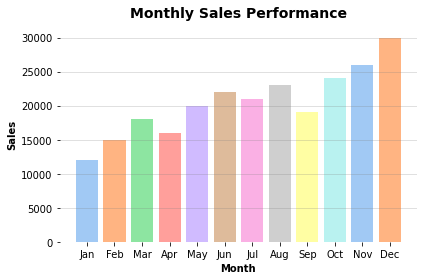
1. Bar Chart
Best for: comparing values across categories, such as sales by month, region, or product.
Bar charts make the differences between groups easy to see, which makes them a good fit for rankings and period-over-period comparisons.
# Keep months in calendar order, not alphabetical order
month_order = ["Jan", "Feb", "Mar", "Apr", "May", "Jun",
               "Jul", "Aug", "Sep", "Oct", "Nov", "Dec"]
df["Month"] = pd.Categorical(df["Month"], categories=month_order, ordered=True)
df = df.sort_values("Month")

fig, ax = plt.subplots(figsize=(6, 4), facecolor=bg_color)
ax.bar(df["Month"], df["Sales"], color=bar_colors, width=0.8)

ax.set_title("Monthly Sales Performance", pad=10, fontsize=14,
             fontweight='bold', color=text_color)
ax.set_xlabel("Month", fontweight='bold', color=text_color)
ax.set_ylabel("Sales", fontweight='bold', color=text_color)
The pd.Categorical step is worth remembering. Month names are text, and if anything sorts them, they’ll be sorted alphabetically (Apr, Aug, Dec…). Making them an ordered category keeps them in calendar order.
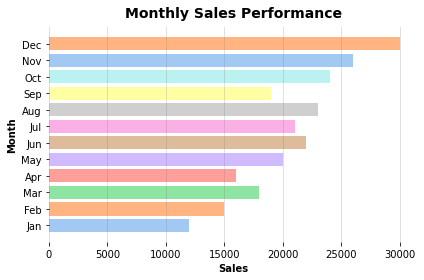
2. Horizontal Bar Chart
Best for: long category labels, many categories, or ranked lists.
A horizontal bar chart is the same idea turned on its side. When labels are long (product names, page titles, survey answers), horizontal bars give them room to breathe instead of crowding or rotating them.
The code change is small: ax.bar() becomes ax.barh(), width becomes height, and the axis labels and gridlines swap:
ax.barh(df["Month"], df["Sales"], color=bar_colors, height=0.8)

ax.set_xlabel("Sales", fontweight='bold', color=text_color)
ax.set_ylabel("Month", fontweight='bold', color=text_color)
ax.grid(axis="x", linestyle="-", alpha=0.3, color='gray')
3. Pie Chart
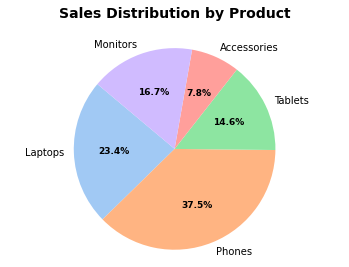
Best for: showing how parts make up a whole, with a small number of categories.
Pie charts work for percentages and proportions where the total is 100%, such as market share or a budget breakdown. Keep them to about five or six slices. Past that, the slices get too thin to compare.
labels = df['Product']
sizes = df['Sales']

wedges, texts, autotexts = ax.pie(
    sizes,
    labels=labels,
    colors=colors,
    autopct='%1.1f%%',   # show each slice's percentage
    startangle=140,
    textprops={'color': text_color, 'fontsize': 10}
)

# Make the percentage labels bold
for autotext in autotexts:
    autotext.set_fontweight('bold')

ax.axis('equal')  # keep the pie a circle, not an oval
autopct='%1.1f%%' tells Matplotlib to calculate each slice’s share and print it with one decimal place. You don’t need to work out the percentages yourself.
The script also checks for bad data before plotting. A pie chart can’t show a negative value, so negative sales are filtered out with a warning:
if (df['Sales'] < 0).any():
    print("Warning: Negative sales values detected")
    df = df[df['Sales'] >= 0]
4. Donut Chart
Best for: the same jobs as a pie chart, with a cleaner look and room in the middle.
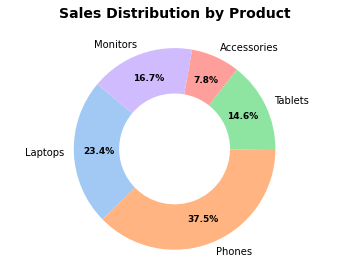
A donut chart is a pie chart with the center removed. Many people find it easier to read, because you compare the lengths of the arcs instead of the angles of the slices. The empty center is also a handy spot for a total or a label.
It takes just one extra argument, wedgeprops, to cut out the middle:
wedges, texts, autotexts = ax.pie(
    sizes,
    labels=labels,
    colors=colors,
    autopct='%1.1f%%',
    startangle=140,
    wedgeprops={"width": 0.45},  # ring thickness; this makes it a donut
    pctdistance=0.75,            # place percentages on the ring
    labeldistance=1.10,          # push product names outside
    textprops={'color': text_color, 'fontsize': 10}
)
5. Line Chart
Best for: trends over time or other continuous data.
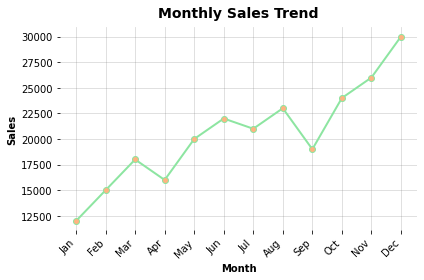
Line charts show rises, dips, and patterns across time intervals, such as monthly sales, website traffic, temperatures, or stock prices. Use them when each data point connects to the one after it.
ax.plot(
    df['Month'],
    df['Sales'],
    marker='o',                    # dot on each data point
    markerfacecolor=marker_color,
    linestyle='-',
    color=line_color,
    linewidth=2
)

ax.grid(True, linestyle='-', alpha=0.3, color='gray')
plt.xticks(rotation=45, ha='right')  # angle labels so they don't overlap
plt.tight_layout()                   # keep labels from being cut off
The markers make each month’s value easy to pick out, and the line shows the overall direction. Here, sales clearly rise through the year.
6. Scatter Plot
Best for: relationships or correlations between two numeric variables.
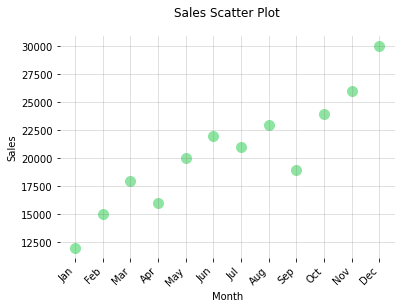
Scatter plots help you find patterns, clusters, and outliers, such as height vs. weight or sales vs. advertising spend. Unlike a line chart, the points aren’t connected, so the focus is on how the values are spread out rather than on a sequence.
# Make sure Sales is actually numeric before plotting
if not pd.api.types.is_numeric_dtype(df['Sales']):
    raise ValueError("Sales column must contain numeric values")

ax.scatter(
    df['Month'],
    df['Sales'],
    color=point_color,
    alpha=1.0,
    s=100   # point size
)
The numeric check is good practice. If a CSV contains a value like "$12,000", Pandas reads the whole column as text, and the chart will plot it incorrectly without warning.
7. Gauge Chart
Best for: showing a single value against a target or a range.
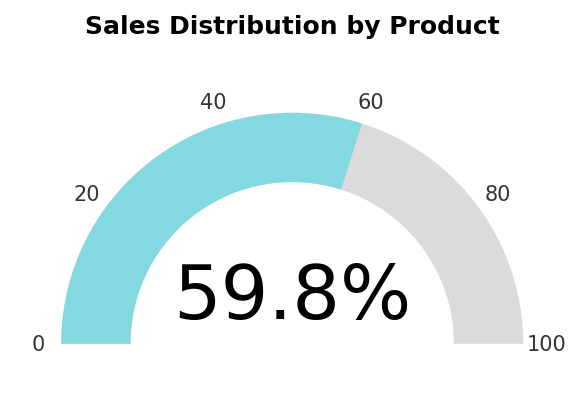
Gauge charts are common on dashboards for KPIs, goal tracking, and system metrics. They answer one question at a glance: how close are we?
Matplotlib has no built-in gauge, so this script draws one from scratch. It builds two half-circle arcs out of polygons: a gray background arc for the full range, and a colored arc for the current value.
import numpy as np
import matplotlib.patches as patches

percentage = (value / max_value) * 100
outer_radius, inner_radius = 1.0, 0.7

# Colored arc: starts at 180° (left) and sweeps right based on the percentage
end_angle_value = 180 - (percentage / 100 * 180)
theta = np.linspace(np.radians(180), np.radians(end_angle_value), 100)

outer = list(zip(outer_radius * np.cos(theta), outer_radius * np.sin(theta)))
inner = list(zip(inner_radius * np.cos(theta[::-1]), inner_radius * np.sin(theta[::-1])))

ax.add_patch(patches.Polygon(outer + inner, facecolor=gauge_value_color, edgecolor='none'))

# Big number in the middle
ax.text(0, 0.2, f'{percentage:.1f}%', ha='center', va='center', fontsize=36)
The value comes straight from the data. The script adds up sales for the first eight months and compares that to the full-year total:
reported_sale = df["Sales"].iloc[0:8].sum()
total_sales = df["Sales"].sum()
Swap in your own target, such as a quarterly goal, and the same gauge becomes a progress tracker.
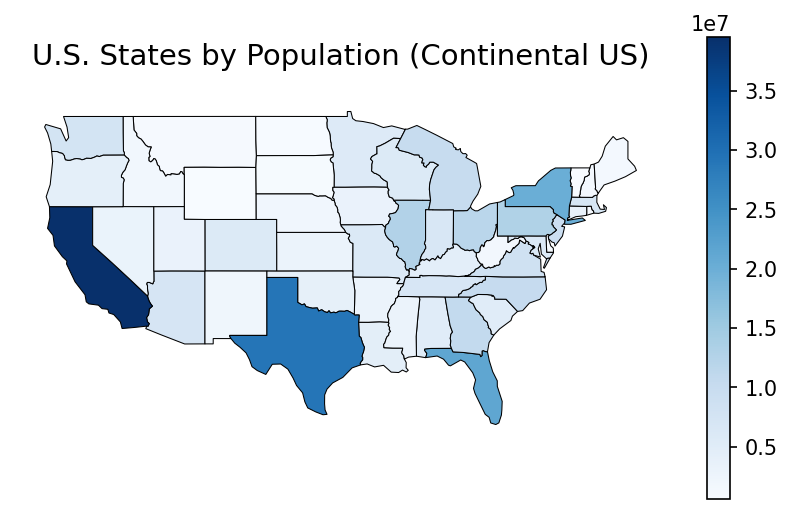
8. U.S. Map (Choropleth)
Best for: data with a geographic component.
A choropleth map shades each region by its value. Population, sales by territory, and customer locations all become easy to read when they’re placed on a map, because regional patterns jump out in a way they never do in a table.
This script uses GeoPandas to download U.S. state outlines from Natural Earth, then merges them with the population data using the two-letter state code:
import geopandas as gpd

url = "https://naciscdn.org/naturalearth/110m/cultural/ne_110m_admin_1_states_provinces.zip"
states = gpd.read_file(url)

# Continental U.S. only
usa = states[states['admin'] == 'United States of America']
usa = usa[~usa['postal'].isin(['AK', 'HI'])]

# Join the map shapes to our CSV data
usa = usa.merge(df, left_on='postal', right_on='Code', how='left')

usa.plot(
    column='Population',
    ax=ax,
    cmap='Blues',                           # darker blue = more people
    legend=True,
    edgecolor=edge_color,
    linewidth=0.5,
    missing_kwds={'color': missing_color}   # states with no data
)
ax.axis('off')
The merge() is the key step. It works like a SQL join: each state shape is matched to its row in the CSV. Using how='left' keeps every state on the map, even if it has no data, and missing_kwds gives those states a neutral gray.
Note that the shape file is downloaded each time, so this script needs an internet connection. It also saves the map to output/ without opening a window.
Which Chart Should You Use?
| Chart | Use it when you want to… | Example |
|---|---|---|
| Bar | Compare categories | Sales by month |
| Horizontal bar | Compare categories with long labels | Top 10 products |
| Pie | Show parts of a whole (few categories) | Market share |
| Donut | Show parts of a whole with a cleaner look | Budget breakdown |
| Line | Show a trend over time | Monthly website traffic |
| Scatter | Find relationships between two numbers | Ad spend vs. sales |
| Gauge | Show progress toward a target | KPI vs. goal |
| Map | Show geographic patterns | Customers by state |
A good rule: start with what you want the reader to notice, then pick the chart that makes that easiest to see. For a comparison, use bars. For a trend, use a line. For a share of a total, use a pie or donut. For a location, use a map.
Tips for Better Charts
- Always add a title and axis labels. A chart without labels makes the reader guess.
- Remove clutter. Hiding the spines and fading the gridlines, as these scripts do, keeps attention on the data.
- Sort categories on purpose. Use calendar order for months and largest-to-smallest for rankings.
- Limit pie and donut slices to about five or six. Group the rest into “Other.”
- Validate your data first. Check for missing files, missing columns, negative values, and text in numeric columns before plotting.
- Match the theme to the destination. Use light mode for printed reports and most websites, and dark mode for dark dashboards and slides.
Get the Code
All eight scripts, the sample data, and the light and dark output images are on GitHub:
github.com/victorhugo81/PythonVisualizationCharts
Clone the repo, replace the CSV files with your own data, and you’ll have professional charts in minutes. If you work in Power BI too, my Power BI 101: Introduction to Visualization Charts post covers the same chart types from a BI point of view.