
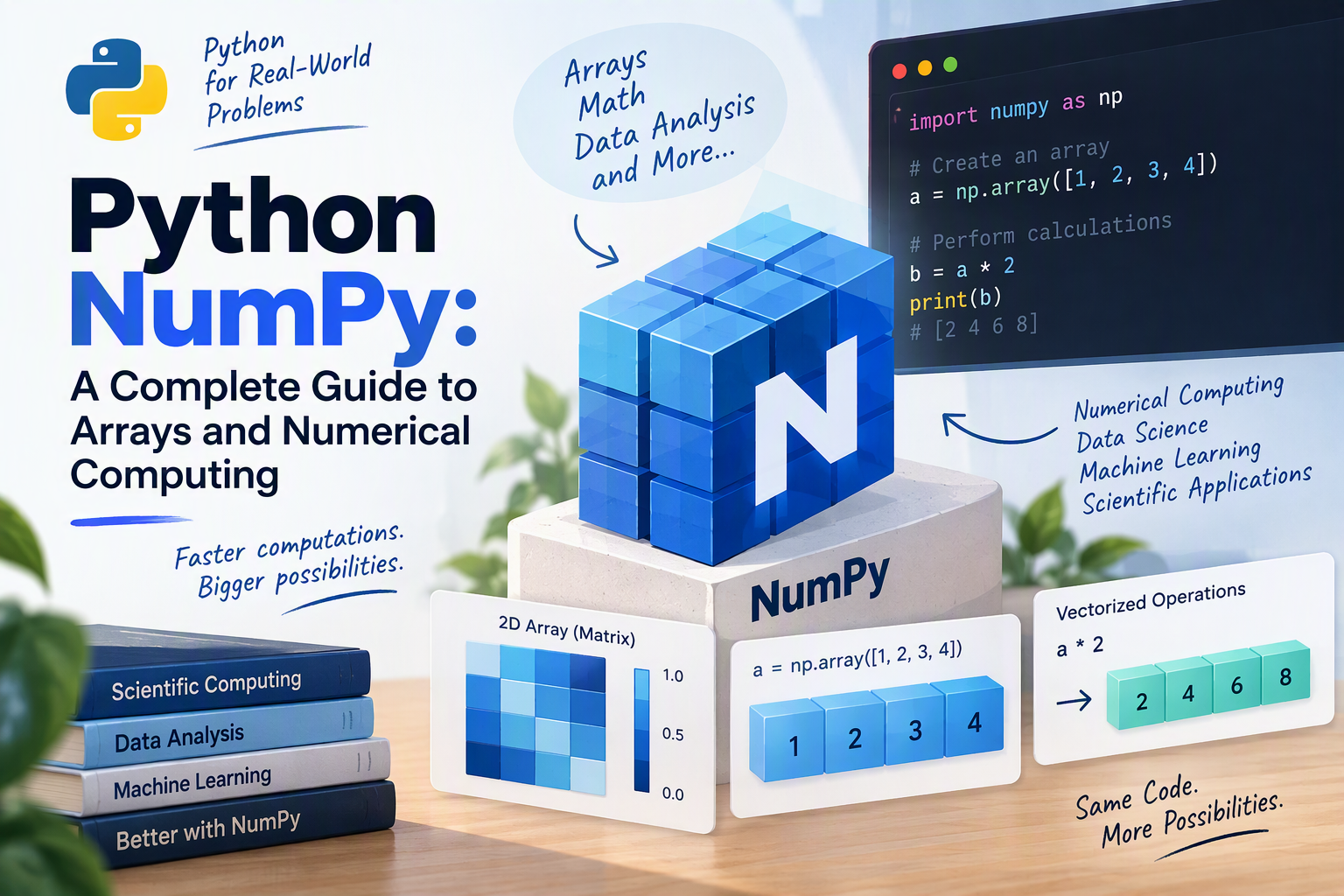
If you work with numbers in Python — sales figures, sensor readings, survey results, images, or machine learning data — you’ll use NumPy, whether you realize it or not. It’s the foundation of Python’s entire data ecosystem: Pandas is built on top of it, Matplotlib plots its arrays, and libraries like scikit-learn, SciPy, and PyTorch all speak its language.
NumPy gives Python one powerful new data type, the array, and a huge library of fast functions to work with it. With a few lines of NumPy, you can do calculations on millions of numbers at once — typically dozens of times faster than with regular Python lists.
This guide teaches NumPy from the ground up: how arrays work, how to create, select, and filter data, how to do math on whole arrays at once, and two ideas that make NumPy click — axes and broadcasting. It finishes with real-world examples and the mistakes that trip up most beginners. Every example shows its real output, so you can follow along and check your results.
What Is NumPy?
NumPy (short for “Numerical Python”) is a free, open-source library for working with numbers. Its core is the ndarray (n-dimensional array): a grid of values, all of the same type, stored efficiently in memory.
That one design decision — every value in an array has the same type, stored side by side — is what makes NumPy fast. A Python list can hold anything (numbers, text, other lists), so Python has to check each item’s type every time it does something with it. A NumPy array knows all of its values are, say, 64-bit decimal numbers, so its operations run in fast, compiled code instead of a slow Python loop.
Installing and Importing NumPy
Install NumPy in a virtual environment (or with uv). If you’ve installed Pandas, you already have it.
pip install numpy
By convention, NumPy is always imported as np:
import numpy as np

prices = np.array([19.99, 49.00, 9.99, 300.00, 1200.00])
print(prices)
print(prices * 1.0775)
[  19.99   49.      9.99  300.   1200.  ]
[  21.539225   52.7975     10.764225  323.25     1293.      ]
That second line is the heart of NumPy: multiplying the array by 1.0775 applies 7.75% tax to every price at once — no loop needed.
Versions: the output in this guide is from NumPy 2.5, and every example produces identical output on NumPy 1.26.
Arrays vs. Python Lists
Arrays and lists look similar, but they behave very differently. Compare them side by side:
prices_list = [19.99, 49.00, 9.99, 300.00, 1200.00]
print([p * 2 for p in prices_list])
print(prices * 2)
print(prices_list + prices_list)
print(prices + prices)
[39.98, 98.0, 19.98, 600.0, 2400.0]
[  39.98   98.     19.98  600.   2400.  ]
[19.99, 49.0, 9.99, 300.0, 1200.0, 19.99, 49.0, 9.99, 300.0, 1200.0]
[  39.98   98.     19.98  600.   2400.  ]
- To double every number in a list, you need a loop or a list comprehension (see Python Basics: Lists and Dictionaries). With an array,
prices * 2does it directly. - For lists,
+means join: the result is a list twice as long. For arrays,+means add, element by element.
Applying an operation to every element at once is called vectorization, and it’s not just shorter — it’s much faster. Here’s a quick timing test you can run yourself, doubling a million numbers:
import timeit

setup = "import numpy as np; data = list(range(1_000_000)); arr = np.arange(1_000_000)"
t_list = min(timeit.repeat("[x * 2 for x in data]", setup=setup, number=10, repeat=5)) / 10
t_np = min(timeit.repeat("arr * 2", setup=setup, number=10, repeat=5)) / 10
print(f"List: {t_list*1000:.1f} ms")
print(f"NumPy: {t_np*1000:.2f} ms")
print(f"NumPy is about {t_list/t_np:.0f}x faster")
On my computer, it printed:
List: 58.1 ms
NumPy: 1.28 ms
NumPy is about 45x faster
Your exact numbers will differ, but NumPy is typically tens of times faster for this kind of work — and the gap grows with more complex calculations.
Creating Arrays
Besides converting a list with np.array(), NumPy has functions to create common arrays directly:
print(np.zeros(5))
print(np.ones((2, 3)))
print(np.full(3, 7))
print(np.arange(0, 10, 2))
print(np.linspace(0, 1, 5))
[0. 0. 0. 0. 0.]
[[1. 1. 1.]
 [1. 1. 1.]]
[7 7 7]
[0 2 4 6 8]
[0.   0.25 0.5  0.75 1.  ]
np.zeros()andnp.ones()create arrays filled with 0s or 1s. Pass a tuple like(2, 3)for 2 rows and 3 columns.np.full()fills an array with any value.np.arange(start, stop, step)works like Python’srange(), but returns an array.np.linspace(start, stop, count)creates evenly spaced values, including the end point. Use it when you know how many values you want rather than the step size.
Random Numbers
For simulations, testing, and sample data, use a random number generator. Giving it a seed makes the “random” numbers the same every time you run the code, so your results are reproducible:
rng = np.random.default_rng(seed=42)
print(rng.integers(1, 7, size=10))
print(rng.random(3).round(3))
print(rng.normal(loc=100, scale=15, size=4).round(1))
[1 5 4 3 3 6 1 5 2 1]
[0.976 0.761 0.786]
[ 99.7  87.2 113.2 111.7]
rng.integers(1, 7, size=10)rolls ten six-sided dice (the upper limit, 7, isn’t included).rng.random()returns decimals between 0 and 1.rng.normal()draws from a bell curve — here with an average of 100 and a standard deviation of 15.
With the same seed (42), you’ll get exactly these numbers. default_rng() is the modern way to generate random numbers; older tutorials use np.random.seed() and np.random.randint(), which still work but aren’t recommended for new code.
The Example Dataset: Store Sales
For most of this guide, we’ll use daily sales for three stores — Downtown, Airport, and Mall — over five days, Monday to Friday. Each row is a store, and each column is a day:
sales = np.array([
    [120, 135, 150, 110, 190],
    [ 80,  95,  70,  85, 130],
    [200, 210, 180, 220, 260],
])
print(sales.shape)
print(sales.ndim)
print(sales.size)
print(sales.dtype)
(3, 5)
2
15
int64
These four attributes describe any array:
shape— the size of each dimension: 3 rows and 5 columns.ndim— the number of dimensions: 2, because it’s a table.size— the total number of values: 15.dtype— the data type of every value:int64, a 64-bit integer.
Data Types (dtype)
NumPy picks a data type automatically based on your values, but you can also set it yourself:
print(np.array([1, 2, 3]).dtype)
print(np.array([1, 2, 3.5]).dtype)
print(np.array([1, 2, 3], dtype=np.float32).dtype)
print(np.array(["a", "b"]).dtype)
int64
float64
float32
<U1
Because every value in an array must have the same type, one decimal number turns the whole array into floats (float64). Smaller types like float32 or int8 use less memory, which matters for very large arrays. <U1 means Unicode text of length 1 — NumPy can store text, but for text-heavy data, Pandas is the better tool. (On Windows with NumPy 1.x, the default integer type is int32 instead of int64.)
Indexing and Slicing
One-Dimensional Arrays
Indexing and slicing a 1D array works just like a Python list:
x = np.array([10, 20, 30, 40, 50])
print(x[0], x[-1])
print(x[1:4])
print(x[::2])
10 50
[20 30 40]
[10 30 50]
Two-Dimensional Arrays
For a 2D array, give the row first and the column second, separated by a comma:
print(sales[0])
print(sales[0, 4])
print(sales[:, 4])
print(sales[1:, :2])
[120 135 150 110 190]
190
[190 130 260]
[[ 80  95]
 [200 210]]
sales[0]is the first row: all of Downtown’s sales.sales[0, 4]is one value: Downtown on Friday.sales[:, 4]uses:to mean “all rows,” giving the fourth column: every store’s Friday sales.sales[1:, :2]combines two slices: the Airport and Mall rows, for Monday and Tuesday.
Views vs. Copies
This is one of the most important differences from Python lists. Slicing an array doesn’t copy the data — it creates a view, a window into the same memory. Changing the view changes the original:
first_two = x[:2]
first_two[0] = 999
print(x)

x = np.array([10, 20, 30, 40, 50])
safe = x[:2].copy()
safe[0] = 999
print(x)
[999  20  30  40  50]
[10 20 30 40 50]
Views make NumPy fast and memory-efficient, because slicing a huge array doesn’t duplicate it. But if you want to change a slice without affecting the original, call .copy().
Filtering with Boolean Masks
A comparison on an array returns an array of True and False values, called a boolean mask:
print(sales > 150)
print(sales[sales > 150])
print((sales > 150).sum())
print(sales[(sales >= 100) & (sales <= 130)])
[[False False False False  True]
 [False False False False False]
 [ True  True  True  True  True]]
[190 200 210 180 220 260]
6
[120 110 130]
- Putting a mask inside square brackets keeps only the values where the mask is
True. - Because
Truecounts as 1 andFalseas 0,.sum()on a mask counts the matches: 6 days had sales over 150. - Combine conditions with
&(and),|(or), and~(not), with parentheses around each condition. Python’sandandordon’t work on arrays.
Choosing Values with np.where()
np.where(condition, value_if_true, value_if_false) works like an if statement applied to every element:
print(np.where(sales > 150, "high", "normal"))
print(np.where(sales < 100, 100, sales))
[['normal' 'normal' 'normal' 'normal' 'high']
 ['normal' 'normal' 'normal' 'normal' 'normal']
 ['high' 'high' 'high' 'high' 'high']]
[[120 135 150 110 190]
 [100 100 100 100 130]
 [200 210 180 220 260]]
The second example raises every value below 100 up to 100, and keeps everything else as it is.
Selecting with Lists of Indexes
You can also pass a list of positions to pick rows (or values) in any order. This is called fancy indexing, and it’s handy for looking up labels that match your data:
stores = np.array(["Downtown", "Airport", "Mall"])
print(sales[[2, 0]])
print(stores[[2, 0]])
[[200 210 180 220 260]
 [120 135 150 110 190]]
['Mall' 'Downtown']
Vectorized Math
Every arithmetic operator works element by element, and NumPy includes hundreds of universal functions (ufuncs) for math:
celsius = np.array([-10, 0, 20, 37])
print(celsius * 9 / 5 + 32)
print(np.sqrt([4, 9, 16]))
print(np.round(np.array([1.234, 5.678]), 1))
[14.  32.  68.  98.6]
[2. 3. 4.]
[1.2 5.7]
The whole Celsius-to-Fahrenheit formula runs on every temperature at once. Other common functions include np.abs(), np.exp(), np.log(), np.sin(), and np.floor().
Aggregations and the axis Parameter
Aggregations reduce many values to one:
print(sales.sum())
print(sales.mean().round(2))
print(sales.max(), sales.min())
print(sales.std().round(2))
2235
149.0
260 70
56.13
These summarize all 15 values: total sales of 2,235, an average day of 149, a best day of 260, a worst day of 70, and a standard deviation (how spread out the values are) of 56.13.
Understanding axis
Usually you want totals per store or per day, not for everything. That’s what the axis parameter is for, and it’s the concept beginners find most confusing. Here’s the simplest way to think about it: axis is the direction that gets collapsed.
              axis=1 → (across the columns)
              Mon  Tue  Wed  Thu  Fri
Downtown    [ 120  135  150  110  190 ]   sum(axis=1) → one total per store
Airport     [  80   95   70   85  130 ]
Mall        [ 200  210  180  220  260 ]
   ↓
axis=0 (down the rows) → sum(axis=0) gives one total per day
print(sales.sum(axis=1))
print(sales.sum(axis=0))
print(sales.mean(axis=0))
[ 705  460 1070]
[400 440 400 415 580]
[133.33333333 146.66666667 133.33333333 138.33333333 193.33333333]
axis=1collapses the columns, leaving one value per row: each store’s weekly total. The Mall sold 1,070.axis=0collapses the rows, leaving one value per column: each day’s total across all stores. Friday was the best day, with 580.
Finding Where Things Are: argmax and cumsum
print(stores[sales.sum(axis=1).argmax()])
print(sales.argmax(axis=1))
print(np.cumsum(sales[0]))
Mall
[4 4 4]
[120 255 405 515 705]
argmax()returns the position of the largest value instead of the value itself. Combined with thestoresarray, it answers “which store sold the most?” in one line.sales.argmax(axis=1)finds each store’s best day: position 4 (Friday) for all three.np.cumsum()returns a running total: Downtown had sold 405 by Wednesday and 705 by Friday.
Broadcasting
Broadcasting is how NumPy does math between arrays of different shapes. It’s what makes many calculations possible in a single line.
An Array and a Single Number
The simplest case: a single number is applied to every element.
print(sales * 2)
[[240 270 300 220 380]
 [160 190 140 170 260]
 [400 420 360 440 520]]
An Array and a Row
Add a 1D array with 5 values to our 3×5 table, and NumPy stretches the row down so it’s added to every store. Here, a bonus is added for Thursday and Friday promotions:
day_bonus = np.array([0, 0, 0, 10, 25])
print(sales + day_bonus)
[[120 135 150 120 215]
 [ 80  95  70  95 155]
 [200 210 180 230 285]]
An Array and a Column
To apply a different value to each row, use a column — an array shaped (3, 1). Here, each store’s sales are divided by its own daily target to see how close it came:
targets = np.array([[150], [100], [200]])
print((sales / targets).round(2))
[[0.8  0.9  1.   0.73 1.27]
 [0.8  0.95 0.7  0.85 1.3 ]
 [1.   1.05 0.9  1.1  1.3 ]]
A result of 1.27 means 127% of the target — every store beat its target on Friday.
The Broadcasting Rule
NumPy compares the two shapes from the right. Two dimensions are compatible if they’re equal, or if one of them is 1 (in which case it’s stretched). Missing dimensions on the left count as 1.
| Shapes | Compatible? | Why |
|---|---|---|
(3, 5) and a single number | Yes | A single number works with any shape |
(3, 5) and (5,) | Yes | The last dimensions match (5 and 5) |
(3, 5) and (3, 1) | Yes | 5 vs. 1: the 1 is stretched; 3 vs. 3 match |
(3, 5) and (3,) | No | 5 vs. 3 don’t match, and neither is 1 |
That last case is a common mistake — trying to add one value per store using a flat array:
try:
    sales + np.array([1, 2, 3])
except ValueError as error:
    print("ValueError:", error)
ValueError: operands could not be broadcast together with shapes (3,5) (3,)
The fix is to make it a column, either with np.array([[1], [2], [3]]) or with np.array([1, 2, 3])[:, np.newaxis], which reshapes it to (3, 1).
Putting Broadcasting to Work: Normalizing Data
Broadcasting and axes come together in a very common task: standardizing data into z-scores, which show how far each value is from its row’s average in standard deviations. Here, it answers “which days were unusually good or bad for each store,” even though the stores have very different sales levels:
store_mean = sales.mean(axis=1, keepdims=True)
store_std = sales.std(axis=1, keepdims=True)
z = (sales - store_mean) / store_std
print(z.round(2))
[[-0.75 -0.21  0.32 -1.11  1.75]
 [-0.58  0.15 -1.07 -0.34  1.84]
 [-0.53 -0.15 -1.28  0.23  1.73]]
keepdims=True keeps the results as columns, shaped (3, 1), so they broadcast correctly against the (3, 5) table. The result shows Friday was well above normal for every store (around +1.7 to +1.8), while Thursday was Downtown’s weakest day.
Reshaping and Combining Arrays
Changing the Shape
y = np.arange(12)
print(y.reshape(3, 4))
print(y.reshape(2, -1))
print(sales.T)
print(sales.flatten()[:6])
[[ 0  1  2  3]
 [ 4  5  6  7]
 [ 8  9 10 11]]
[[ 0  1  2  3  4  5]
 [ 6  7  8  9 10 11]]
[[120  80 200]
 [135  95 210]
 [150  70 180]
 [110  85 220]
 [190 130 260]]
[120 135 150 110 190  80]
reshape()rearranges the same values into a new shape. The total number of values must stay the same: 12 values can be 3×4 or 2×6, but not 5×5.-1means “figure out this dimension for me.”.Ttransposes the array, swapping rows and columns: now each row is a day..flatten()turns any array back into one dimension.
Stacking Arrays Together
week2 = sales + 10
print(np.vstack([sales, week2]).shape)
print(np.hstack([sales, week2]).shape)
print(np.concatenate([sales, week2], axis=0).shape)
(6, 5)
(3, 10)
(6, 5)
np.vstack() stacks arrays vertically (more rows), np.hstack() stacks them horizontally (more columns), and np.concatenate() does either, depending on the axis.
Common Pitfalls
Missing Values (NaN)
NumPy represents missing or undefined numbers with np.nan (“not a number”). A single nan makes regular aggregations return nan:
readings = np.array([22.5, 23.1, np.nan, 24.0])
print(readings.mean())
print(np.nanmean(readings))
print(np.isnan(readings))
nan
23.2
[False False  True False]
Use the nan-safe versions — np.nanmean(), np.nansum(), np.nanmax(), and so on — to ignore missing values, and np.isnan() to find them. (Never use == np.nan to check for missing values: nan isn’t equal to anything, not even itself.)
Comparing Decimal Numbers
As you saw in Python Basics: Variables and Data Types, decimal math isn’t perfectly precise:
print(0.1 + 0.2 == 0.3)
print(np.isclose(0.1 + 0.2, 0.3))
False
True
Use np.isclose() (or np.allclose() for whole arrays) to compare floats.
Integer Overflow
Python’s own integers can grow as large as needed, but NumPy’s integers have a fixed size. If a result doesn’t fit, it wraps around — silently:
small = np.array([100, 120], dtype=np.int8)
print(small + small)
[-56 -16]
An int8 can only hold values from -128 to 127, so 100 + 100 wrapped around to -56, with no error. The default int64 can hold numbers up to about 9.2 quintillion, so you’ll rarely hit this unless you choose a small type or work with image data (below).
Real-World Examples
Matrix Math and Solving Equations
NumPy distinguishes element-wise multiplication (*) from matrix multiplication (@):
a = np.array([[1, 2], [3, 4]])
b = np.array([[5, 6], [7, 8]])
print(a * b)
print(a @ b)
[[ 5 12]
 [21 32]]
[[19 22]
 [43 50]]
The np.linalg module solves linear algebra problems. Say three coffees and two pastries cost $70 for a group, and one coffee and four pastries cost $90 for another. What does each item cost?
coefficients = np.array([[3, 2], [1, 4]])
totals = np.array([70, 90])
solution = np.linalg.solve(coefficients, totals)
print(solution)
[10. 20.]
A coffee costs $10 and a pastry costs $20. (Check: 3 × 10 + 2 × 20 = 70, and 10 + 4 × 20 = 90.)
A Quick Simulation: Rolling Dice
Simulations are a classic NumPy use case. What’s the most likely total when you roll two dice? Instead of working out the math, roll them 100,000 times:
rng = np.random.default_rng(seed=7)
rolls = rng.integers(1, 7, size=(100_000, 2))
totals = rolls.sum(axis=1)
counts = np.bincount(totals, minlength=13)[2:]
print(counts)
print((counts / len(totals)).round(3))
print(np.argmax(counts) + 2)
[ 2870  5457  8187 11046 13949 16663 13906 11266  8350  5535  2771]
[0.029 0.055 0.082 0.11  0.139 0.167 0.139 0.113 0.084 0.055 0.028]
7
np.bincount() counts how many times each total appeared. The counts are for totals 2 through 12, and they form the familiar pyramid shape: 7 is the most common total, appearing about 16.7% of the time — very close to the exact probability of 1 in 6. All 200,000 dice rolls and the counting took a fraction of a second.
Moving Averages
A moving average smooths out day-to-day noise to show a trend. Here’s a 3-day moving average:
daily = np.array([120, 135, 150, 110, 190, 160, 175, 140])
window = 3
moving = np.convolve(daily, np.ones(window) / window, mode="valid")
print(moving.round(1))
[135. 131.7 150. 153.3 175. 158.3]
Each value is the average of three consecutive days: (120 + 135 + 150) ÷ 3 = 135, and so on. (For data with dates, Pandas’ rolling() is often more convenient.)
Images Are Arrays
A grayscale digital image is just a 2D array of brightness values from 0 (black) to 255 (white), usually stored as uint8 (unsigned 8-bit integers). That means image editing is array math:
image = np.array([
    [ 10,  50,  90],
    [130, 170, 210],
    [250, 200, 150],
], dtype=np.uint8)
print(255 - image)
print(np.clip(image.astype(np.int16) + 80, 0, 255).astype(np.uint8))
[[245 205 165]
 [125  85  45]
 [  5  55 105]]
[[ 90 130 170]
 [210 250 255]
 [255 255 230]]
255 - image creates a negative. Brightening is trickier because of overflow: adding 80 to 250 would wrap around in uint8. So the image is first converted to a larger type (int16), brightened, then clipped to the valid range with np.clip() before converting back. A color image works the same way, with a third dimension for the red, green, and blue channels.
Saving and Loading Arrays
np.save("sales.npy", sales)
loaded = np.load("sales.npy")
print(np.array_equal(sales, loaded))
np.savetxt("sales.csv", sales, delimiter=",", fmt="%d")
print(np.loadtxt("sales.csv", delimiter=",", dtype=int)[0])
True
[120 135 150 110 190]
.npy is NumPy’s own fast, exact binary format — ideal for saving arrays between your own scripts. np.savetxt() and np.loadtxt() read and write plain text files like CSV, which other programs can open.
NumPy and Pandas
Pandas is built on NumPy: each column of a DataFrame is backed by a NumPy array. You can move between them easily:
df["col"].to_numpy()turns a Pandas column into a NumPy array.pd.DataFrame(array, columns=[...])turns an array into a DataFrame.- NumPy functions like
np.where()andnp.log()work directly on Pandas columns.
Use NumPy for fast math on numbers — matrices, simulations, images, and scientific calculations. Use Pandas when your data has labeled columns of different types, dates, or missing values to clean, as in Data Cleaning with Python Pandas. Most data projects use both. To visualize the results, see Python Data Visualization.
Common NumPy Mistakes
- Using
and/orinstead of&/|. Python’sandandordon’t work on arrays. Use&,|, and~, with parentheses around each condition. - Forgetting that slices are views. Changing a slice changes the original array. Use
.copy()when you need an independent array. - Confusing
*and@.*multiplies element by element;@is matrix multiplication. - Mixing up
axis=0andaxis=1. Remember:axisis the direction that gets collapsed.axis=0gives one result per column;axis=1gives one result per row. - Broadcasting a row when you meant a column. A shape
(3,)array lines up with columns, not rows. Use shape(3, 1)— orkeepdims=True— to apply one value per row. - Ignoring
nan. One missing value makesmean()returnnan. Usenp.nanmean()and friends. - Overflowing small integer types, especially with images. Convert to a larger type before doing math, then clip.
- Looping over arrays. If you’re writing a
forloop over a NumPy array, there’s almost always a faster vectorized way.
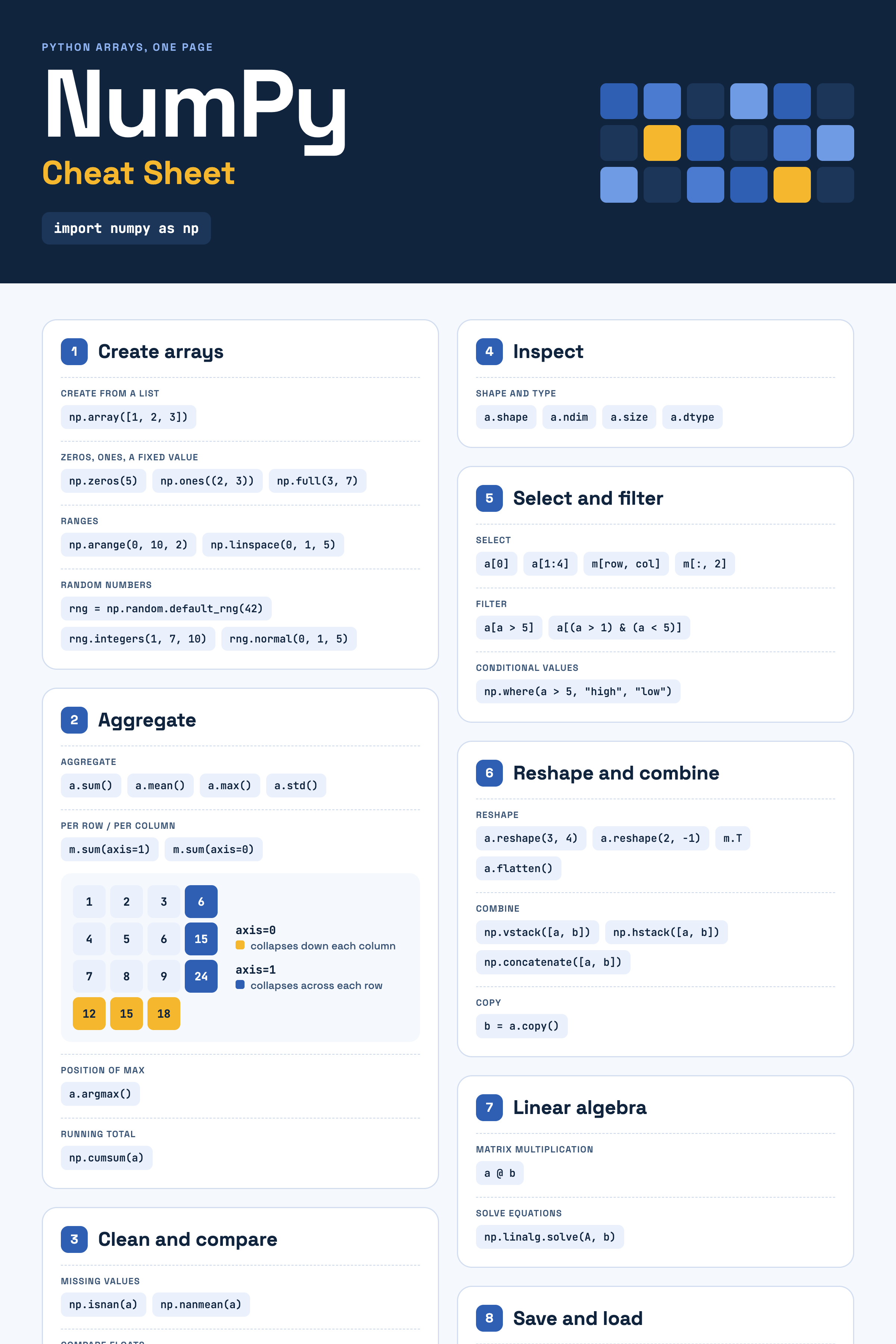
NumPy Cheat Sheet
| Task | Code |
|---|---|
| Create from a list | np.array([1, 2, 3]) |
| Zeros, ones, a fixed value | np.zeros(5), np.ones((2, 3)), np.full(3, 7) |
| Ranges | np.arange(0, 10, 2), np.linspace(0, 1, 5) |
| Random numbers | rng = np.random.default_rng(42), rng.integers(1, 7, 10), rng.normal(0, 1, 5) |
| Shape and type | a.shape, a.ndim, a.size, a.dtype |
| Select | a[0], a[1:4], m[row, col], m[:, 2] |
| Filter | a[a > 5], a[(a > 1) & (a < 5)] |
| Conditional values | np.where(a > 5, "high", "low") |
| Aggregate | a.sum(), a.mean(), a.max(), a.std() |
| Per row / per column | m.sum(axis=1), m.sum(axis=0) |
| Position of max | a.argmax() |
| Running total | np.cumsum(a) |
| Reshape | a.reshape(3, 4), a.reshape(2, -1), m.T, a.flatten() |
| Combine | np.vstack([a, b]), np.hstack([a, b]), np.concatenate([a, b]) |
| Copy | b = a.copy() |
| Missing values | np.isnan(a), np.nanmean(a) |
| Compare floats | np.isclose(a, b) |
| Matrix multiplication | a @ b |
| Solve equations | np.linalg.solve(A, b) |
| Save and load | np.save("a.npy", a), np.load("a.npy") |
Download the NumPy Cheat Sheet (PNG)
Conclusion
NumPy turns Python into a fast tool for working with numbers. Its arrays store values of one type efficiently, so vectorized operations run on millions of values at once, dozens of times faster than loops. You can create arrays from lists or with functions like arange() and linspace(); select data with indexing, slicing, and boolean masks; summarize it with aggregations along an axis; and combine arrays of different shapes with broadcasting.
Keep the pitfalls in mind — slices are views, nan spreads through calculations, decimals need np.isclose(), and small integer types can overflow — and you’ll have the foundation that Pandas, Matplotlib, scikit-learn, and the rest of Python’s data ecosystem are built on.