
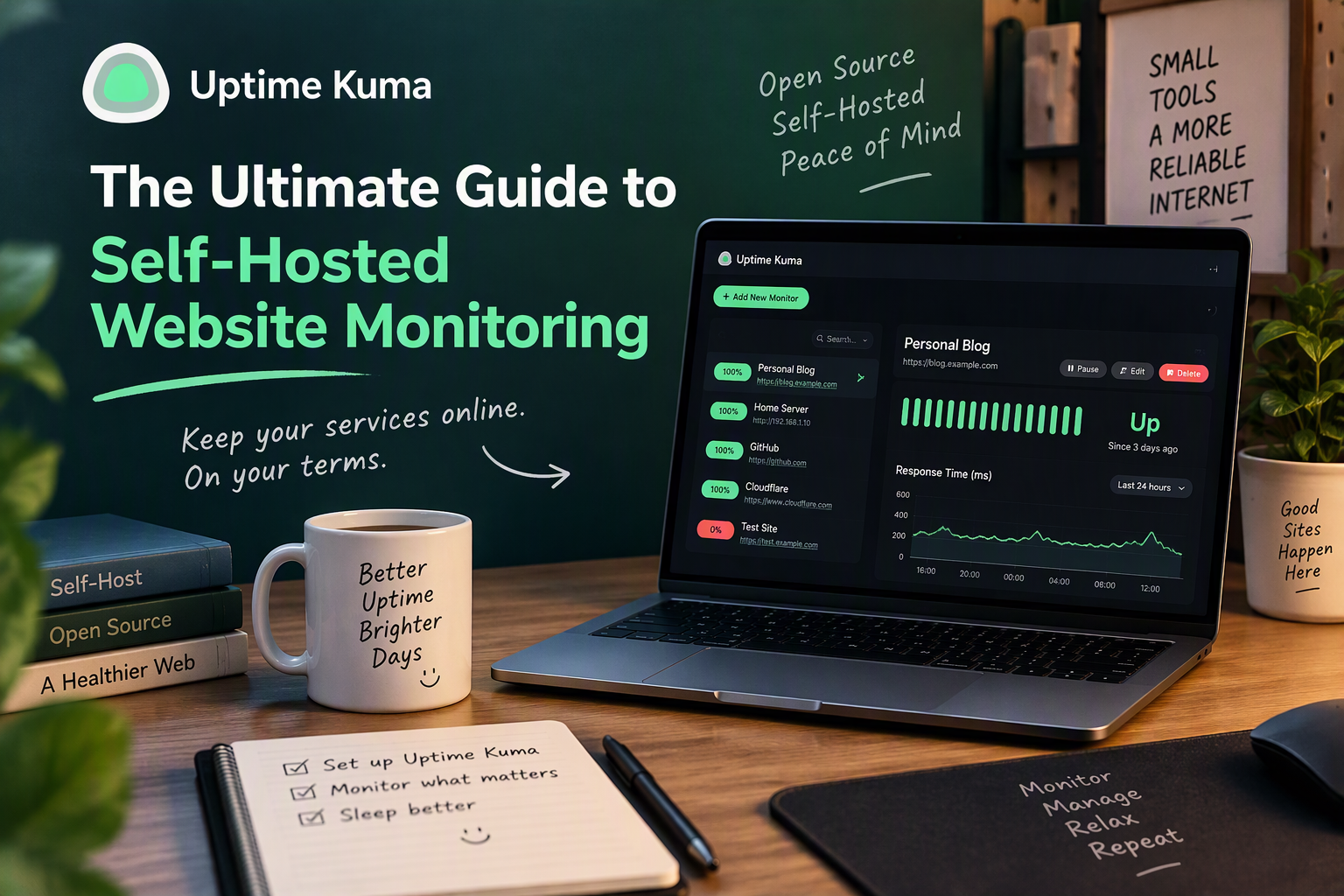
If you run a website, a web app, or even a handful of services at home, you’ve probably found out something was down the worst possible way: a customer, a client, or a family member told you. By then, it may have been down for hours.
Uptime monitoring fixes that. A monitoring tool checks your sites and services around the clock and alerts you the moment something stops responding — often before anyone else notices. There are plenty of paid services that do this, but if you’d rather keep control of your data and avoid another monthly subscription, Uptime Kuma is one of the best tools you can run yourself.
This guide explains what Uptime Kuma is and why it’s worth using, then walks you step by step through installing it, adding your first monitors, setting up alerts, publishing a status page, and keeping your installation secure.
What Is Uptime Kuma?
Uptime Kuma is a free, open-source, self-hosted monitoring tool. You install it on a server you control, open its web dashboard, and tell it what to watch: a website, an API, a server, a database, a Docker container, and much more. It checks each one on a schedule you choose and notifies you when something goes down — and again when it comes back up.
It’s often described as a self-hosted alternative to services like UptimeRobot or Pingdom. The difference is that everything — your monitors, your history, your alert settings — lives on your own hardware.
What Uptime Kuma Can Monitor
Uptime Kuma supports a wide range of monitor types. The ones you’ll use most often are:
- HTTP(s) — checks that a website or API responds with a successful status code.
- HTTP(s) – Keyword — checks that a page loads and contains (or doesn’t contain) specific text. Great for catching a site that technically loads but shows an error page.
- HTTP(s) – JSON Query — checks a value inside a JSON API response.
- TCP Port — checks that a service is listening on a given port, such as SSH on 22 or a mail server on 587.
- Ping — checks that a host responds to ICMP ping.
- DNS — checks that a domain resolves to the record you expect.
- Docker Container — checks that a container on a Docker host is running.
- Push — the reverse of a normal check: your script or cron job “checks in” with Uptime Kuma, and you’re alerted if it stops. Perfect for backups and scheduled tasks.
- Databases — MySQL/MariaDB, PostgreSQL, Microsoft SQL Server, MongoDB, and Redis.
There are also monitors for game servers, MQTT, gRPC, RADIUS, Kafka, and more, plus Group monitors that bundle related checks together.
Why Use Uptime Kuma? The Benefits
- It’s free and open source. No subscription, no per-monitor pricing, and no feature locked behind a paid tier. You can add as many monitors as your server can handle.
- You own your data. Your monitored URLs, response times, and incident history stay on your server instead of a third party’s.
- Fast check intervals. Checks can run as often as every 20 seconds. Many free hosted plans limit you to 5-minute intervals.
- Alerts wherever you want them. Uptime Kuma supports more than 90 notification services, including email, Telegram, Discord, Slack, Microsoft Teams, Pushover, ntfy, Gotify, and generic webhooks.
- Public status pages. Share a clean, branded page showing the status of your services with clients or users — and cut down on “is the site down?” emails.
- SSL certificate expiry alerts. Get warned before an HTTPS certificate expires, instead of finding out from a browser warning.
- It monitors private services. Hosted services can only check things reachable from the public internet. Uptime Kuma, running inside your network, can watch internal servers, databases, and home lab gear too.
- A friendly, modern interface. Everything is configured through the web dashboard. You don’t need to edit config files to add a monitor.
- Lightweight. It runs comfortably on a small VPS or a Raspberry Pi.
Where Should You Run It?
Before installing, think about where Uptime Kuma will live, because a monitor can’t alert you about an outage it’s caught up in. If Uptime Kuma runs on the same server as your website and that server goes down, both go down together and you’ll get no alert at all.
A few good options:
- To monitor public websites: run it on a small, inexpensive VPS from a different provider than the one hosting your sites.
- To monitor a home lab or internal network: run it on an always-on device inside that network, such as a Raspberry Pi, a NAS, or a home server.
- To do both: many people run one instance in each place and have each one monitor the other.
What You’ll Need
- A Linux server, VPS, or Raspberry Pi — Uptime Kuma also runs on Windows and macOS, but this guide uses Linux.
- Docker installed on that machine (recommended). If you’re new to Docker, start with Docker for Beginners.
- Local storage for Uptime Kuma’s data. Network file systems such as NFS are not supported, because they can corrupt its database.
- (Optional) A domain name if you want to reach the dashboard or a status page at an address like
status.example.com.
Step 1: Install Docker
If Docker isn’t installed yet, the official convenience script sets it up on most Linux distributions:
curl -fsSL https://get.docker.com | sh
As with any script you pipe into your shell, you can download it and read it first if you prefer. Then confirm Docker is working:
docker --version
docker compose version
Step 2: Install Uptime Kuma with Docker Compose
Docker Compose keeps your whole configuration in a single file, which makes Uptime Kuma easy to update, back up, and move later. Create a folder for it:
mkdir -p ~/uptime-kuma && cd ~/uptime-kuma
Create a file named compose.yaml in that folder:
services:
  uptime-kuma:
    image: louislam/uptime-kuma:2
    container_name: uptime-kuma
    restart: unless-stopped
    ports:
      - "3001:3001"
    volumes:
      - ./data:/app/data
Here’s what each part does:
image: louislam/uptime-kuma:2uses the official image and stays on the 2.x release line, so updates never jump you to a new major version unexpectedly.restart: unless-stoppedstarts Uptime Kuma automatically after a reboot or crash.portsmakes the dashboard available on port3001.volumesstores all of Uptime Kuma’s data in thedatafolder next to your compose file, so it survives container updates.
Start it:
docker compose up -d
Check that it’s running:
docker compose ps
Prefer a Single Command?
If you don’t want a compose file, this docker run command does the same thing:
docker run -d --restart=unless-stopped -p 3001:3001 \
  -v uptime-kuma:/app/data --name uptime-kuma louislam/uptime-kuma:2
Installing Without Docker
Uptime Kuma can also run directly with Node.js. You’ll need Node.js 20.4 or newer and Git:
git clone https://github.com/louislam/uptime-kuma.git
cd uptime-kuma
npm run setup
npm install pm2 -g && pm2 install pm2-logrotate
pm2 start server/server.js --name uptime-kuma
PM2 keeps the process running in the background and restarts it if it crashes. Docker is still the easier option for most people, because updates and backups are simpler.
Step 3: Create Your Admin Account
Open a browser and go to:
http://YOUR-SERVER-IP:3001
On first launch, Uptime Kuma asks you to choose a database. SQLite is the right choice for most setups — it’s built in and needs no extra configuration. (MariaDB is available if you plan to run a very large number of monitors.)
Next, create your admin account. Use a strong, unique password — this account controls everything Uptime Kuma can see and do.
Step 4: Add Your First Monitor
Click Add New Monitor in the top-left corner. Let’s set up a basic website check:
- Monitor Type: choose HTTP(s).
- Friendly Name: something descriptive, like
My Website. - URL: the full address, such as
https://example.com. - Heartbeat Interval: how often to check, in seconds.
60is a sensible default. - Retries: how many failed checks in a row before the monitor is marked down. Setting this to
1or2prevents false alarms from a single dropped request. - Click Save.
Within seconds, the monitor appears in the left sidebar with a green Up badge. Click it to see its response time graph, uptime percentage over the last 24 hours and 30 days, and a timeline of every check.
A Few More Useful Monitors
Once your first monitor is working, try a few other types:
Keyword monitor: choose HTTP(s) – Keyword, enter your URL, and set the keyword to text that only appears when the page loads correctly (like your site’s footer text). This catches pages that load but display a database error.
TCP port monitor: choose TCP Port, enter a hostname and port (for example, port
22for SSH or3306for MySQL), and you’ll know if the service stops listening.Push monitor for backups: choose Push, and Uptime Kuma gives you a unique URL. Add a request to that URL at the end of your backup script:
/usr/local/bin/backup.sh && curl -fsS "https://kuma.example.com/api/push/AbC123xyz?status=up&msg=OK"If the backup fails, or stops running entirely, the push never arrives and Uptime Kuma alerts you.
Watch Your SSL Certificates
For HTTPS monitors, open the monitor’s Advanced section and enable Certificate Expiry Notification. Uptime Kuma will warn you as the certificate approaches expiration, so an auto-renewal that quietly failed doesn’t take your site offline.
Step 5: Set Up Notifications
A monitor isn’t much use if you only find out about outages by checking the dashboard. Go to Settings → Notifications and click Setup Notification.
Choose your notification type and fill in its details. A few popular options:
- Email (SMTP): enter your mail server’s hostname, port, username, and password. Many email providers require an app-specific password for this.
- Telegram: create a bot with Telegram’s @BotFather, then paste the bot token and your chat ID.
- Discord or Slack: create an incoming webhook in your server or workspace, then paste the webhook URL.
- ntfy: a simple, open-source push notification service you can use hosted or self-host — just pick a topic name and subscribe to it in the ntfy phone app.
Click Test to make sure the message arrives, then save. Two settings at the bottom of the form are worth knowing about:
- Default enabled automatically attaches this notification to every new monitor.
- Apply on all existing monitors adds it to all the monitors you’ve already created.
You can attach several notifications to the same monitor — for example, Discord for everyday alerts and email as a backup.
Step 6: Create a Public Status Page
Status pages let your users or clients see whether your services are working without contacting you. Click Status Pages → New Status Page, give it a name and a URL slug, and click Next.
On the editor screen, you can:
- Add a description, a logo, and a footer message.
- Click Add Group to organize monitors into sections such as “Websites” and “Email.”
- Add monitors to each group. Only the monitors you choose appear on the page — everything else stays private.
- Post an incident message during an outage to keep visitors informed.
Click Save, and your page is live at http://YOUR-SERVER-IP:3001/status/your-slug. With a reverse proxy (covered below), you can also give it its own domain, such as status.example.com.
Step 7: Schedule Maintenance Windows
When you plan to take a service offline for updates, you don’t want a flood of down alerts. Go to Maintenance and create a maintenance window. Choose the affected monitors and set a time — a single window or a recurring schedule, such as every Sunday at 2 AM.
During a maintenance window, the affected monitors show a blue Maintenance status instead of Down, no alerts are sent, and your status page lets visitors know the downtime is planned.
Securing Your Uptime Kuma Installation
Uptime Kuma knows a lot about your infrastructure, so protect it:
- Turn on two-factor authentication. Go to Settings → Security and enable 2FA for your account. See What Is Two-Factor Authentication? if you haven’t used it before.
- Don’t expose port 3001 directly. If you need the dashboard outside your network, put it behind a reverse proxy with HTTPS (see below), or keep it private and reach it with Tailscale. Tailscale is especially handy here: your dashboard stays completely off the public internet, but you can still check it from your phone anywhere.
- Be careful with the Docker socket. To monitor Docker containers, you mount
/var/run/docker.sockinto the Uptime Kuma container. Anything with access to that socket effectively has full control of the Docker host, so only do this if you need it, and mount it read-only (:ro). - Keep it updated. Updates include security fixes as well as new features.
Putting It Behind a Reverse Proxy
A reverse proxy such as Nginx, Caddy, or Nginx Proxy Manager lets you reach Uptime Kuma at a domain like https://kuma.example.com with a free TLS certificate. The one requirement to watch for: Uptime Kuma’s dashboard relies on WebSockets, so your proxy must pass them through.
With Caddy, WebSockets work automatically and HTTPS is set up for you:
kuma.example.com {
    reverse_proxy localhost:3001
}
With Nginx, include the WebSocket upgrade headers:
server {
    listen 443 ssl;
    server_name kuma.example.com;

    # ssl_certificate and ssl_certificate_key lines go here

    location / {
        proxy_pass http://localhost:3001;
        proxy_http_version 1.1;
        proxy_set_header Upgrade $http_upgrade;
        proxy_set_header Connection "upgrade";
        proxy_set_header Host $host;
    }
}
Once the proxy is working, you can change the ports line in your compose file to "127.0.0.1:3001:3001" so port 3001 is only reachable from the server itself.
Updating and Backing Up
Updating a Docker Compose installation takes two commands, run from your ~/uptime-kuma folder:
docker compose pull
docker compose up -d
Because the image tag is pinned to 2, this pulls the latest 2.x release. When a new major version comes out, read its release notes before changing the tag.
All of Uptime Kuma’s data — monitors, history, settings, and notifications — lives in the data folder. To back it up, stop the container briefly so the database isn’t being written to, copy the folder, and start it again:
docker compose stop
tar -czf uptime-kuma-backup-$(date +%F).tar.gz data
docker compose start
Store the backup somewhere other than the server itself. To restore, put the data folder back in place and run docker compose up -d.
Troubleshooting Common Problems
The dashboard won’t load. Check that the container is running with docker compose ps, and look at the logs with docker compose logs uptime-kuma. Also make sure your firewall allows port 3001 (for example, sudo ufw allow 3001/tcp).
The dashboard loads but shows “Cannot connect to the socket server.” Your reverse proxy isn’t passing WebSocket connections. Add the Upgrade and Connection headers shown above.
A monitor flips between up and down. Increase Retries so a single slow response doesn’t count as an outage, or raise the Request Timeout in the monitor’s settings.
A monitor shows down, but the site works in your browser. The server running Uptime Kuma may not be able to reach the site — for example, because of DNS settings, a firewall, or the site blocking requests from data center IP addresses. Test from the Uptime Kuma server itself with curl -I https://example.com.
Notifications never arrive. Use the Test button in the notification settings and check the error message. For email, double-check the SMTP port and whether your provider requires an app password.
Conclusion
Uptime Kuma gives you the kind of monitoring that used to require a paid service — fast checks, alerts on the apps you already use, SSL expiry warnings, and polished public status pages — for free, on hardware you control. Installation takes about ten minutes with Docker, and adding a monitor takes about thirty seconds.
Start small: add your most important website, connect a notification, and let it run. Once you’ve seen it catch its first outage before anyone else did, you’ll want to add everything else — your APIs, your databases, your backups, and the rest of your home lab.