
Imagine building a beautiful website, only to find out that a visitor using a screen reader can’t navigate your menu, or someone with low vision can’t read your text because the contrast is too low. This happens more often than you’d think — and it’s exactly the problem web accessibility solves. As a beginner web designer, learning web accessibility early means you build good habits from day one instead of retrofitting them later.
Web accessibility means designing and building websites so that people with disabilities — including visual, auditory, motor, and cognitive disabilities — can use them just as effectively as anyone else. It covers everything from how you structure your HTML to how you write alt text for images, label your forms, and choose your color contrast.
Beyond simply being the right thing to do, web accessibility improves usability for everyone, strengthens your SEO, and in many regions is a legal requirement. In this guide, you’ll learn what web accessibility actually means, why it matters, and the practical, beginner-friendly steps you can take to start building more accessible websites today.
What Is Web Accessibility?
Web accessibility is the practice of designing websites so people with a wide range of abilities and disabilities can perceive, understand, navigate, and interact with them. This includes users who:
- Are blind or have low vision and rely on screen readers
- Are deaf or hard of hearing and need captions or transcripts
- Have motor impairments and navigate using a keyboard instead of a mouse
- Have cognitive or learning disabilities and benefit from clear, simple layouts
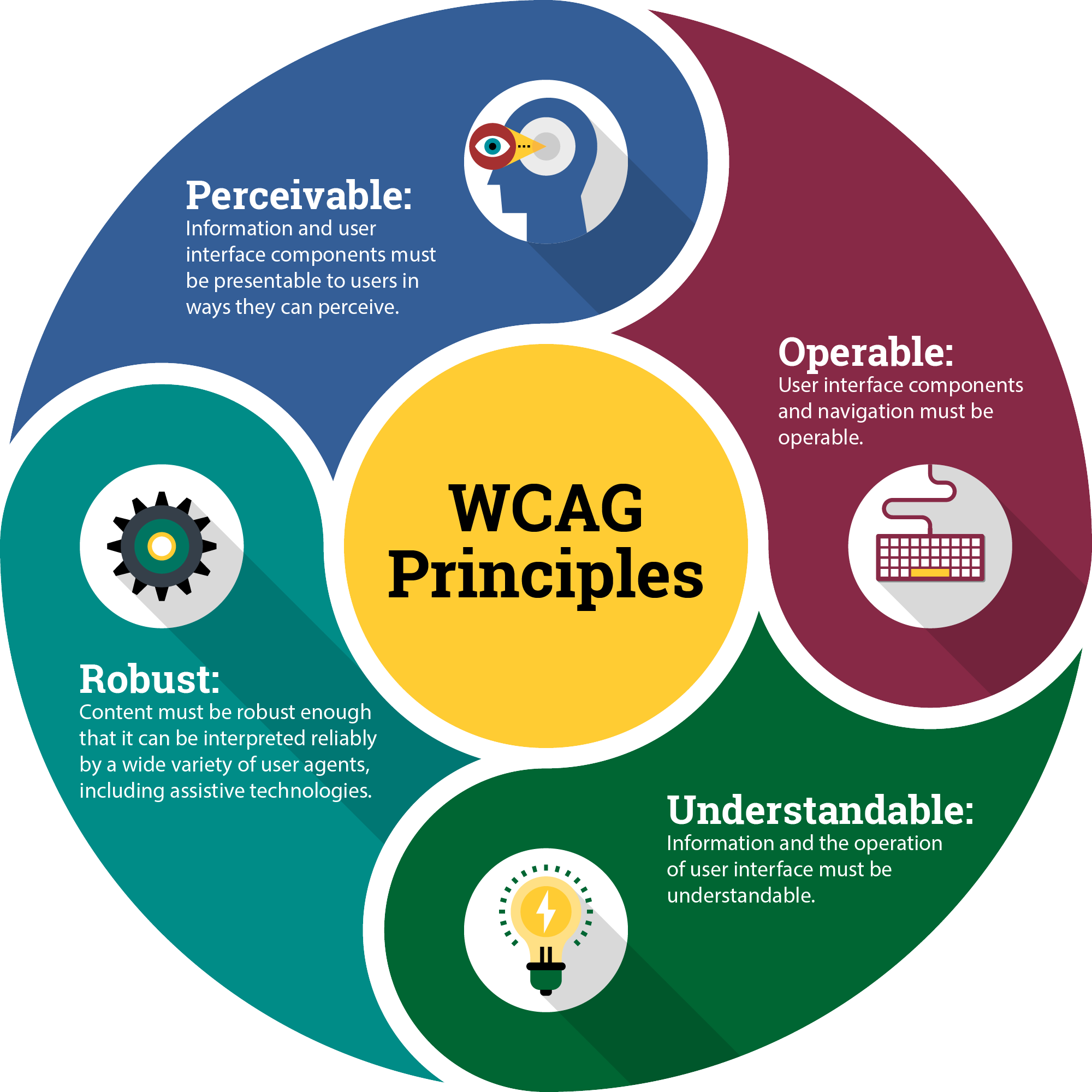
The most widely used accessibility standard is the Web Content Accessibility Guidelines (WCAG), published by the World Wide Web Consortium (W3C). WCAG organizes accessibility around four principles, often remembered by the acronym POUR:
- Perceivable — information must be presented in ways users can perceive (e.g., text alternatives for images).
- Operable — interface elements must be usable via keyboard, not just a mouse.
- Understandable — content and navigation should be clear and predictable.
- Robust — content should work reliably across browsers and assistive technologies.
Why Web Accessibility Matters
It Expands Your Audience
Over a billion people worldwide live with some form of disability. An inaccessible website effectively locks out a significant portion of potential visitors, customers, or readers before they even get a chance to engage with your content.
It’s Often a Legal Requirement
Laws like the Americans with Disabilities Act (ADA) in the United States and similar regulations elsewhere increasingly apply to websites, not just physical spaces. Businesses have faced real lawsuits over inaccessible websites, making accessibility a practical risk-management issue, not just an ethical one.
It Improves SEO
Many accessibility best practices overlap directly with good SEO practices:
- Descriptive alt text helps both screen readers and search engine crawlers understand images.
- Clear heading structure (
<h1>through<h6>) helps both assistive technology and search engines understand your page’s layout. - Clean, semantic HTML is easier for search engines to index accurately.
It Benefits Every User, Not Just People With Disabilities
Captions help users in loud environments. High-contrast text helps users on a dim phone screen outdoors. Keyboard navigation helps power users who prefer not to touch a mouse. Accessibility improvements tend to make a site better for everyone, a concept known as the “curb-cut effect.”
Practical Web Accessibility Tips for Beginners
1. Use Semantic HTML
Use HTML elements for their intended purpose — <button> for buttons, <nav> for navigation, <h1>–<h6> for headings in order — instead of generic <div> elements styled to look like something else. Semantic HTML is automatically understood by screen readers, while a <div> pretending to be a button is not.
<!-- Good -->
<button onclick="submitForm()">Submit</button>

<!-- Avoid -->
<div onclick="submitForm()">Submit</div>
2. Write Descriptive Alt Text for Images
Every meaningful image needs an alt attribute describing its content or purpose, so screen reader users understand what they’re missing visually.
<img src="team-photo.jpg" alt="Our five-person design team at their annual retreat">
Purely decorative images should use an empty alt="" so screen readers skip over them instead of reading a meaningless filename aloud.
3. Maintain Sufficient Color Contrast
Text should have enough contrast against its background to be readable by users with low vision or color blindness. WCAG recommends a minimum contrast ratio of 4.5:1 for normal text. Free tools like WebAIM’s Contrast Checker make this easy to verify.
4. Make Your Site Fully Keyboard-Navigable
Some users can’t use a mouse at all. Test your site by unplugging your mouse and navigating using only the Tab, Enter, and arrow keys. Every link, button, and form field should be reachable and usable this way.
5. Label Your Forms Clearly
Every form input needs an associated <label>, so screen readers can announce what information is expected.
<label for="email">Email Address</label>
<input type="email" id="email" name="email">
6. Add Captions and Transcripts for Media
Videos should include captions, and audio content should include a text transcript, so users who are deaf or hard of hearing — or simply browsing without sound — can still access the content.
7. Use ARIA Attributes When Needed
Accessible Rich Internet Applications (ARIA) attributes provide extra information to assistive technology when semantic HTML alone isn’t enough — for example, labeling an icon-only button:
<button aria-label="Close menu">✕</button>
Use ARIA as a supplement to semantic HTML, not a replacement for it — semantic HTML should always be your first choice.
Common Web Accessibility Mistakes to Avoid
- Relying on color alone to convey information (e.g., “required fields are shown in red”)
- Using low-contrast text for stylistic reasons
- Skipping heading levels (jumping from
<h1>straight to<h4>) - Auto-playing audio or video without an easy way to pause it
- Building custom interactive elements with
<div>instead of proper, keyboard-accessible HTML elements
Conclusion
Web accessibility isn’t an advanced, optional add-on — it’s a foundational part of responsible web design that every beginner web designer should learn from the start. Understanding web accessibility means understanding how real people, with a wide range of abilities, actually experience and interact with your website.
The good news is that most of the practical steps covered here — semantic HTML, descriptive alt text, sufficient color contrast, keyboard navigation, labeled forms, and captions — are simple habits you can build into your workflow immediately, without needing advanced tools or a deep technical background. And the benefits reach far beyond compliance: better SEO, a wider audience, reduced legal risk, and a genuinely better experience for every visitor to your site.
As you continue building your web design skills, make web accessibility a habit rather than an afterthought. Test your pages with a keyboard, check your color contrast, and write meaningful alt text as you go. Building accessible websites from day one will make you a stronger, more thoughtful designer — and it will make the web a little more usable for everyone.