Sometimes the data you need is sitting on a web page, but there is no download button and no API. Maybe it is a list of product prices, a table of sports scores, or a directory of businesses. You could copy and paste it by hand, but that gets old after about ten rows.
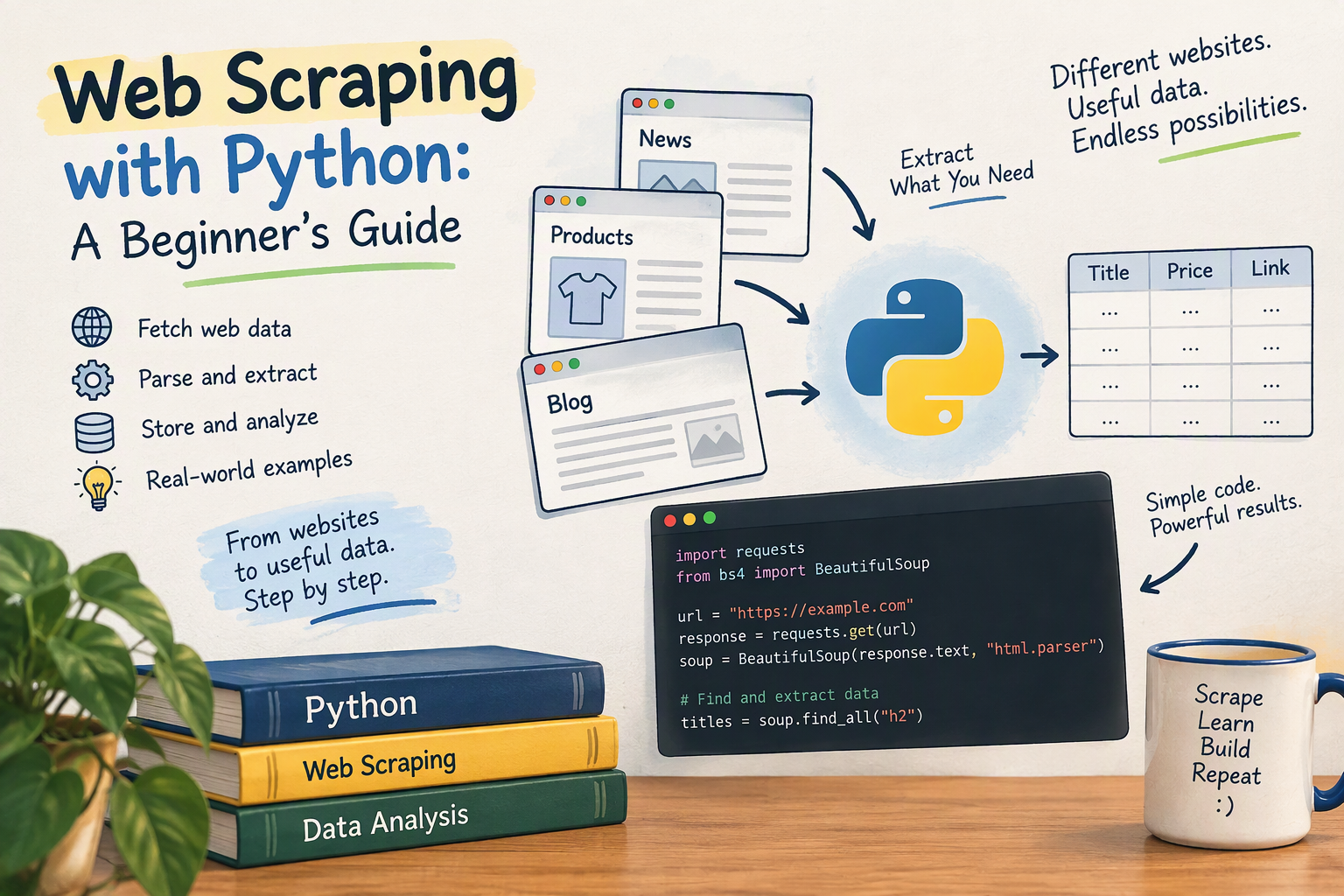
Web scraping is the answer: a short Python program visits the page, reads the HTML, picks out the parts you care about, and saves them in a tidy file. In this guide you will build a working scraper from scratch, step by step, and learn how to do it politely and legally.
What Is Web Scraping?
Web scraping is the automated process of collecting data from web pages. A scraper does the same thing your browser does, which is to request a page and receive HTML. But instead of showing it on screen, the program reads the HTML and extracts the pieces you ask for.
Common uses include:
- Tracking prices across online stores
- Collecting job listings or real estate listings
- Gathering data for research or data analysis projects
- Monitoring news or blog headlines
- Building a small dataset to practice on
Before You Scrape: Check the Rules
Scraping is a tool, and it can be misused. Before you scrape any site, check these things:
- Look for an API first. If the site offers an official API or a downloadable dataset, use that. It is more reliable and allowed.
- Read the Terms of Service. Some sites forbid automated access.
- Check
robots.txt. Visithttps://example.com/robots.txtto see which paths the site asks bots not to visit. - Be gentle. Pause between requests so you do not overload the server. A scraper that hammers a small site can look like an attack.
- Avoid personal data. Do not collect private information about individuals, and never scrape content behind a login you are not authorized to use.
- Identify yourself. Send a descriptive
User-Agentso site owners know who is visiting.
For practice, this guide uses books.toscrape.com, a fake bookstore built specifically for learning to scrape. It is safe and legal to use.
Step 1: Set Up Your Environment
You need Python 3 installed. Create a project folder and a virtual environment so the packages stay isolated (see Python virtual environments for details):
mkdir scraper-demo
cd scraper-demo
python -m venv venv
Activate it:
# macOS / Linux
source venv/bin/activate

# Windows (PowerShell)
venv\Scripts\Activate.ps1
Install the two libraries you need:
pip install requests beautifulsoup4
- Requests downloads web pages.
- Beautiful Soup (
beautifulsoup4) parses HTML so you can search through it.
Step 2: Understand the Page You Want to Scrape
Scraping depends on understanding HTML. If you need a refresher, read how to use HTML and CSS.
Open https://books.toscrape.com in your browser, right-click a book title, and choose Inspect. This opens the developer tools and shows the HTML behind the page. You will find that each book looks roughly like this:
<article class="product_pod">
  <h3><a href="catalogue/a-light-in-the-attic_1000/index.html" title="A Light in the Attic">A Light in the ...</a></h3>
  <div class="product_price">
    <p class="price_color">£51.77</p>
  </div>
</article>
Notice the pattern: every book is an <article> with the class product_pod, the full title is in the link’s title attribute, and the price is in a paragraph with the class price_color. Your scraper will use these tags and classes as signposts.
Step 3: Download the Page
Create a file named scrape.py and start by fetching the page:
import requests

URL = "https://books.toscrape.com/"
headers = {"User-Agent": "learning-scraper/1.0 (personal practice project)"}

response = requests.get(URL, headers=headers, timeout=10)
response.raise_for_status()  # stop with an error if the request failed

print(response.status_code)
print(response.text[:300])
Run it with python scrape.py. A status code of 200 means success, and you should see the beginning of the page’s HTML. raise_for_status() turns errors such as 404 or 500 into clear Python exceptions instead of letting your script quietly continue with bad data.
Step 4: Parse the HTML with Beautiful Soup
Now hand the HTML to Beautiful Soup and pull out the books:
from bs4 import BeautifulSoup

soup = BeautifulSoup(response.text, "html.parser")

for book in soup.select("article.product_pod"):
    title = book.h3.a["title"]
    price = book.select_one("p.price_color").get_text(strip=True)
    print(title, price)
A few things are happening here:
soup.select("article.product_pod")uses a CSS selector to find every book on the page. If you know CSS, this will feel familiar.book.h3.a["title"]reads thetitleattribute of the link inside the<h3>.select_one(...)returns the first match, and.get_text(strip=True)returns its text without extra whitespace.
Run the script again and you should see a list of 20 book titles with their prices.
Step 5: Scrape Multiple Pages
The site has 50 pages of books. Most have a “next” button, so a good approach is to follow that link until there are no more pages. Here is the complete script, with a polite delay between requests:
import time
from urllib.parse import urljoin

import requests
from bs4 import BeautifulSoup

START_URL = "https://books.toscrape.com/"
HEADERS = {"User-Agent": "learning-scraper/1.0 (personal practice project)"}


def scrape_page(url):
    response = requests.get(url, headers=HEADERS, timeout=10)
    response.raise_for_status()
    soup = BeautifulSoup(response.text, "html.parser")

    books = []
    for book in soup.select("article.product_pod"):
        books.append({
            "title": book.h3.a["title"],
            "price": book.select_one("p.price_color").get_text(strip=True),
        })

    next_link = soup.select_one("li.next a")
    next_url = urljoin(url, next_link["href"]) if next_link else None
    return books, next_url


all_books = []
url = START_URL
while url:
    print(f"Scraping {url}")
    books, url = scrape_page(url)
    all_books.extend(books)
    time.sleep(1)  # be polite: wait a second between requests

print(f"Collected {len(all_books)} books")
urljoin builds a full web address from the relative link in the “next” button, so you do not have to assemble URLs by hand. When the last page has no “next” button, next_url becomes None and the loop ends.
Step 6: Save the Data to a CSV File
Data in memory disappears when the script ends. Saving it to a CSV file lets you open it in Excel or analyze it later:
import csv

with open("books.csv", "w", newline="", encoding="utf-8") as f:
    writer = csv.DictWriter(f, fieldnames=["title", "price"])
    writer.writeheader()
    writer.writerows(all_books)
Add this to the end of your script. Running it creates books.csv in your project folder. From there you can load it into Pandas and continue with cleaning data with Python Pandas. The prices are text like £51.77, so removing the symbol and converting them to numbers is a perfect first cleaning exercise.
Common Problems and How to Fix Them
| Problem | Likely cause | What to try |
|---|---|---|
| Your results are empty | The selector does not match the HTML | Recheck the page in the Inspect tool; test your selector in the browser console |
You get a 403 Forbidden error | The site blocks unknown bots | Set a clear User-Agent; if the site still refuses, respect it |
| The data you see in the browser is missing in your HTML | The page loads data with JavaScript | Look for a hidden API in the browser’s Network tab, or use a browser automation tool |
429 Too Many Requests | You are going too fast | Add longer delays between requests |
| Weird characters in the text | Encoding issue | Save files with encoding="utf-8" |
| The script breaks when the site redesigns | Selectors depend on the HTML layout | Scrapers need occasional maintenance; use an API when you can |
When Beautiful Soup Is Not Enough
Beautiful Soup only sees the HTML the server sends. Some modern sites build their content in your browser using JavaScript, so the data never appears in the downloaded HTML. In that case you have a few options:
- Look for the data’s API. Open your browser’s developer tools, go to the Network tab, and reload the page. Often the page fetches clean JSON data you can request directly, which is easier than scraping HTML.
- Use a browser automation tool such as Selenium or Playwright. These control a real browser, so JavaScript runs just like for a human visitor. They are slower and more complex, so use them only when needed.
- Use a scraping framework such as Scrapy when you need to crawl thousands of pages with built-in throttling, retries, and export tools.
Best Practices Checklist
- Prefer an official API or dataset over scraping.
- Respect
robots.txtand the site’s terms. - Add delays and identify your scraper with a
User-Agent. - Handle errors with
raise_for_status()and timeouts so your script does not hang. - Cache pages you have already downloaded while developing, so you do not request them again and again.
- Scrape only what you need, and store it responsibly.
- Keep your code in small functions so it is easy to update when the site changes.
Conclusion
Web scraping turns the web into a data source. With Requests to download pages and Beautiful Soup to read the HTML, you can collect lists, prices, headlines, and more in under fifty lines of Python. The recipe is always the same: inspect the page, find the pattern, extract the data, save it, and do it politely.
Practice on a site made for scraping, like books.toscrape.com, before you point your scraper at real websites. Once you are comfortable, try collecting a small dataset you care about and analyzing it with Pandas. If you are new to the language itself, start with Python Basics: What Every Beginner Should Know and the guide to 10 Python libraries every beginner should know.