
There’s one question that comes up constantly when you’re learning to design a website with WordPress: what are WordPress taxonomies? The short answer is that taxonomies are an important part of categorizing your WordPress site’s content — but understanding how they work, and how to use them well, makes a real difference in both how easy your site is to navigate and how well it performs in search results.
According to WordPress.org, “a taxonomy is a way of grouping posts together based on a select number of relationships.” WordPress has two main built-in taxonomy types: Categories and Tags.
This guide explains why WordPress taxonomies matter for SEO and navigation, the real difference between categories and tags, two different ways to add and assign them, and how custom taxonomies let you go beyond the two built-in types entirely.
Why Do I Need Taxonomies on My Website?
SEO is one of the biggest reasons to incorporate taxonomies into your WordPress site. Taxonomies provide your visitors with an easier path to navigate your website, letting them browse related content without relying entirely on search. At the same time, they give search engines a clearer classification structure, which helps establish topical relevance for your content.
For example, if you have a website about cars, you could create taxonomies for the different brands or models (Nissan, Toyota, Tesla, etc.). These taxonomies help visitors find what they’re looking for by assigning relevant categories to each post. Consequently, making it easier for readers to find related content.
Let’s take a look how the default WordPress taxonomies work.

WordPress Categories
Something to take into consideration is that categories, unlike tags, can have a hierarchy. For example, you might have a sports category, and under that have children categories for soccer and basketball. This is optional and depends on your needs.
There are two ways you can add a new category and tags into your website.
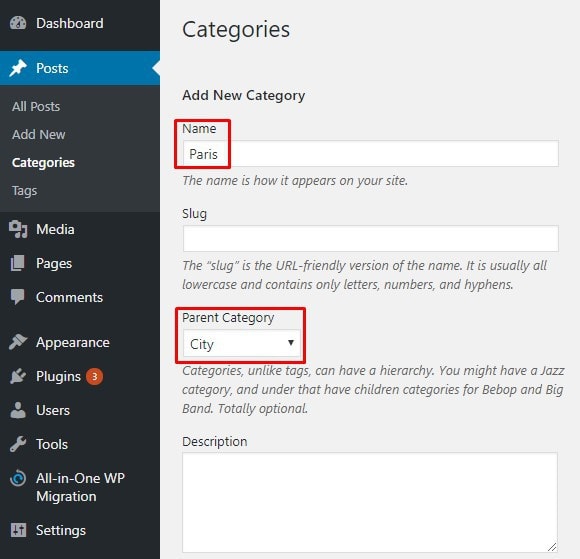
Add a New Category & Tags From Your Admin Menu
The first way to add or create a new category is via your admin side menu.
- In your WordPress Dashboard
- Click on Posts
- Click on Categories or Tags
- Then in the Add New Category or Add New Tag
- Type the name of your Taxonomy
- (Optional) For categories only, you can add in the slug and define child categories.
Add a New Category & Tags From Your Post Side Menu
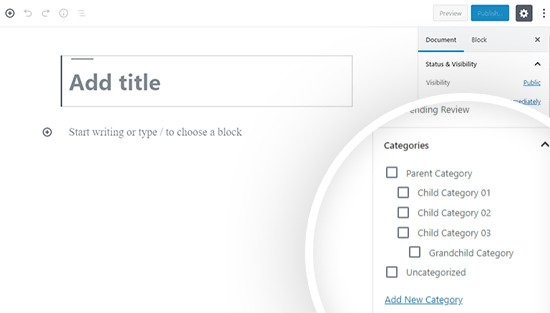
The second way to add or create a new category is via your post visual editor’s side menu.
- Inside your edit Post page
- Go to your Side Menu
- Click on Categories or Tags
- Then click Add New Category or Add New Tag link
In addition to creating new taxonomies, you can assign an existing one to your post from that same side menu. While this option is faster for creating a new category on the fly, it doesn’t let you change the slug or add a description — for that, you’ll need to use the admin menu method above.
Difference Between Tags & Categories?
According to WordPress.com’s support documentation, the core difference between categories and tags is scope: a category broadly groups post topics, while tags describe a post in more specific detail.
The most important structural difference is that categories can be hierarchical, while tags cannot. That hierarchy lets you build more organized content structure around your category pages — for example, nesting “Soccer” and “Basketball” under a broader “Sports” category — which in turn gives search engines extra structural information that can help your website rank higher for both broad and specific topics.
By default, WordPress assigns every new post to an Uncategorized category if you don’t choose one yourself. It’s recommended that you assign a meaningful category to every post you write, rather than leaving posts uncategorized. Tags, on the other hand, are recommended but entirely optional.
- Category – Required
- Tag – Optional
Can You Assign Multiple Categories or Tags to a Post?
Yes — it’s entirely possible to assign multiple categories, and multiple tags, to a single post. A good general approach is to keep your top-level categories relatively broad, then use subcategories or tags to narrow things down, which builds a cleaner, more scalable structure as your site grows.
While the default WordPress installation only provides Categories and Tags, you’re not limited to just those two. WordPress also supports Custom Taxonomies — your own, purpose-built way of grouping content beyond the two built-in types.
Creating Custom Taxonomies
A few common examples of custom taxonomies:
- Genre for a movie review site
- Ingredient for a recipe blog
- Skill Level for an educational or tutorial site
You can create an unlimited number of your own custom taxonomies, either with a plugin built for the purpose, or by manually registering them in code — typically by adding a register_taxonomy() function call to your theme’s functions.php file. Plugins are the more approachable route for non-developers, while coding it directly gives you finer control over how the taxonomy behaves.
The Bottom Line
Taxonomies are among WordPress’s most powerful and useful built-in features, giving both visitors and search engines a clearer path through your content. Categories provide broad, often hierarchical structure, tags add finer-grained detail, and custom taxonomies let you build an organizational system tailored to exactly what your site is about.
However you decide to use taxonomies on your site, design them with your actual users in mind first — a taxonomy structure that makes genuine sense to a human visitor tends to make just as much sense to a search engine, which is exactly the kind of signal that helps your content rank well over time.