
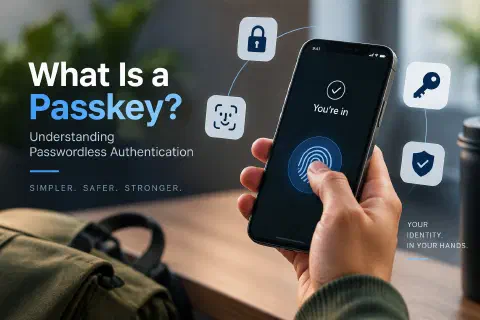
Passwords have been the front door to almost every account for decades, and they are also the most common way that door gets broken. People reuse them, forget them, write them on sticky notes, and type them into fake login pages. Passkeys are the industry’s answer: a way to sign in that has no password to steal, guess, or reuse.
This guide explains what a passkey is, how passwordless authentication works under the hood, where passkeys are stronger than passwords, and how to start using them today.
What Is a Passkey?
A passkey is a digital credential that lets you sign in to a website or app without typing a password. Instead, you prove who you are by unlocking your device the way you normally do: with a fingerprint, a face scan, or your device PIN.
Behind the scenes, a passkey is a pair of cryptographic keys created just for one account on one site:
- A private key that stays on your device (or in your password manager) and is never shared.
- A public key that is stored on the website’s server.
The public key is not a secret. If the website is breached, attackers get something that cannot be used to log in. That one design change removes the biggest risk of passwords.
Passkeys are built on open standards: WebAuthn (a web standard from the W3C) and FIDO2 (from the FIDO Alliance). Apple, Google, and Microsoft all support them, which is why they work across phones, laptops, and browsers.
Why Passwords Are a Problem
Before looking at how passkeys work, it helps to see what they fix:
| Password problem | What happens |
|---|---|
| Reuse | One breached site exposes your accounts everywhere else. |
| Weak choices | People pick short, predictable passwords that are easy to guess. |
| Phishing | A fake login page tricks you into typing the real password. |
| Server breaches | Stolen password databases are cracked offline. |
| Reset friction | “Forgot password” flows cost time and generate support tickets. |
Password managers and two-factor authentication (2FA) reduce these risks, but they still rely on a secret you can type, and typed secrets can be phished. Passkeys remove the typed secret altogether.
How Passkeys Work
Passkeys use public-key cryptography. The process has two parts: creating the passkey once, then using it every time you sign in.
Creating a passkey (registration)
- You choose “Create a passkey” on a site you already have an account with.
- Your device generates a new key pair for that site.
- The public key is sent to the site and saved with your account.
- The private key is stored securely on your device, protected by your biometrics or PIN.
Signing in (authentication)
- You go to the site and choose to sign in with a passkey.
- The site sends your device a random challenge, a one-time piece of data.
- Your device asks you to unlock it (fingerprint, face, or PIN).
- The device signs the challenge with the private key and sends the signature back.
- The site checks the signature with your stored public key. If it matches, you are in.
You  ──► Site:    "I want to sign in"
Site ──► Device:  "Sign this random challenge"
You  ──► Device:  fingerprint / face / PIN
Device ──► Site:  signed challenge
Site:             verifies with your public key → access granted
Two details are worth noticing:
- Your biometric never leaves your device. The site never sees your fingerprint or face. The biometric only unlocks the private key locally.
- The private key is never sent anywhere. Only the signature travels over the network, and it is useless for any other login because every challenge is different.
Why Passkeys Are Safer Than Passwords
They resist phishing
A passkey is bound to the website’s real domain. If you land on paypa1-login.com pretending to be PayPal, your device will not offer the PayPal passkey, because the domain does not match. There is nothing for you to be tricked into typing. This is the biggest practical win, because phishing is behind a huge share of account takeovers.
They cannot be reused or guessed
Every site gets its own unique key pair. There is no “same passkey everywhere” mistake to make, and no short or predictable secret to guess.
A server breach is far less damaging
Sites store only public keys. Attackers who steal that database cannot sign in with it, which is very different from stealing password hashes they can crack offline. If you want to understand how sites are supposed to protect stored credentials today, see database security and privacy.
They are faster to use
Signing in takes a glance or a touch instead of typing and remembering. Fewer failed logins also means fewer password resets.
Synced vs. Device-Bound Passkeys
Not all passkeys live in the same place. There are two main types:
| Type | Where the private key lives | Good for |
|---|---|---|
| Synced passkey | Your cloud-backed credential manager, such as iCloud Keychain, Google Password Manager, or a password manager like 1Password or Bitwarden, encrypted and available on your other devices | Everyday use; survives a lost phone |
| Device-bound passkey | One physical device, such as a hardware security key (a YubiKey, for example) | High-security accounts and organizations that need strict control |
For most people, synced passkeys are the right choice because losing a phone does not mean losing access to every account. Security-sensitive teams often prefer device-bound keys because the private key can never leave the hardware.
Why Use Bitwarden to Save Your Passkeys
Where you store your passkeys matters. Built-in options like iCloud Keychain and Google Password Manager work well, but each one lives inside a single company’s ecosystem. A dedicated password manager such as Bitwarden can store your passkeys alongside your passwords, and it has several advantages:
- Works across platforms. Bitwarden has browser extensions, desktop apps, mobile apps, and a web vault. Your passkeys are not tied to Apple, Google, or Microsoft, so you can sign in from an iPhone, an Android phone, a Windows PC, a Mac, or a Linux laptop. This is the biggest practical benefit if you use devices from different brands.
- Passkeys and passwords in one vault. While sites are still moving to passkeys, you will have both. Keeping them in the same place means one app, one search box, and one backup to think about.
- End-to-end encrypted. Your vault is encrypted on your device before it syncs, so Bitwarden cannot read your passkeys. Protect it with a long, unique master password and turn on two-step login.
- Open source and audited. Bitwarden’s code is public and has been reviewed by independent security firms, which lets the community and researchers check how it works instead of taking a vendor’s word for it.
- Free to start. Storing and using passkeys is available on the free plan. Paid plans add extras such as built-in authenticator codes, hardware security key support for your login, and emergency access.
- Self-hosting option. Organizations and advanced users can run their own Bitwarden server if they want full control over where encrypted vault data lives.
- Good for families and teams. Shared collections let a household or a team share logins and passkeys for shared accounts without sending secrets over chat or email, and admins get access controls and reporting on business plans.
- Less lock-in. If you later change phones or switch ecosystems, your passkeys stay in your vault instead of being tied to one device brand.
How to Save a Passkey in Bitwarden
- Install the Bitwarden browser extension and the mobile app, and sign in to your vault.
- Make sure Bitwarden is allowed to handle passkeys in the extension settings. On mobile, set Bitwarden as a credential or autofill provider in your phone’s settings.
- Go to a site that supports passkeys and choose Create a passkey. When the browser asks where to save it, pick Bitwarden.
- Next time, choose Sign in with a passkey and approve the prompt in Bitwarden. You may be asked to unlock the vault with your master password, PIN, or biometrics.
Menu names and supported features change between versions and platforms, so check Bitwarden’s help pages if your screen looks different.
Things to Keep in Mind
- Your vault becomes the key to everything. Use a strong, unique master password, enable two-step login, and store your recovery codes somewhere safe and separate.
- Not every site accepts every storage method. A few services or high-security setups only allow a hardware security key or a platform passkey. Keep those as an alternative.
- Keep the app updated and lock the vault on shared or untrusted devices.
- Moving passkeys between managers is still maturing. Industry efforts are improving how credentials transfer between apps, but today it is wise to keep a recovery method for important accounts rather than assuming an easy export.
A balanced setup is common: keep a Bitwarden vault for everyday accounts across all your devices, and add a hardware security key for the few accounts you can least afford to lose, such as your email and your Bitwarden account itself.
Signing In on Another Device
What if you are on a friend’s computer, or a laptop that does not have your passkey? Passkeys support cross-device sign-in:
- The site shows a QR code.
- You scan it with your phone, which holds the passkey.
- The phone and computer confirm they are physically close using Bluetooth, which helps stop remote attackers.
- You approve with your fingerprint or face on the phone, and the computer signs in.
The passkey stays on your phone the whole time.
Where You Can Use Passkeys Today
Support has grown quickly. Many major services let you create passkeys, including Google, Apple, Microsoft, Amazon, PayPal, GitHub, and many banks and retailers. The exact list changes often, so check the security or sign-in settings of your important accounts for an option called Passkeys or Sign in with a passkey.
How to Start Using Passkeys
You do not have to switch everything at once. A sensible order:
- Secure your device first. A passkey is only as safe as the lock on the device that holds it. Use a strong PIN or passcode and turn on device encryption.
- Start with your most important accounts, usually email, Apple/Google/Microsoft accounts, banking, and any work accounts. Email matters most, since it can reset everything else.
- Create a passkey in each account’s security settings and follow the prompts.
- Pick where passkeys are stored. Use the built-in manager of your phone and browser, or a password manager that supports passkeys across platforms.
- Keep a recovery path. Make sure you can recover your account if you lose your devices: recovery codes, a second device, or a hardware security key stored safely.
- Keep 2FA on accounts that do not support passkeys yet. Use an authenticator app rather than SMS where you can. See the cybersecurity fundamentals guide for how layered defenses fit together.
If you currently rely on a generator for strong passwords, like the one in Day 4 of the 100 Days of Python challenge, that habit is still useful for sites that do not offer passkeys. Passkeys simply let you stop needing passwords on the sites that do.
Limitations and Things to Watch
Passkeys are a big improvement, but they are not magic:
- Not every site supports them yet. You will use passwords and 2FA alongside passkeys for a while.
- Ecosystem friction. Moving passkeys between very different platforms has improved but can still be awkward, which is one reason cross-platform password managers are popular.
- Account recovery is the weak point. If a site lets anyone reset an account with an easy email link or a support call, attackers will target that path instead. Strong recovery matters as much as strong sign-in.
- Shared or public devices. Do not create a passkey on a computer you do not control.
- A compromised device is still a risk. Malware running on an unlocked device can abuse a signed-in session. Keep devices updated; the employee device security guide covers why one infected laptop can become an organization-wide problem.
For Website Owners and Developers
If you run a website or build apps, you can offer passkeys to your users:
- Use a well-maintained WebAuthn library for your language or framework instead of implementing the protocol yourself. Cryptographic details are easy to get wrong.
- Offer passkeys alongside existing sign-in methods first, then guide users toward them.
- Store only public keys and credential IDs. Never ask users to upload a private key.
- Bind to your real domain (the “relying party ID”) and always verify the challenge on the server.
- Design account recovery carefully, since attackers will aim for the easiest path.
- Keep HTTPS everywhere. WebAuthn only works on secure origins. If you manage your own site, Cloudflare is a simple way to add SSL and basic protection.
For teams and organizations, passkeys can also reduce help-desk password resets and make phishing-resistant sign-in realistic for staff who are not technical. Pair them with the habits from Cybersecurity Awareness Month training and you cover both the technology and the people.
Passkeys vs. SSH Keys
If you have used SSH keys to log in to a server, passkeys will feel familiar. Both use a private key that stays with you and a public key stored on the other side. The difference is that passkeys are designed for the web and for everyday users: they add the browser, domain checks against phishing, biometric unlock, and sync across your devices.
Conclusion
A passkey replaces a typed secret with a cryptographic proof: your device holds a private key, the website holds the matching public key, and your fingerprint, face, or PIN just unlocks the key locally. Because passkeys are unique per site, tied to the real domain, and useless if stolen from a server, they remove the main ways passwords fail.
You do not have to abandon passwords overnight. Start by securing your devices, create passkeys for your email and other critical accounts, keep a recovery plan, and add more accounts as sites support them. Each account you move to a passkey is one less password to remember, reuse, or lose to a phishing page.