
A WordPress plugin is a small program that customizes and enhances a WordPress website. Plugins can add capabilities such as security controls, SEO tools, and e-commerce functionality, but quality and compatibility vary significantly from one plugin to another — which matters just as much as knowing what plugins can do in the first place.
WordPress plugins are one of the biggest reasons the platform can power everything from a simple blog to a full online store without custom development. But that flexibility comes with real trade-offs: installing the wrong plugin, or too many of them, can slow your site down or open it up to security vulnerabilities.
This guide covers what WordPress plugins are and when to use them, why some are free while others are paid, popular plugins by category, how to install and update them safely, and the real risks worth understanding before you install your next one.
When To Use a WordPress Plugin?
Plugins simplify adding extra website functionality without writing custom code. Individual plugins can transform a WordPress site into diverse platforms — from learning management systems to social networks to full e-commerce stores. Some plugins work invisibly without any user interface at all, such as caching tools that quietly boost performance and SEO in the background.
Free plugins typically lack dedicated technical support, which is exactly why paid, professional versions of many popular plugins exist — the price usually covers ongoing updates, security patches, and direct support rather than dramatically different core functionality.
Why Pay For A WordPress Plugin?
Free plugins often have active developer communities behind them, while paid alternatives are typically backed by professional businesses with a reputation — and often a support team — to protect. The WordPress plugin directory hosts thousands of solid, professionally maintained free options, though paid plugins may still offer additional features, premium support, or a faster response time when something breaks.
When you pay for a WordPress plugin, you’re mainly financing ongoing product support and, in many cases, additional functionality layered on top of a free base version — sometimes called a “freemium” model.
Popular Plugins & Functionalities
Spam Control:
- Akismet
- Anti-Spam Bee
- CleanTalk
SEO:
- Yoast SEO
- All in One SEO Pack
- The SEO Framework
Data Import and Export:
- WP All Import
- Advanced Order Export for WooCommerce
E-commerce:
- WooCommerce
- BigCommerce
- Ecwid
Security:
- Sucuri Security
- Wordfence Security
- All In One WP Security & Firewall
Caching:
- W3 Total Cache
- WP Fastest Cache
- WP Super Cache
Risks of Using WordPress Plugins
Plugins are powerful, but every plugin you install also adds a new dependency to your site — one that isn’t always maintained as carefully as WordPress’s core software. A few real risks worth understanding before installing your next plugin:
- Security vulnerabilities — outdated or poorly coded plugins are one of the most common ways WordPress sites get compromised. An abandoned plugin that no longer receives security updates is a particular risk.
- Performance slowdowns — every active plugin adds some processing overhead. A handful of poorly optimized plugins can noticeably slow down page load times.
- Compatibility conflicts — two plugins (or a plugin and your theme) can sometimes conflict with each other, causing unexpected errors or broken layouts after an update.
- Abandoned plugins — not every plugin stays actively maintained. A plugin with no updates in over a year is worth researching carefully, or avoiding, since it may no longer receive security patches.
None of this means you should avoid plugins altogether — it means choosing them deliberately. Before installing a new plugin, check its last update date, its number of active installs, and its support forum for unresolved issues, all visible directly on its WordPress.org listing page.
How To Install WordPress Plugins?
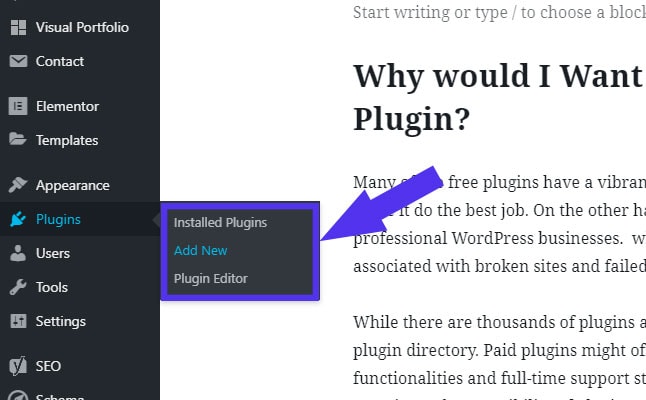
The fastest installation method involves accessing the WordPress Admin Panel:
- Click Plugins » Add New.
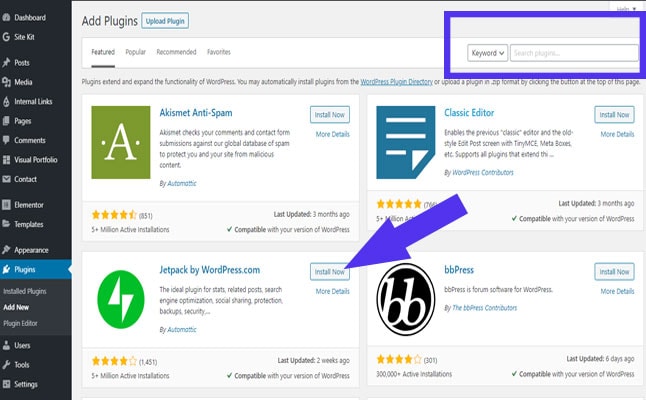
- Search for your desired plugin.
- Click Install Now.
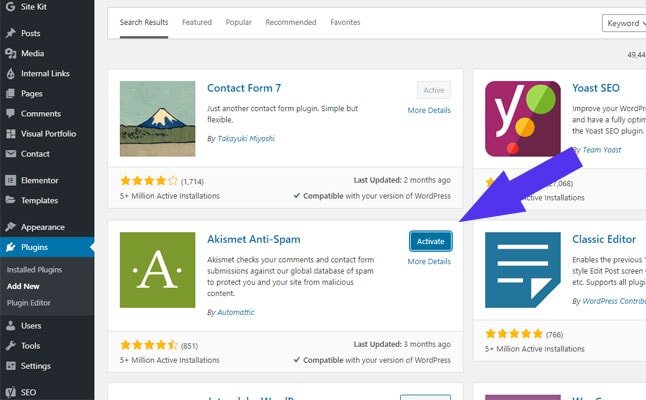
- Click Activate.
- Configure settings from the left-side menu.
How to Install WordPress Plugins Manually
Three common plugin sources exist:
- WordPress.org: The official plugin directory requiring free plugin versions.
- CodeCanyon: A premium WordPress plugin marketplace.
- Direct from developers: Individual developer websites.
Manual installation steps:
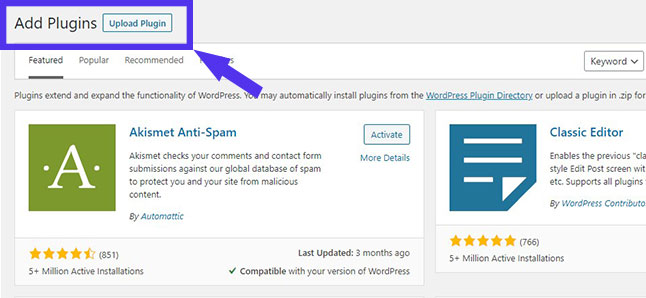
- Click Upload Plugin (top-left corner).
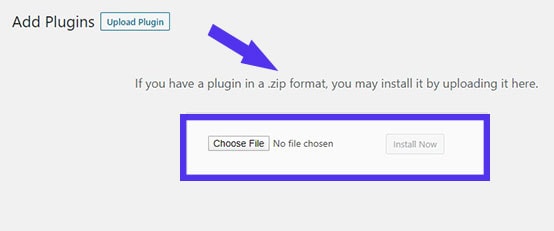
- Select your plugin’s zip folder.
- Click Install Now.
How to Update Your Plugin
Plugin developers release updates for new features and security patches. To update installed plugins:
- Access the Plugins link in your dashboard.
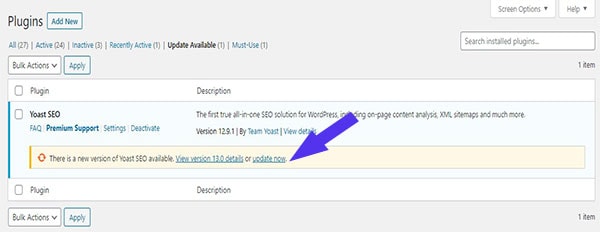
- Locate plugins showing “There is a new version available.”
- Click the “View version” link for details.
- Click “update now.”
How to Deactivate a WordPress Plugin
- Click Plugins in the left menu.
- Find your target plugin.
- Click Deactivate (or Activate to re-enable).
The Bottom Line
WordPress remains a free, open-source platform supported by global communities that identify vulnerabilities and maintain updates — and plugins are one of the biggest reasons that platform can adapt to almost any use case, from a simple portfolio to a full-featured online store.
That flexibility only pays off when plugins are chosen carefully. Stick to well-reviewed, actively maintained plugins from the official directory or reputable developers, keep every installed plugin updated, and periodically audit your site to remove plugins that are no longer maintained or actually needed. A leaner, well-maintained set of plugins is almost always safer and faster than a large collection of ones you installed once and forgot about.