
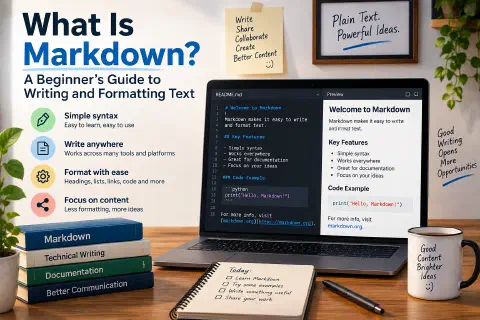
Have you ever wanted to make text bold or add a heading without hunting through toolbars and menus? Or written a README on GitHub and wondered how people get those clean headings, lists, and code boxes from plain typing?
That is Markdown. It is a way of formatting text using ordinary keyboard characters, and you can learn the basics in about ten minutes. This guide explains what Markdown is, shows the syntax you will use every day, and points you to the places where it is most useful. Every post on this website, including this one, is written in Markdown.
What Is Markdown?
Markdown is a lightweight markup language that lets you write formatted text using plain-text symbols. You type something like **bold**, and a Markdown processor converts it into bold text, or more precisely into HTML that a browser can display.
John Gruber created it in 2004 with a simple goal: a format that is easy to write and easy to read, even before it is converted. A Markdown file is just a text file, usually with the extension .md, so you can open it in any editor on any computer.
Compare these two ways of writing the same heading and list:
In HTML:
<h2>Shopping List</h2>
<ul>
  <li>Milk</li>
  <li>Eggs</li>
</ul>
In Markdown:
## Shopping List

- Milk
- Eggs
Both produce the same result, but the Markdown version is shorter and readable as it is. If you want to understand the HTML behind it, see how to use HTML and CSS.
Why Use Markdown?
- It is simple. You can learn the core syntax in minutes.
- It is portable. Plain text files work everywhere and will not become unreadable when a program disappears.
- It keeps you writing. Your hands stay on the keyboard instead of reaching for formatting buttons.
- It works with version control. Because it is plain text, tools like Git can track every change. See Git basic commands.
- It converts to many formats. One Markdown file can become a web page, a PDF, a slide deck, or a Word document.
- It is widely supported. GitHub, Reddit, Discord, Slack, Notion, Obsidian, and most documentation sites understand it.
The Basic Syntax
Headings
Use # symbols at the start of a line. More # means a smaller heading.
# Heading level 1
## Heading level 2
### Heading level 3
Use one level 1 heading for the title of the page, then level 2 and level 3 for sections and subsections. Leave a space after the # symbols.
Paragraphs and Line Breaks
Separate paragraphs with a blank line. A single line break inside a paragraph usually does not create a new line in the output. To force a line break, end the line with two spaces or a backslash.
This is the first paragraph.

This is the second paragraph.
Bold and Italic
**This text is bold**
*This text is italic*
***This text is bold and italic***
~~This text is crossed out~~
The result: bold, italic, bold and italic, and crossed out. (The strikethrough syntax is supported in most popular versions, though it is not part of the original specification.)
Lists
Unordered lists use -, *, or +. Ordered lists use numbers followed by a period. Indent with spaces to nest items.
- Apples
- Oranges
  - Navel
  - Blood orange
- Bananas

1. Open the file
2. Make your changes
3. Save it
Links
Put the visible text in square brackets and the address in parentheses:
[Visit my homepage](https://victorhugosolis.com/)
You can add a tooltip title in quotes after the address. For links to other pages on the same site, use a root-relative path such as /posts/example-post/.
Images
An image looks like a link with an exclamation mark in front. The text in the brackets is the alt text, which describes the image for screen readers and search engines.

Blockquotes
Start the line with >:
> Markdown is intended to be as easy-to-read and easy-to-write as is feasible.
Code
Wrap short code in single backticks, like print("Hello"). For blocks of code, use three backticks before and after, and add the language name after the first set to get syntax highlighting:
```python
name = "World"
print(f"Hello, {name}!")
```
Horizontal Rules
Three dashes on their own line draw a dividing line:
---
Tables
Most Markdown flavors support tables. Use pipes | to separate columns and dashes - for the header row:
| Language | Used for        |
|----------|-----------------|
| Python   | Data and automation |
| SQL      | Databases       |
The columns do not need to line up perfectly in the source. They only need the pipes in the right places.
Task Lists
GitHub and many other tools support checkboxes:
- [x] Write the first draft
- [ ] Proofread
- [ ] Publish
Markdown Cheat Sheet
| What you want | What you type |
|---|---|
| Heading | ## My Heading |
| Bold | **bold** |
| Italic | *italic* |
| Link | [text](https://example.com) |
| Image |  |
| Bullet list | - item |
| Numbered list | 1. item |
| Quote | > quote |
| Inline code | `code` |
| Code block | three backticks before and after |
| Divider | --- |
| Table | | a | b | with a header separator row |
Where Is Markdown Used?
- GitHub and GitLab: README files, issues, pull requests, and wikis. Markdown is also what you use to describe a project, as in uploading a simple site to GitHub Pages.
- Static site generators: Tools like Hugo, Jekyll, and Eleventy turn folders of Markdown files into whole websites. This site is built with Hugo.
- Note-taking apps: Obsidian, Notion, Bear, Joplin, and Typora.
- Documentation: Many software projects write their documentation in Markdown.
- Chat and forums: Reddit, Discord, Slack, and Stack Overflow support some Markdown formatting.
- Blogging and publishing: Some platforms, including Ghost and Hashnode, accept Markdown, and many WordPress setups can too.
- Writing and academic work: Markdown can be converted to PDF, Word, or slides with tools such as Pandoc.
- AI tools: Chatbots often reply in Markdown, which is why you see headings, bullets, and code blocks in their answers.
Markdown Flavors
The original Markdown left a few details open, so different tools added their own extensions. The most important flavors:
| Flavor | Notes |
|---|---|
| CommonMark | A strict, standardized specification that tries to make Markdown consistent everywhere |
| GitHub Flavored Markdown (GFM) | Adds tables, task lists, strikethrough, and autolinks |
| MultiMarkdown, Pandoc, and others | Add footnotes, citations, and extra features for academic and book writing |
The basics (headings, emphasis, lists, links, images, code) work the same in all of them. When something does not render as expected, check which flavor your tool uses.
How to Write Markdown
You do not need special software. Any of these works:
- A plain text editor such as Notepad or TextEdit (in plain-text mode).
- A code editor like Visual Studio Code, which shows a live preview of Markdown files. See what Visual Studio Code is to get set up.
- A dedicated Markdown editor such as Typora, Obsidian, or MarkText.
- An online editor like StackEdit or Dillinger, which are handy for trying things out.
To preview in VS Code, open a .md file and press Ctrl+Shift+V (or Cmd+Shift+V on Mac).
Front Matter: Metadata for Websites
If you build a website from Markdown files, each file often starts with a block of settings called front matter, written between lines of three dashes:
---
title: "My First Post"
date: 2025-11-08
draft: false
tags: ["Writing"]
---

This is the content of my post.
The generator reads this block for the title, date, and tags, then converts the rest into HTML. Front matter is not part of core Markdown, but static site generators use it widely.
Common Beginner Mistakes
- Forgetting the blank line. Lists and headings often need an empty line before them to render correctly.
- Missing the space after the symbol.
#Headingmay not work, but# Headingwill. - Inconsistent indentation in lists. Use the same number of spaces (usually 2 or 4) for each nesting level.
- Broken image or link paths. Check spelling and the path. Use
/images/example.png, not a path with an extra folder. - Special characters. To show a literal
*or#, put a backslash before it, like\*. - Raw HTML and security. Many Markdown tools allow HTML inside Markdown, but some strip it for safety. Do not paste untrusted HTML.
- Skipping alt text. Always describe images, for accessibility and for search engines.
Tips for Getting Better
- Practice for ten minutes. Write a README for a small project or a to-do list using headings, lists, and links.
- Keep a cheat sheet nearby until the symbols feel natural.
- Use a previewer while you write so you can see what your text will look like.
- Write notes in Markdown. Daily use is the fastest way to learn.
- Keep headings in order. Go from level 2 to level 3, without skipping levels. It helps readers and search engines.
Conclusion
Markdown turns plain text into formatted writing with a handful of simple symbols: # for headings, * for emphasis, - for lists, brackets and parentheses for links, and backticks for code. Because it is plain text, it is portable, easy to track with Git, and understood by tools from GitHub to note apps to static site generators.
Open any text editor, create a file called practice.md, and try each example from this guide. Within a few minutes the syntax will feel natural, and you will have a skill you can use for documentation, notes, blogging, and code projects for years.