
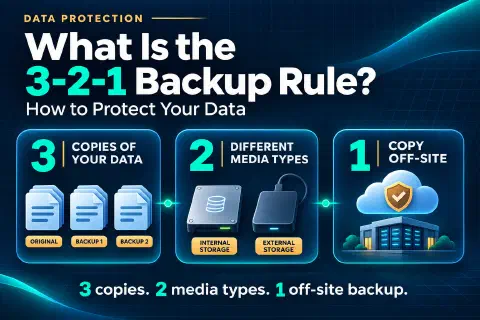
The 3-2-1 backup rule says to keep 3 copies of your data, on 2 different types of storage, with 1 copy offsite. That way, no single problem, whether a failed drive, a stolen laptop, a fire, or ransomware, can destroy every copy at once.
Most people only think about backups after they’ve lost something: a laptop that won’t turn on, a phone left in a taxi, a folder deleted by mistake, or files encrypted by ransomware. By then it’s too late. The 3-2-1 rule is a simple way to plan ahead, and it works the same for one person’s family photos as for a company’s databases.
This guide explains what each number means, why the rule works, what it looks like for a home, a small business, and a website, and the mistakes that leave people with backups that don’t actually save them.
What Does 3-2-1 Mean?
| Number | Rule | Why |
|---|---|---|
| 3 | Keep three copies of your data: the original plus two backups | If one backup fails, there’s still another |
| 2 | Store them on two different types of storage | One kind of failure, like a bad batch of drives or a single account, can’t hit every copy |
| 1 | Keep one copy offsite | A fire, flood, or theft at one location can’t destroy everything |
A few details matter:
- The original counts as one of the three. Your laptop’s files plus an external drive plus a cloud backup is three copies.
- “Different types of storage” means different failure risks. An internal drive and an external drive, a NAS (network storage at home or in the office) and a cloud service, or a server and a separate storage provider. Two folders on the same disk are one copy, not two.
- “Offsite” means somewhere a local disaster can’t reach. A cloud backup service, a drive kept at a relative’s house or another office, or storage in a different region from your server.
The rule is usually credited to photographer Peter Krogh, who popularized it in The DAM Book, a guide to managing digital photo collections. A 2012 paper for US-CERT, Data Backup Options, later recommended the same approach, and it has been the standard starting point for backup planning ever since.
Why the 3-2-1 Rule Works
Each part of the rule protects against a different kind of problem:
| What goes wrong | What saves you |
|---|---|
| A hard drive or SSD dies | Any of the other two copies |
| You delete or overwrite a file by mistake | A backup with older versions |
| Your laptop or phone is stolen | The external drive or cloud copy |
| Fire, flood, or a break-in at home or the office | The offsite copy |
| Ransomware encrypts your files | A copy the ransomware couldn’t reach (offline or immutable) |
| A cloud account is locked, hacked, or closed | The local copies |
Notice that no single copy protects against everything. An external drive on your desk survives a dead laptop but not a fire. A cloud backup survives a fire but can be slow to restore everything, and depends on an account. Together they cover each other’s weaknesses.
What 3-2-1 Looks Like in Practice
For You at Home
- Original: the files on your laptop or desktop.
- Local backup: an external drive using your operating system’s built-in tool, Time Machine on a Mac or File History on Windows, running automatically.
- Offsite backup: a cloud backup service that copies your files continuously over the internet.
For photos on your phone, the phone is the original, the phone’s cloud photo library is the offsite copy, and an occasional export to your computer (which is itself backed up) adds the third copy.
For a Small Business
- Original: the files on work computers and the shared drive or NAS.
- Local backup: nightly backups of the NAS and key computers to a second device or a backup appliance, for fast restores.
- Offsite backup: an automatic copy to a cloud backup or storage service, ideally one with immutable (locked, unchangeable) backups, plus a rotated drive kept offline if possible.
Don’t forget data that doesn’t live on your computers: email, Microsoft 365 or Google Workspace files, your accounting system, and your website. Cloud services keep running, but most of them aren’t designed to restore what you deleted or what an attacker changed in your account.
For a Website or Database
- Original: the live server, with the site’s files and database.
- Second copy: automatic daily backups stored on a different server or volume, not just in a folder on the same machine.
- Offsite copy: backups sent to a different provider or region, such as an object storage service.
For a database, use the database’s own backup tools rather than copying its files while it runs; the PostgreSQL backup and restore guide shows how. Many web hosts include backups, but they’re usually stored with the same provider, so add a copy somewhere else.
A Simple Do-It-Yourself Example
Backup software is the easiest option for most people, but the idea is simple enough to try with two built-in commands on a Mac or Linux computer. Suppose your external drive is mounted at /Volumes/BackupDrive (on Linux it’s usually under /media/ or /mnt/).
Copy your Documents folder to the drive, updating only what changed:
rsync -a ~/Documents/ /Volumes/BackupDrive/Documents/
rsync -a copies files and folders while keeping their dates and permissions, and on later runs it only copies files that changed. Be careful with the trailing slashes: ~/Documents/ means “the contents of Documents.”
That gives you a current copy, but not old versions. To keep a dated snapshot you can go back to, create a compressed archive:
tar -czf "/Volumes/BackupDrive/documents-$(date +%Y-%m-%d).tar.gz" -C ~ Documents
This creates a file like documents-2026-11-25.tar.gz. Then test the restore by unpacking it somewhere else and comparing it with the original:
mkdir -p ~/restore-test
tar -xzf /Volumes/BackupDrive/documents-2026-11-25.tar.gz -C ~/restore-test
diff -r ~/Documents ~/restore-test/Documents && echo "Backup restores correctly"
If diff prints nothing but the message, the backup matches. That’s one local copy; you still need an offsite one, such as a cloud backup service. For more on these commands, see the Linux terminal guide.
Beyond 3-2-1: The 3-2-1-1-0 Rule
Ransomware changed the rule a little. Attackers now look for backups and delete or encrypt them before they encrypt everything else, so a backup that’s always connected and always writable can be lost along with the original. Many organizations now follow 3-2-1-1-0:
- 1 offline or immutable copy: a backup that isn’t connected (a drive you unplug and store), or that can’t be changed or deleted for a set period, even by an administrator.
- 0 errors: backups are checked regularly, and restores are tested, so you know they work.
The disaster recovery guide covers this in more detail, including recovery time and recovery point objectives, and the ransomware guide explains how attacks target backups.
Sync Is Not Backup
Services like Dropbox, OneDrive, iCloud Drive, and Google Drive sync files: they keep the same files on every device. That’s convenient, but it means a mistake syncs too. Delete a folder on your laptop and it disappears everywhere; if ransomware encrypts your files, the encrypted versions sync to the cloud.
Many sync services keep deleted files and older versions for a limited time, which can rescue you, but they aren’t designed as backups. Treat sync as a convenience and keep a real backup, with its own history, separately.
How Often to Back Up and What to Keep
- Ask how much work you can afford to lose. If losing a day’s work is acceptable, nightly backups are enough. If not, back up more often, or use continuous backup.
- Keep versions. One copy that’s overwritten every night won’t help if you discover a problem a week later. Keep daily versions for a few weeks and monthly ones for longer.
- Automate it. A backup that depends on remembering to plug in a drive will eventually be forgotten.
- Encrypt offsite and portable copies. A backup is a complete copy of your data; protect it like the original.
- Write down how to restore. In an emergency, nobody wants to figure out which drive, account, or password holds the backups.
Common Mistakes to Avoid
- Never testing a restore. The most common backup failure is finding out the backup was empty, incomplete, or unreadable on the day you need it. Restore a few files every month and a full system once in a while.
- Keeping every copy in the same place. An external drive next to the computer is a good local backup, but a fire or burglary takes both.
- Leaving the backup drive always connected. Ransomware can encrypt it too. Unplug it between backups, or use a backup with an offline or immutable copy.
- Forgetting cloud and work data. Email, cloud documents, website files, and databases need backups too.
- Using the same password for everything. If your backup account shares a password with your email, one breach exposes both. Use a unique password and two-factor authentication.
- Setting it and forgetting it. Check that backups are still running. Many silently stop when a drive fills up or a password changes.
3-2-1 Backup Checklist
- ✅ Three copies of everything important: the original plus two backups
- ✅ Two different types of storage
- ✅ One copy offsite
- ✅ One copy offline or immutable, if ransomware is a concern (it usually is)
- ✅ Backups run automatically and keep older versions
- ✅ Offsite and portable backups are encrypted
- ✅ Restores are tested regularly
- ✅ Someone knows how to restore, and it’s written down
Frequently Asked Questions
Does the original count as one of the three copies?
Yes. Three copies means the original plus two backups.
Is a cloud backup enough on its own?
No. It gives you one offsite copy, but if the account is locked, hacked, or closed, or a restore is slow, you have nothing else. Pair it with a local backup.
Are two external drives two different types of storage?
Not really, if they’re the same kind of drive in the same place. They can fail the same way or be lost together. Keep one of them offsite, or combine an external drive with a cloud backup.
Is RAID a backup?
No. RAID keeps a system running when one drive fails, but it copies deletions, corruption, and ransomware instantly to every drive. It protects uptime, not your data’s history.
How often should I test my backups?
Restore a few files at least monthly, and do a full restore test once or twice a year, or after any big change to your setup.
Conclusion
The 3-2-1 backup rule is easy to remember and hard to beat: three copies of your data, on two types of storage, with one offsite. It turns a disaster into an inconvenience, because no single failure can take every copy. Add an offline or immutable copy to protect against ransomware, automate your backups, and, most importantly, test that you can restore them. The best time to set it up is before you need it.