

A password alone is one of the weakest links in modern account security — it can be guessed, phished, or leaked in a data breach affecting a completely different website. Two-factor authentication (2FA) exists to close that gap, adding a second, independent way to verify it’s really you logging in, even if your password has already been compromised.
This guide explains what two-factor authentication is, the three factors of authentication it’s built on, how authenticator apps work, the real risks and limitations of each 2FA method, and why enabling it is one of the simplest, highest-impact security steps you can take.
Factors of Authentication
Authentication factors describe the different categories of evidence a user can provide to prove their identity when logging in:
- Something you know – a password, PIN, or pattern.
- Something you have – a phone, an ATM card, or a hardware security key (also called a fob).
- Something you are – a fingerprint, face scan, or voice pattern (biometrics).
Using two independent factors makes unauthorized access significantly harder than relying on a password alone, since an attacker who steals your password still doesn’t have your phone, your fingerprint, or your security key.
What Is Two-Factor Authentication?
Two-factor authentication, or 2FA, is an authentication process that adds a second factor on top of a password-based login. Instead of a password alone being enough to access an account, 2FA requires a second, independent form of verification before access is granted.
Common second-factor methods include:
- A code sent by text message (SMS) or email
- A code generated by an authenticator app
- A hardware security key
- A passkey (a newer, phishing-resistant credential tied to your device)
Not all of these offer equal protection. Text message and email codes are convenient and better than no second factor at all, but they generally provide weaker protection against phishing and interception than an authenticator app, hardware security key, or passkey.
What Is an Authenticator App?
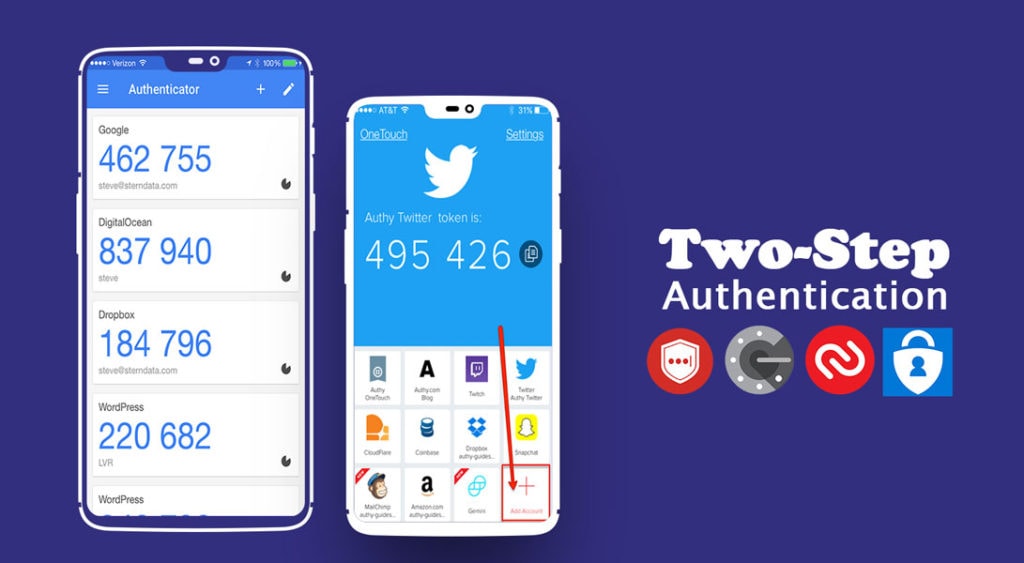
An authenticator app generates a short, typically six-digit code that automatically refreshes every 30 seconds, based on a shared secret set up when you first enable 2FA on an account. Because the code is generated locally on your device rather than sent over a network, it offers meaningfully stronger protection than an SMS code, which can potentially be intercepted.
These apps also work offline, which makes them a reliable option when you’re traveling somewhere without cellular service — the code still generates correctly as long as your device’s clock stays accurate.
Popular authenticator apps include Authy, Google Authenticator, LastPass Authenticator, and Microsoft Authenticator, each offering a similar core function with small differences in backup and multi-device support.
Risks and Limitations of Two-Factor Authentication
2FA dramatically improves account security, but it isn’t a perfect, risk-free solution. A few real limitations worth understanding:
- SMS-based 2FA can be intercepted. Attackers have used techniques like SIM swapping — tricking a carrier into transferring your phone number to a device they control — to receive your SMS codes directly.
- Losing your device can lock you out. If your phone is lost, stolen, or reset without a backup of your authenticator app’s codes, regaining access to your own accounts can be a genuinely frustrating process.
- Phishing can still trick users into handing over a 2FA code. A convincing fake login page can prompt a victim to enter both their password and their current 2FA code, which an attacker can then use immediately — a technique that defeats SMS and app-based codes, though not hardware keys or passkeys.
- Not every service offers every 2FA method. Some services only support SMS, even though it’s the weakest option, simply because it’s the easiest for users to set up.
None of these risks are a reason to skip 2FA — an imperfect second factor is still dramatically better than a password alone. They’re reasons to prefer the strongest method a given service offers, and to keep backup codes stored somewhere safe in case you lose access to your primary device. Passkeys and hardware security keys, in particular, are specifically designed to resist phishing, since they verify the actual website you’re logging into rather than just producing a code that could be copied and reused anywhere.
How to Get Started with 2FA
- Check your most important accounts first — email, banking, and any account tied to password resets for other services.
- Choose an authenticator app or hardware key over SMS whenever the option is available.
- Save the backup codes most services provide during setup somewhere secure, like a password manager, in case you lose your device.
- Enable 2FA on one account at a time rather than trying to change everything at once, so you can confirm each setup works correctly.
The Bottom Line
Two-factor authentication is one of the most important steps you can take to protect your important accounts, and understanding both its methods and its real limitations helps you use it more effectively. Yes, it adds an extra step to your login process — but weighed against the alternative of a single stolen password granting full account access, that small inconvenience is an easy trade to make.
While enabling 2FA is a great way to add an extra layer of security, remember that you should still never reuse your password across multiple accounts. Strong, unique passwords combined with 2FA — ideally through an authenticator app, hardware key, or passkey rather than SMS — is the combination that actually keeps your accounts safe in today’s online world.