
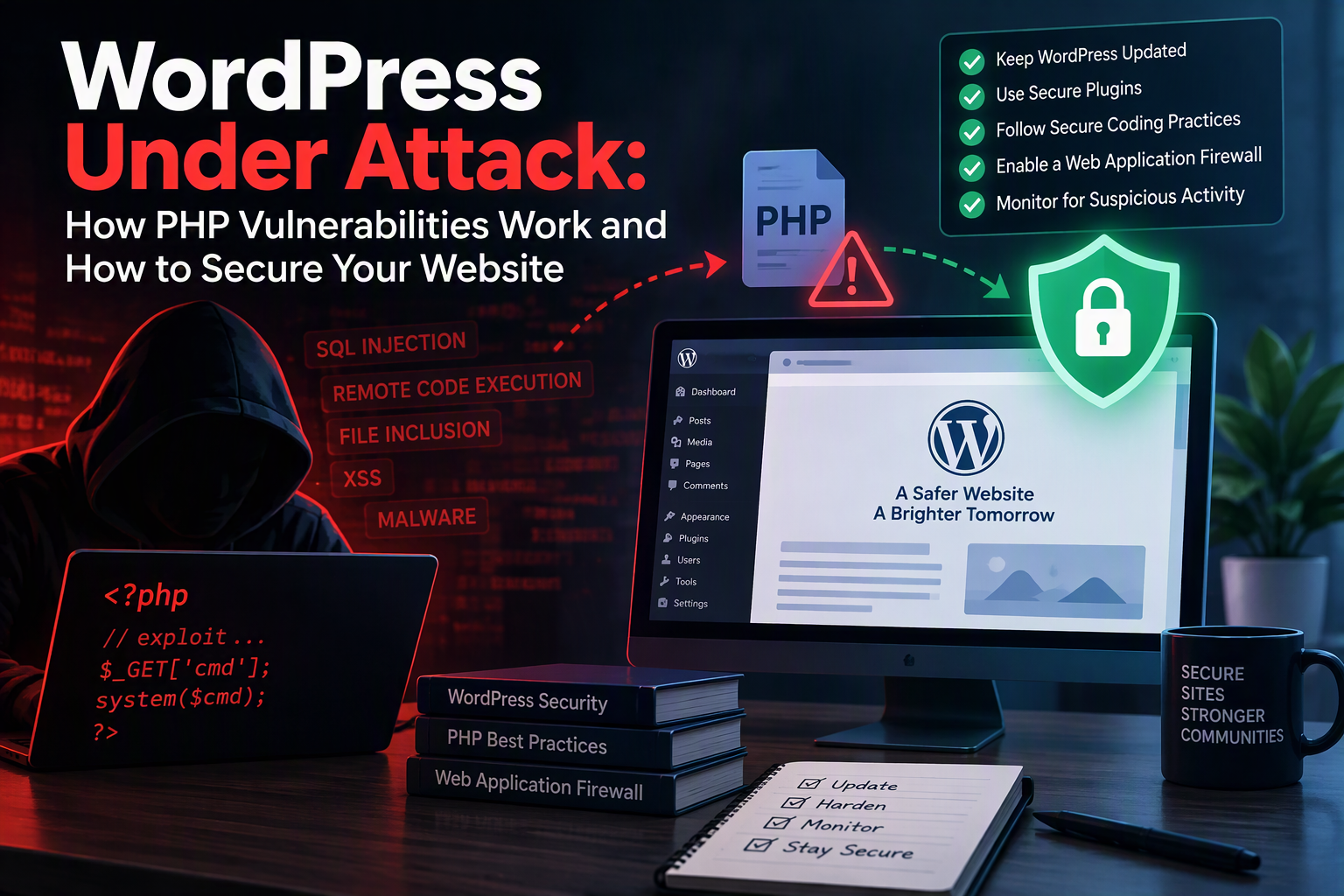
WordPress powers roughly 40% of all websites on the internet, and every single one of them runs on PHP. That popularity is exactly what makes WordPress such an attractive target. An attacker who finds a weakness in PHP, in WordPress core, or in a popular plugin doesn’t get access to one website — they get a key that potentially fits millions of them.
That risk became very real in October 2026, when the PHP project released emergency patches for two critical flaws nicknamed PHP2Shell. These bugs live in PHP itself, not in WordPress, which means keeping WordPress and your plugins up to date wasn’t enough to protect you. The fix had to happen one layer deeper.
This guide explains how PHP vulnerabilities actually work, walks through the most common types that affect WordPress sites, breaks down what PHP2Shell means for site owners, and gives you a practical checklist to secure your website.
Why WordPress Sites Are a Favorite Target
Attackers rarely pick a WordPress site because it belongs to you specifically. Most attacks are automated: bots scan the internet around the clock looking for sites running a known-vulnerable version of something, then exploit every match they find. A small bakery’s website and a large online store look the same to a scanner.
A few things make WordPress especially attractive to those bots:
- Sheer scale. One working exploit can be reused against a huge number of sites.
- A large plugin ecosystem. There are tens of thousands of WordPress plugins, written by developers with very different levels of security experience. Most WordPress compromises start with a vulnerable plugin or theme.
- Sites that are set up and forgotten. Many small business sites are built once and never updated again, leaving known vulnerabilities open for years.
- Shared hosting. On cheap shared hosting, you often don’t control the PHP version at all — your host does.
The Layers of a WordPress Site
To understand where vulnerabilities come from, it helps to picture a WordPress site as a stack of layers, each one depending on the layer beneath it:
- The server and operating system — usually Linux, managed by you or your web host.
- The web server — Apache, Nginx, or LiteSpeed, which receives requests from visitors.
- The PHP runtime — the interpreter that actually executes PHP code (via PHP-FPM, Apache’s
mod_php, or similar). - WordPress core — the WordPress software itself.
- Plugins and themes — the extra code you’ve added on top.
A vulnerability in any layer can compromise everything above it. Updating WordPress from your dashboard only updates layers 4 and 5. If the hole is in layer 3 — the PHP runtime — clicking “Update” in WordPress does nothing to fix it.
How PHP Vulnerabilities Work
At its core, almost every web vulnerability comes down to the same mistake: the application trusts input it shouldn’t. Every form field, URL parameter, cookie, uploaded file, and HTTP header is controlled by whoever sends the request — including attackers. When code treats that input as safe, an attacker can make the code do something its author never intended.
Here are the most common ways that plays out in PHP and WordPress.
SQL Injection
SQL injection happens when user input gets pasted directly into a database query. This vulnerable code takes an ID from the URL and drops it straight into SQL:
// Vulnerable: user input goes straight into the query
$id = $_GET['id'];
$results = $wpdb->get_results("SELECT * FROM wp_orders WHERE id = $id");
An attacker can change the id parameter to rewrite the query and read data they shouldn’t see. In WordPress, the fix is to use $wpdb->prepare(), which keeps data separate from the query itself:
// Safe: the value is passed as a parameter, never as SQL
$results = $wpdb->get_results(
    $wpdb->prepare("SELECT * FROM wp_orders WHERE id = %d", $_GET['id'])
);
I cover this attack in depth in SQL Injection: How It Works and How to Prevent It.
Cross-Site Scripting (XSS)
Cross-site scripting happens when a site prints user input back onto a page without escaping it. If a plugin displays a search term like this:
// Vulnerable: prints raw input into the page
echo "You searched for: " . $_GET['s'];
an attacker can craft a link that injects JavaScript into the page. When a logged-in administrator clicks it, that script runs with their permissions — and can quietly create a new admin account for the attacker. WordPress provides escaping functions for exactly this reason:
// Safe: special characters are escaped before output
echo "You searched for: " . esc_html($_GET['s']);
Unrestricted File Uploads
Many plugins let users upload images, resumes, or other files. If a plugin doesn’t check what’s actually being uploaded, an attacker can upload a PHP file instead of a picture. Once that file sits in a public folder like wp-content/uploads/, the attacker simply visits its URL, and the server runs it. That uploaded file — often called a web shell — gives the attacker full control of the site.
File Inclusion
File inclusion bugs happen when PHP code builds a file path from user input:
// Vulnerable: the visitor chooses which file gets loaded
include($_GET['page'] . '.php');
An attacker can manipulate the path to load files the developer never intended, such as server configuration files, or code the attacker managed to place on the server.
PHP Object Injection
PHP’s unserialize() function rebuilds objects from text. If it’s ever called on data a visitor controls, an attacker can craft input that creates unexpected objects and triggers code already present in WordPress or its plugins. This is a subtler bug, but it shows up regularly in plugin security advisories and can lead to full remote code execution.
Memory Corruption in PHP Itself
All of the vulnerabilities above live in PHP code — WordPress, a plugin, or a theme. The rarest and most dangerous category lives in the PHP interpreter, which is written in C. Bugs like buffer overflows and use-after-free errors let an attacker corrupt the interpreter’s memory with a carefully crafted request, and in the worst case, run their own code on the server.
These bugs are dangerous for two reasons. First, they affect every PHP application on the server at once, no matter how carefully that application was written. Second, they can trigger while PHP is still reading the request, before WordPress even loads — so login pages, security plugins, and other application-level protections never get a chance to stop them.
That’s exactly what happened with PHP2Shell.
PHP2Shell: The October 2026 PHP Vulnerabilities
On October 21, 2026, the PHP project released emergency fixes for two critical vulnerabilities, CVE-2026-109618 and CVE-2026-109619, together known as PHP2Shell. The release was moved up a day after details of the flaws leaked ahead of the planned disclosure.
Here’s what site owners need to know:
- Both flaws are rated 9.2 out of 10 (CVSS v4.0) and can allow an attacker with no account to run code on the web server.
- They’re in the PHP runtime, not in WordPress. Any PHP installation that serves web requests is in scope, whether it runs through Apache’s
mod_php, PHP-FPM, php-cgi, FrankenPHP, or LiteSpeed. Risk is highest onmod_phpsetups. - Nearly every PHP version is affected, going back as far as PHP 5.4.
- The fixed versions are PHP 8.5.12, 8.4.27, 8.3.36, and 8.2.35. PHP 8.1 and older are no longer supported by the PHP project, although minimal source patches were published for 7.4, 8.0, and 8.1.
- Attackers moved fast. Security researchers reported exploitation attempts and broad internet-wide scanning around the time of disclosure, with some reports of attempts days before the patch was public.
One flaw is a memory-corruption bug in how PHP handles running out of memory while processing a request. The other is a use-after-free bug involving state that carries over between requests handled by the same PHP worker. You don’t need to understand the internals to protect yourself — the important takeaway is that the only complete fix is updating PHP.
How to Check Your PHP Version
Before you can fix anything, you need to know what you’re running. There are a few easy ways to check.
From the WordPress dashboard: go to Tools → Site Health → Info, then expand the Server section. Your PHP version is listed there.
From your hosting control panel: most hosts (cPanel, Plesk, and custom panels) show the PHP version and let you switch versions under a section called something like “PHP Settings” or “Select PHP Version.”
From the command line, if you manage your own server over SSH:
php -v
Keep in mind that the command-line PHP and the PHP serving your website aren’t always the same installation, especially on servers with multiple versions installed. The WordPress Site Health screen shows the version actually serving your site.
Also note that Linux distributions often backport security fixes without changing the main version number. If your server’s PHP comes from Ubuntu, Debian, or Red Hat packages, check your distribution’s security advisory for the CVE numbers rather than relying on the version string alone.
How to Secure Your WordPress Website
PHP2Shell is a good reminder that security isn’t a single setting — it’s a set of habits across every layer of your site. Here’s a practical checklist, starting with the most important items.
1. Keep PHP Updated
If you manage your own server, update PHP through your package manager and restart the PHP service so the new version actually loads:
sudo apt update && sudo apt upgrade
sudo systemctl restart php8.3-fpm   # adjust to your PHP version
If you’re on shared or managed hosting, check whether your host has applied the patch — and if your site is still running PHP 8.1 or older, move to a supported version. Most reputable hosts let you switch PHP versions from the control panel in a couple of clicks. Test your site after switching, since very old plugins may not be compatible with newer PHP versions.
2. Keep WordPress Core, Plugins, and Themes Updated
Plugins remain the most common way into a WordPress site. Turn on automatic updates for plugins you trust, and check your dashboard regularly for anything that needs attention. Updates frequently contain security fixes that are publicly documented — which means attackers know exactly what to look for on sites that haven’t updated.
3. Remove What You Don’t Use
Every plugin and theme you have installed is code that can contain a vulnerability, even if it’s deactivated. Delete plugins and themes you’re not using, and be wary of plugins that haven’t been updated in a year or more.
4. Lock Down Logins
- Use strong, unique passwords for every administrator account.
- Turn on two-factor authentication for all admin users.
- Limit login attempts to slow down brute-force attacks.
- Don’t use
adminas a username, and give each person their own account with only the role they need.
5. Use a Web Application Firewall
A web application firewall (WAF) inspects incoming requests and blocks known attack patterns before they reach your site. Services like Cloudflare sit in front of your server, while security plugins like Wordfence run within WordPress itself. A firewall at the network edge is especially valuable for runtime bugs like PHP2Shell, since it can stop a malicious request before PHP ever processes it.
6. Harden Your Configuration
A few small configuration changes make a big difference:
Disable file editing from the dashboard by adding this line to
wp-config.php, so an attacker who gets into an admin account can’t edit PHP files directly:define('DISALLOW_FILE_EDIT', true);Block PHP execution in your uploads folder, so an uploaded web shell can’t run. On Apache, add an
.htaccessfile insidewp-content/uploads/:<Files *.php> Require all denied </Files>Set proper file permissions — typically
644for files and755for directories, withwp-config.phplocked down further.Always use HTTPS.
7. Back Up Regularly — and Test Your Backups
Backups are your last line of defense. If your site is ever compromised, a clean, recent backup can be the difference between a quick recovery and starting over. Store backups somewhere other than your web server, keep several versions, and occasionally test restoring one so you know it works when you need it.
8. Monitor for Signs of Compromise
Watch for warning signs like unfamiliar administrator accounts, unexpected new files (especially .php files in wp-content/uploads/), unusual redirects, spam pages showing up in Google results, or a sudden slowdown. A security plugin with file-integrity monitoring can alert you when core files change unexpectedly.
What to Do If Your Site Is Already Compromised
If you suspect your site has been hacked:
- Take the site offline or put it in maintenance mode to protect your visitors.
- Change every password — WordPress admins, hosting account, database, and SFTP/SSH.
- Update PHP, WordPress, plugins, and themes to close the hole that let the attacker in.
- Restore from a clean backup made before the compromise, or have a professional clean the site.
- Look for persistence — attackers often leave behind extra admin accounts, scheduled tasks, or hidden web shells so they can get back in later.
- Contact your host. Many hosts can help identify the entry point and scan for remaining malware.
Conclusion
WordPress itself isn’t insecure — but it sits on top of a stack of software, and an attacker only needs one weak layer to get in. Most attacks still come through outdated plugins and weak passwords, but PHP2Shell showed that even the PHP runtime underneath your site needs attention. A fully updated WordPress install running on an unpatched version of PHP is still a vulnerable website.
The good news is that the fundamentals cover most of the risk: keep every layer updated, remove what you don’t use, protect your logins, put a firewall in front of your site, and keep reliable backups. If you haven’t checked which version of PHP your site is running, today is a good day to do it.